Display Driver amdkmdap Stopped Responding" and AMD GPU Crashes: Causes and Step-by-Step Fixes
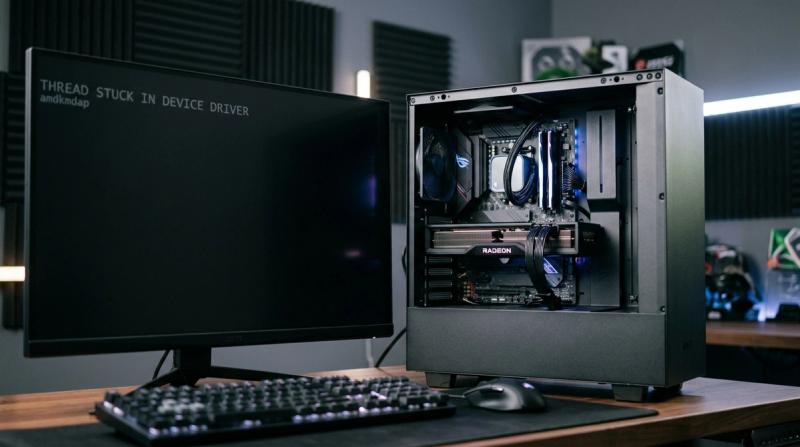
Your screen suddenly goes black for a second, flickers, and then a small notification appears saying the display driver stopped responding and has recovered. Or worse, the whole system crashes into a Blue Screen mid-game. Either way, it is jarring, especially when it happens repeatedly and seemingly at random.
This specific error involves a component called amdkmdap, which is part of the core software AMD graphics cards use to communicate with Windows. When Windows notices this component has stopped responding for too long, it either recovers the driver automatically, showing that notification, or in more serious cases, it crashes entirely to protect the system, resulting in a Blue Screen.
In this guide, I will explain what is actually happening when you see this error, then walk you through fixing it step by step, starting with the most common cause, which is almost always the driver itself, the same way I would if I were troubleshooting this next to you.
Problem Overview
Every graphics card relies on a driver, a piece of software that lets Windows properly communicate with and control the hardware. On AMD graphics cards, amdkmdap is a core part of this driver system. Windows includes a built-in safety feature called TDR, short for Timeout Detection and Recovery, which watches for situations where the graphics driver takes too long to respond, then attempts to reset it automatically without crashing the whole system.
When you see the message about amdkmdap stopping and recovering, this TDR system successfully caught and reset a stalled driver. When the problem is severe enough, TDR cannot recover in time, and the entire system crashes into a Blue Screen instead. Both situations point to the same underlying issue: something is preventing your AMD driver from responding normally, whether that is corrupted driver files, overheating, unstable overclocking, or in rarer cases, failing hardware.
The good news is that the vast majority of these cases trace back to the driver software itself, which is fully within your control to fix.
Symptoms
You are likely dealing with this issue if you notice any of the following:
The screen goes black briefly, then recovers on its own
A full Blue Screen crash occurs, sometimes during gaming or graphics-intensive tasks
The screen flickers noticeably before or during a crash
A notification specifically mentions the AMD driver timing out
Games crash to the desktop unexpectedly
You see a message about the display driver restarting
Event Viewer shows Event ID 4101 related to the graphics driver
You see the specific message "Display driver amdkmdap stopped responding and has recovered"
Random system freezes occur, sometimes without any error message at all
Causes
An amdkmdap crash or BSOD is a symptom. It is not the actual disease. Below are the real causes behind it, starting from the most common.
Corrupted or outdated AMD graphics drivers, which is the single most common cause of this specific error.
Incompatible Windows updates that occasionally introduce conflicts with existing graphics drivers.
GPU overheating, where the graphics card runs hotter than it should, causing it to become unstable under load.
Unstable overclocking, either on the GPU itself or on system memory, pushing components beyond stable operating limits.
Faulty RAM, which can cause instability across the entire system, including graphics driver communication.
Damaged system files, which can interfere with how Windows manages hardware drivers generally.
An insufficient power supply, unable to consistently deliver the power your GPU needs under load, especially during demanding tasks.
GPU hardware failure, which is less common but possible, especially on older or heavily used graphics cards.
Conflicting graphics software, such as overlay tools, recording software, or multiple GPU utilities running simultaneously.
Outdated BIOS or chipset drivers, which can affect how well your motherboard communicates with your graphics card.
Important Topics to Understand
Before jumping into fixes, it helps to understand a few basic ideas.
What the amdkmdap driver is: It is a core component of AMD's graphics driver software specifically responsible for kernel-level communication between Windows and your graphics card. When it stalls or crashes, Windows either recovers it automatically or crashes entirely, depending on severity.
Windows TDR, or Timeout Detection and Recovery: This is a built-in Windows feature that monitors your graphics driver for responsiveness, resetting it if it stalls for too long, rather than allowing a stalled driver to freeze your entire system indefinitely.
Checking Event Viewer logs: Windows keeps a detailed record of driver crashes and recoveries in Event Viewer, specifically under Event ID 4101 for display driver timeouts, which can help confirm this is indeed a graphics driver issue and show how frequently it is happening.
Monitoring GPU temperature: Since overheating is a common contributing cause, keeping an eye on your GPU's temperature during normal use and gaming helps rule out or confirm this as a factor.
Step-by-Step Fix Methods
Before starting, create a System Restore point, since a few of these fixes involve driver changes that are easier to undo if something does not go as expected.
Fix 1: Restart the PC and Check Event Viewer
What it means: A simple restart, along with checking Windows' own crash logs to understand how often this is happening.
Why it works: A restart clears any temporary driver instability, while Event Viewer confirms whether you are dealing with amdkmdap specifically and how frequently it occurs.
How to do it: Restart your computer normally. Then search for Event Viewer in the Start menu, go to Windows Logs, then System, and look for Event ID 4101, which will mention the specific driver involved.
Expected Result: You confirm the frequency and specific nature of the crashes, giving you a clearer picture before proceeding.
If Fix Fails: Continue to performing a clean AMD driver installation below, since this is the most common and effective fix for this specific error.
Fix 2: Perform a Clean AMD Driver Installation Using DDU
What it means: Completely removing your current AMD graphics driver, including leftover files and registry entries, before installing a fresh copy.
Why it works: A corrupted or improperly updated driver is the leading cause of this error, and a clean installation removes any lingering conflicts that a simple update or reinstall might miss.
How to do it: Download Display Driver Uninstaller, known as DDU, from its official website. Boot into Safe Mode by holding Shift while clicking Restart, then choosing Troubleshoot, Advanced options, Startup Settings, and Restart, then pressing 4 for Safe Mode. Run DDU, select your AMD driver, and choose Clean and Restart. Once back in normal Windows, download and install the latest stable driver directly from AMD's official website.
Expected Result: The graphics driver installs cleanly, and the amdkmdap crashes stop occurring.
If Fix Fails: Continue to updating chipset and BIOS below.
Fix 3: Update Chipset Drivers and BIOS
What it means: Installing the latest firmware for your motherboard and the latest chipset drivers that help it communicate properly with your graphics card.
Why it works: Outdated chipset drivers or BIOS firmware can cause communication issues between your motherboard and GPU, contributing to driver instability.
How to do it: Visit your motherboard manufacturer's official website, download the latest BIOS update and chipset drivers for your specific model, and follow their instructions carefully to install both.
Expected Result: System stability improves, particularly if the crashes were related to motherboard and GPU communication issues.
If Fix Fails: Continue to checking GPU temperatures and disabling overclocking below.
Fix 4: Check GPU Temperatures and Disable Overclocking
What it means: Monitoring your graphics card's temperature under load, and removing any manual overclocking settings on your GPU or RAM.
Why it works: Overheating and unstable overclocking are common causes of driver instability, since the hardware struggles to operate reliably outside its intended limits.
How to do it: Install a monitoring tool like HWiNFO or GPU-Z, and watch your GPU temperature while gaming or performing demanding tasks. If you have applied any overclocking settings through AMD Software or a separate utility, reset them to default or manufacturer-recommended settings.
Expected Result: Temperatures remain within a normal, safe range, and the crashes stop occurring once overclocking instability is removed.
If Fix Fails: Continue to repairing system files below.
Fix 5: Repair System Files
What it means: Using built-in Windows tools to repair corrupted system files that may be affecting driver stability.
Why it works: Corrupted system files can interfere with how Windows manages hardware drivers generally, contributing to instability beyond the graphics driver alone.
Command to type:
How to do it: Open Command Prompt as Administrator, type the first command exactly as shown above, press Enter, and wait for it to finish. Then type the second command, press Enter, and wait for it to complete. Then type the third command, press Enter, type Y if prompted, and restart your computer.
Expected Result: System files are repaired, and overall system stability improves.
If Fix Fails: Continue to testing your RAM below.
Fix 6: Test RAM with Windows Memory Diagnostic
What it means: Checking your computer's memory sticks for hidden faults that could be contributing to system-wide instability.
Why it works: Faulty RAM can cause instability across many parts of the system, including graphics driver communication, especially under demanding tasks like gaming.
How to do it: Press the Windows key, type Windows Memory Diagnostic, and open it. Choose Restart now and check for problems, and let the test complete after your computer restarts.
Expected Result: No errors are reported, ruling out RAM as a contributing factor, or errors are found, pointing to a faulty memory stick needing replacement.
If Fix Fails: Continue to verifying PSU stability below.
Fix 7: Verify Power Supply Stability
What it means: Confirming your power supply unit can reliably deliver enough power to your graphics card, especially under load.
Why it works: An insufficient or failing power supply can cause exactly this kind of driver instability, since the GPU may not receive consistent power during demanding moments.
How to do it: Check your GPU's recommended power supply wattage against your current power supply's rated capacity, usually printed on a label on the unit itself. If your power supply is older, lower wattage than recommended, or has been used for many years, consider having it tested or replaced by a professional or trusted technician.
Expected Result: Confirming adequate, stable power supply capacity rules out this factor, or identifies it as needing replacement.
If Fix Fails: Continue to adjusting TDR settings below, with appropriate caution.
Fix 8: Adjust TDR Settings if Necessary
What it means: Modifying a specific Windows registry setting that controls how long Windows waits before considering a graphics driver unresponsive.
Why it works: In some cases, particularly with demanding but ultimately stable workloads, extending this timeout slightly can prevent unnecessary driver resets, though this should be treated as a careful, secondary adjustment rather than a primary fix.
How to do it: Press Windows key + R, type regedit, and press Enter. Navigate carefully to HKEY_LOCAL_MACHINE\SYSTEM\CurrentControlSet\Control\GraphicsDrivers. Create a new DWORD value named TdrDelay if it does not already exist, and set its value to 8, representing 8 seconds instead of the default 2. Restart your computer afterward.
Expected Result: The system allows slightly more time before considering the driver unresponsive, which can reduce unnecessary resets during genuinely demanding but stable tasks.
If Fix Fails: If crashes continue even after this adjustment, the underlying cause is very likely hardware related rather than a simple timing issue, and this registry change should be reverted.
Advanced Fixes
Stress test your GPU with OCCT or FurMark. These tools push your graphics card under controlled, sustained load, helping reveal whether instability appears consistently under stress, which can help distinguish between a software driver issue and a genuine hardware problem.
Test with a single RAM stick if multiple are installed. If you have more than one memory stick, testing with just one installed at a time can help identify whether a specific stick or a compatibility issue between sticks is contributing to instability.
Check for conflicting graphics software. Overlay tools, recording software, or multiple GPU utilities running at the same time can sometimes conflict with the AMD driver. Try disabling or closing these one at a time to see if crashes stop.
Consider professional hardware diagnosis if all software fixes fail. If you have ruled out driver issues, overheating, overclocking, RAM, and power supply problems, and crashes continue, the graphics card itself may be failing, and professional diagnosis or testing in a different system can confirm this.
Prevention Tips
Keep AMD graphics drivers updated using AMD Software: Adrenalin Edition, but consider waiting a short time after a brand new release before installing it, in case early issues are reported by other users.
Avoid beta or preview graphics drivers unless you are specifically troubleshooting and need a particular fix they offer.
Monitor GPU temperatures periodically during demanding tasks, and ensure your case has adequate airflow and dust is cleaned out regularly.
Avoid overclocking your GPU or RAM beyond stable, tested limits, and always test stability thoroughly after applying any overclock.
Keep chipset drivers and BIOS firmware reasonably up to date, especially after building a new system or adding new hardware.
Create a System Restore point before major driver or BIOS updates, so you can quickly undo changes if something goes wrong.
Conclusion
"Display driver amdkmdap stopped responding" and related AMD GPU crashes look alarming, especially when they escalate to a full Blue Screen, but the cause is very often the graphics driver itself, which is fully fixable through a clean reinstall. Most cases resolve without needing to replace any hardware.
Start with a clean AMD driver installation using DDU, then check your chipset and BIOS, GPU temperatures, and overclocking settings. If crashes continue, rule out RAM and power supply issues before considering hardware failure. If every fix in this guide still does not resolve the problem, professional diagnosis of your GPU is the reasonable next step.
Frequently Asked Questions
What does "Display driver amdkmdap stopped responding" mean?
It means Windows detected that a core part of your AMD graphics driver stopped responding in time, and either successfully reset it automatically or, in more serious cases, crashed the system to protect it.
Why does my AMD graphics driver keep crashing?
The most common causes are a corrupted or outdated driver, GPU overheating, unstable overclocking, faulty RAM, or in rarer cases, failing GPU hardware.
Can outdated AMD drivers cause BSOD errors?
Yes. Outdated or corrupted AMD drivers are one of the most common causes of both the amdkmdap recovery message and full Blue Screen crashes related to graphics hardware.
Should I use DDU before reinstalling AMD drivers?
Yes, especially if you have experienced repeated crashes. DDU removes leftover driver files and registry entries that a normal reinstall might miss, giving the fresh driver installation the best chance of resolving the issue.
How do I know if the problem is my GPU hardware or the driver?
Start by trying a clean driver installation and checking temperatures and overclocking settings first, since these are the most common causes. If crashes continue after ruling these out, along with RAM and power supply checks, hardware failure becomes increasingly likely and professional diagnosis is worth considering.