Fix Outdated Drivers on Windows 10 and 11: Update Guide
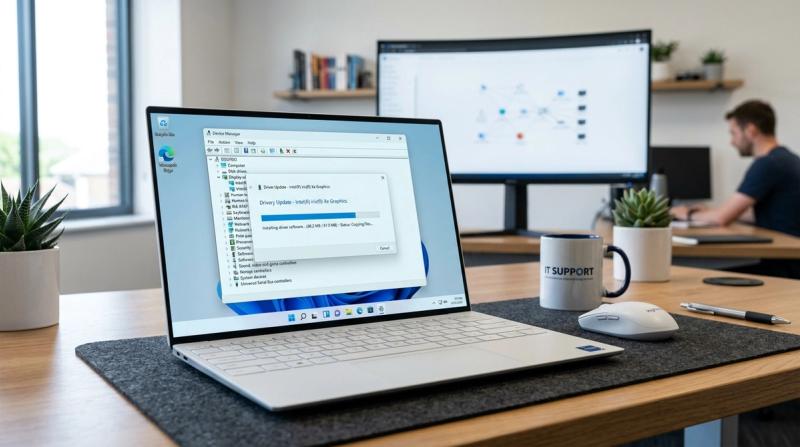
If your PC has started crashing with blue screens, your Wi-Fi or audio randomly stops working, USB devices aren't recognized, or games run noticeably worse than they used to, an outdated or incompatible driver is one of the most common, and most overlooked, causes. Drivers are the small pieces of software that let Windows talk to your hardware, and when one falls behind or gets corrupted, the hardware it controls starts misbehaving in ways that often look unrelated to the actual cause.
This guide explains what drivers actually do, why they go out of date or stop working correctly, and walks through every safe way to update, roll back, or reinstall them on Windows 10 and Windows 11. Each fix includes exactly what to click, what result to expect, and what to do if it doesn't help, without relying on any third-party "driver updater" tools that often cause more problems than they solve.
Quick Answer: How to Fix Outdated Driver Problems
Before changing anything, create a System Restore Point (Fix 1) — this gives you a safe way back if a driver update causes a new problem. Then open Settings > Windows Update > Advanced options > Optional updates and install any driver updates listed there; this is the safest source for most drivers.
For graphics, network, or audio-specific problems, it's usually faster and more reliable to update directly through Device Manager or the hardware manufacturer's own tool — for example, the NVIDIA App, AMD Software, or Intel Driver & Support Assistant for graphics drivers. Avoid third-party "driver updater" programs entirely; they're a common source of malware and incorrect driver matches.
What Are Outdated or Incompatible Drivers?
A driver is the small piece of software that lets Windows communicate with a specific piece of hardware — your graphics card, Wi-Fi adapter, sound card, printer, or USB controller. Windows itself doesn't know how to operate each manufacturer's hardware directly; the driver translates between the two.
A driver becomes "outdated" when a newer version exists that fixes bugs, improves performance, or adds support for newer hardware or software, but your PC is still running the older one. A driver is "incompatible" when it simply doesn't match your hardware correctly, for example after a major Windows feature update, or if the wrong file was installed manually.
Both situations tend to cause the same general symptom: the hardware works, but not correctly, or not at all.
Why Do Drivers Become Outdated or Cause Problems?
Driver problems come from a small number of well-understood sources:
Old driver versions. Manufacturers regularly release updates that fix specific bugs, improve performance, or patch security issues. If automatic updates are turned off, or simply haven't run in a while, your PC can fall several versions behind.
Interrupted Windows updates. If a driver update is interrupted by a sudden shutdown, restart, or power loss partway through installation, the driver can be left in a half-installed, broken state.
Corrupted driver files. Driver files can become corrupted from a failed update, disk errors, or in rare cases malware, leaving Windows with instructions it can't fully execute.
Incompatible drivers. Installing a driver meant for a different Windows version, a different model of the same hardware, or downloading the wrong file from an unofficial source can cause instability rather than fixing anything.
Manual installation errors. Installing a driver manually without fully removing the old one first, or installing components in the wrong order, can leave conflicting driver files on the system.
Unsupported legacy drivers. Older hardware sometimes stops receiving updates entirely. If the manufacturer no longer supports a device, Windows may be using a generic driver that doesn't unlock the hardware's full capability.
Manufacturer update delays. Sometimes the problem isn't your PC at all. A manufacturer can be slow to release a driver that's fully compatible with a recent Windows update, leaving a temporary compatibility gap.
Which Driver Problem Do You Have?
Different symptoms usually point to different specific drivers, which helps you focus your fixes instead of guessing:
- General slowdowns, freezes, or blue screen crashes (BSOD): Often points to chipset, storage, or whichever driver was most recently installed or updated — check Device Manager broadly and consider the most recent change first.
- Audio not working or sounding wrong: Points to the audio driver, usually Realtek, Conexant, or your laptop manufacturer's own audio driver.
- Wi-Fi dropping or not detecting networks: Points to the wireless network adapter driver.
- Graphics glitches, screen tearing, or dropped game performance: Points to your GPU driver, whether NVIDIA, AMD, or Intel graphics.
- Printer not responding or showing errors: Points to the specific printer driver, which is separate from every other driver here and usually needs to come directly from the printer manufacturer.
- USB devices not detected: Points to USB controller or chipset drivers, or occasionally a power-management setting rather than the driver itself.
What Device Drivers Actually Do (How Windows Manages Them)
Windows manages drivers through three layers, and knowing them helps you pick the right fix for your situation:
- Windows Update. Microsoft tests and certifies a large library of drivers, then distributes them automatically alongside regular Windows updates. This is the safest source, since every driver here has passed Microsoft's compatibility testing, but it can lag weeks or months behind a manufacturer's own release.
- Device Manager. This is Windows' built-in tool for viewing, updating, rolling back, or uninstalling any driver currently installed, regardless of where it came from. It can search Windows Update for a newer version, but it won't show you a manufacturer's very latest release if Microsoft hasn't certified it yet.
- Manufacturer tools and downloads. Companies like NVIDIA, AMD, Intel, and most laptop makers offer their own drivers, either through a dedicated app, such as the NVIDIA App, AMD Software: Adrenalin Edition, or Intel Driver & Support Assistant, or as a direct download from their support site. This is usually the fastest way to get the newest driver, especially for graphics and chipset hardware, but it requires you to choose the correct file yourself.
Most driver problems are solved by working through these three layers in order: Windows Update first, Device Manager second, and the manufacturer directly third.
How to Fix Outdated Driver Problems on Windows 10 and 11 (Step-by-Step)
Work through these in order. Most driver issues are resolved within the first four or five fixes.
Fix 1: Create a System Restore Point Before You Begin
Why this helps: A restore point lets you return your entire system to its current working state with a few clicks if a driver update causes a new problem. This single step removes almost all of the risk from everything that follows.
How to do it:
- Press the Windows key, type "Create a restore point," and open it.
- Under System Protection, confirm protection is On for your main drive (click Configure to turn it on if it's off).
- Click Create, give it a name like "Before driver update," and click Create again.
Expected result: A restore point is saved, giving you a safe way to undo any driver change made afterward.
If it doesn't work: If System Protection won't turn on, your PC may be low on free disk space; freeing up a few gigabytes usually resolves this.
Fix 2: Check Windows Update for Driver Updates
Why this helps: Microsoft tests and certifies the drivers it distributes through Windows Update, making this the safest single source for most users, especially for hardware from major manufacturers.
How to do it:
- Open Settings (Windows key + I).
- Go to Windows Update and click Check for updates.
- Click Advanced options, then Optional updates.
- Open Driver updates and install anything listed there.
Expected result: Any certified driver updates Microsoft has available for your hardware are installed automatically.
If it doesn't work: If no driver updates appear here, that doesn't necessarily mean your drivers are current. It means Microsoft doesn't have a newer certified version to offer. Continue to Fix 4 or Fix 5 to check directly with the manufacturer.
Fix 3: Check Driver Versions and Status in Device Manager
Why this helps: Before updating anything, it's worth confirming which drivers are actually outdated or showing errors, rather than updating everything at once.
How to do it:
- Press Windows key + X and select Device Manager.
- Look for any device with a yellow warning triangle or black exclamation mark — these have a confirmed problem.
- Right-click any device, select Properties, then the Driver tab, to see its current version and date.
- For graphics specifically, you can also press Windows key + R, type
dxdiag, and press Enter. The Display tab shows your exact graphics driver version and date in one place.
Expected result: A clear picture of which specific drivers need attention, instead of guessing.
If it doesn't work: A driver date more than 1-2 years old isn't automatically a problem if the hardware is working correctly. Only chase an update if you're actually experiencing one of the symptoms covered in this guide.
Fix 4: Update Drivers Through Device Manager
Why this helps: This is the quickest way to update a specific driver without leaving Windows or downloading anything manually.
How to do it:
- In Device Manager, right-click the device you want to update.
- Select Update driver.
- Choose Search automatically for drivers.
- If Windows finds an update, it installs automatically. If it says "The best drivers are already installed," that means Windows didn't find a newer certified version, not necessarily that none exists.
Expected result: Many driver issues, especially for less critical hardware, are resolved here without any further steps.
If it doesn't work: If Device Manager can't find an update but you know one exists from the manufacturer, continue to Fix 5 to install it directly.
Fix 5: Download and Install Drivers Directly From the Manufacturer's Website
Why this helps: Manufacturer downloads are usually the most current version available, often well ahead of what Windows Update or Device Manager can find, and they're necessary when Microsoft hasn't certified the latest release yet.
How to do it:
- Identify your exact hardware model. For a laptop, check the model number on a sticker or in Settings > System > About; for a graphics card, check Device Manager > Display adapters.
- Go to the manufacturer's official support or drivers page. Search for it directly rather than clicking sponsored search ads, which sometimes lead to fake sites.
- Search for your exact model and download the driver listed for your Windows version, 10 or 11.
- Run the installer and restart if prompted.
Expected result: The newest available driver is installed, often resolving issues that Windows Update and Device Manager couldn't fix.
If it doesn't work: If installing a manufacturer driver causes a new problem, use the restore point from Fix 1, or roll back using Fix 8.
Fix 6: Update Your Graphics (GPU) Driver the Right Way
Why this helps: Graphics drivers are updated more frequently than almost any other driver type, since they're directly tied to game and app performance, and manufacturers offer dedicated tools that make this easier and safer than a manual download.
How to do it:
- Identify your GPU brand in Device Manager under Display adapters: NVIDIA, AMD, or Intel.
- NVIDIA: open the NVIDIA App (which replaced GeForce Experience), go to the Drivers tab, and click Download, then Install, if an update is available.
- AMD: open AMD Software: Adrenalin Edition, go to the Updates section, and install any available driver.
- Intel: open the Intel Driver & Support Assistant, let it scan, and install any graphics driver update it finds.
- If you don't have the relevant app installed, download it directly from the manufacturer's official site first.
Expected result: Smoother game performance, fewer graphics glitches, and improved compatibility with newer games and creative software.
If it doesn't work: If a specific game or app got worse right after a graphics driver update, that update may itself be the problem. Roll it back using Fix 8 and wait for the next release before trying again.
Fix 7: Update Network and Chipset Drivers
Why this helps: Network adapter and motherboard chipset drivers affect overall system stability, not just one specific feature, so keeping them current helps with general performance and crash prevention, not only Wi-Fi or Ethernet specifically.
How to do it:
- In Device Manager, expand Network adapters, right-click your Wi-Fi or Ethernet adapter, select Update driver, then Search automatically for drivers.
- For chipset drivers, identify your motherboard or laptop model and visit the manufacturer's support page directly, since chipset drivers are rarely distributed through Windows Update.
- Install the chipset driver package, then restart.
Expected result: More stable Wi-Fi and Ethernet connections, and in some cases, improved overall system stability if the chipset driver was outdated.
If it doesn't work: If network problems continue after this step, a full Wi-Fi troubleshooting pass, including an adapter reset and TCP/IP reset, addresses other common causes beyond the driver itself.
Fix 8: Roll Back a Driver That's Causing Problems
Why this helps: If symptoms started right after a driver update specifically, the new driver itself is the most likely cause, and Windows can restore the previous version in a few clicks.
How to do it:
- Open Device Manager, right-click the device, and select Properties.
- Go to the Driver tab.
- If Roll Back Driver is available, click it and follow the prompts.
- Restart your PC.
Expected result: The previous, working driver version is restored, and the new problem should disappear.
If it doesn't work: If Roll Back Driver is grayed out, Windows didn't keep a copy of the previous version. In that case, use your System Restore Point from Fix 1, or download the specific older driver version directly from the manufacturer's website.
Fix 9: Uninstall and Reinstall a Problematic Driver
Why this helps: This forces Windows to fully remove a corrupted or conflicting driver and reinstall it cleanly, which is more thorough than a standard update when a driver seems stuck or partially broken.
How to do it:
- In Device Manager, right-click the device and select Uninstall device.
- If offered, check "Attempt to remove the driver for this device" before confirming.
- Restart your PC — Windows will usually detect the hardware and reinstall a default driver automatically.
- If it doesn't reinstall correctly, install the latest driver manually from the manufacturer's website (Fix 5).
Expected result: A clean driver installation, free of leftover files from the previous broken version.
If it doesn't work: If the same problem returns immediately after reinstalling, the issue may be a hardware fault rather than the driver itself, especially if you've already tried the latest version from the manufacturer.
Fix 10: Use Only Trusted Driver Sources
Why this helps: Third-party "driver updater" tools that scan your whole PC and claim to fix dozens of outdated drivers at once are a common source of malware, incorrect driver matches, and in some cases, drivers that make problems worse rather than better.
How to do it:
- Stick to three sources only: Windows Update, Device Manager, and the hardware manufacturer's own official website or app.
- If a pop-up, ad, or email claims your drivers are out of date and offers a one-click fix, close it without clicking through. This is one of the most common forms of fake antivirus and driver-scam software.
- If you've already installed a third-party driver tool, uninstall it through Settings > Apps > Installed apps, then run a full scan with Windows Security to check for anything it may have brought along.
Expected result: You avoid the single most common way driver "fixes" actually make a PC worse.
If it doesn't work: If you're unsure whether a specific driver tool is legitimate (the manufacturer tools in Fix 6 are genuinely safe), confirm it's hosted on the hardware manufacturer's own official domain before installing anything.
Is It Safe to Update or Change Drivers?
Yes, updating drivers through Windows Update, Device Manager, or a manufacturer's official tool is safe for the overwhelming majority of users, especially once you've created a restore point (Fix 1). The real risks come from two specific situations: installing a driver from an unofficial or third-party "driver updater" site, which can include malware or simply the wrong file, and updating a critical driver, like a storage controller, without a recent backup of your important files first. Rolling back a driver (Fix 8) and uninstalling or reinstalling one (Fix 9) are both reversible and don't affect your personal files or installed programs.
How Long Does It Take to Update Drivers?
Checking Windows Update and Device Manager for available updates takes 5-10 minutes combined. Installing a single driver update, including a restart, usually takes 5-15 minutes. A full graphics driver update through the NVIDIA App, AMD Software, or Intel Driver & Support Assistant typically takes 10-20 minutes, including the download. If you're updating several drivers at once, such as graphics, network, and chipset together, expect 30-45 minutes in total. Rolling back a driver (Fix 8) is faster, usually under 5 minutes, since no download is required.
How to Verify a Driver Update Actually Worked
A driver update can complete successfully but not actually solve the symptom you started with, especially if a different driver was the real cause. To confirm it worked:
- In Device Manager, right-click the device, go to Properties > Driver, and confirm the version number and date changed from what you noted before updating.
- Check that the yellow warning icon, if there was one, is gone.
- Test the specific symptom directly, such as playing the game that was glitching, checking the printer that wasn't responding, or reconnecting the Wi-Fi network that kept dropping, rather than assuming it's fixed.
- For system stability issues like BSODs, open Event Viewer (Windows Logs > System) and check whether the same error continues to appear after the update, since a single clean day isn't always enough to confirm a crash is gone for good.
When a Driver Update Isn't the Real Fix
Sometimes a driver update genuinely won't solve the problem, and it's worth recognizing this rather than repeatedly reinstalling the same driver. If a specific piece of hardware fails consistently even with the newest driver installed correctly, and especially if Device Manager shows the same error code returning right after a clean reinstall, the hardware itself may be failing rather than the software controlling it. This is common with aging printers, older Wi-Fi cards, and laptops that have overheated repeatedly over several years. In these cases, testing the hardware on a different PC if possible, or trying a basic USB equivalent such as a USB Wi-Fi adapter, helps confirm whether the driver or the hardware is actually at fault before you spend more time chasing driver updates.
Common Mistakes to Avoid
Don't update every driver at once "just in case." Only update drivers tied to a symptom you're actually experiencing, since unnecessary updates add risk without benefit. Don't use third-party driver scanner tools, even ones that look professional, since the safest sources are always Windows Update, Device Manager, and the manufacturer directly. Don't skip creating a restore point before updating a critical driver like a storage controller or chipset, since these are harder to recover from manually if something goes wrong. Don't assume a driver problem when the real cause is a loose cable, a failing USB port, or a router issue. Confirm the device shows an actual driver error in Device Manager first. And don't keep reinstalling the same driver repeatedly hoping for a different result; if it hasn't worked after one clean reinstall, the cause is more likely hardware or a setting elsewhere.
Related Solution Hub Guides:
Advertisement
Frequently Asked Questions
How do I know if my drivers are outdated?
Check Device Manager for a yellow warning icon, or right-click a specific device, go to Properties > Driver, and compare the version and date to what's listed on the manufacturer's support page. You can also check Settings > Windows Update > Advanced options > Optional updates for available driver updates.
Should I update all drivers regularly?
No. Only update drivers tied to a symptom you're actually experiencing, or ones flagged with an error in Device Manager. Updating drivers that are working fine adds unnecessary risk without a real benefit.
Is Device Manager enough for driver updates?
For many drivers, yes. But Device Manager only finds updates Microsoft has certified through Windows Update, so for graphics, network, and chipset drivers, checking the manufacturer's website or official app directly often finds a newer version sooner.
Can outdated drivers slow down a PC?
Yes. An outdated graphics, storage, or chipset driver can cause slower performance, stuttering, or crashes, since the hardware isn't running with the latest optimizations and bug fixes the manufacturer has released.
How do I roll back a faulty driver update?
Open Device Manager, right-click the device, go to Properties > Driver, and click Roll Back Driver if it's available. If it's grayed out, use a System Restore Point instead, or reinstall the specific older version from the manufacturer's website.
Are NVIDIA, AMD, and Intel driver tools safe to use?
Yes. The NVIDIA App, AMD Software: Adrenalin Edition, and Intel Driver & Support Assistant are official tools from the hardware manufacturers themselves, unlike generic third-party "driver updater" programs, and are a safe, reliable way to keep graphics drivers