Fix Windows 11 Installation Error 0x80070005 (Access Denied)
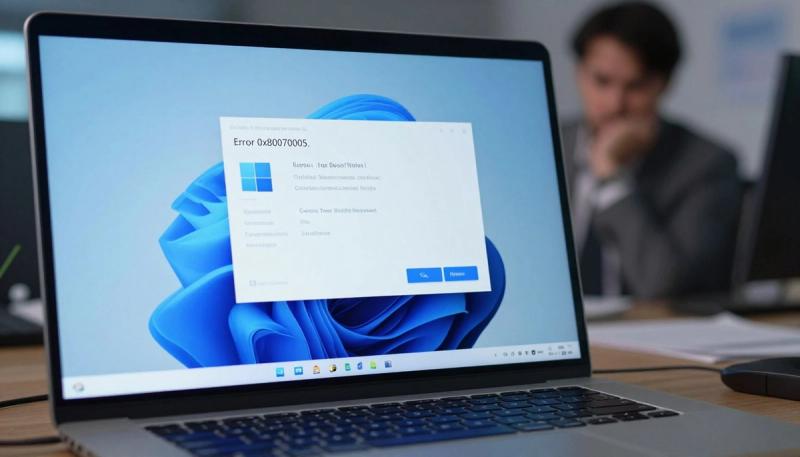
Error 0x80070005 means "Access Denied." Windows blocked the update because it could not write to a protected system folder.
Fastest fix — open Command Prompt as Administrator and run:
Then retry Windows Update. If that does not work, follow the full guide below.
Problem Summary
Error code 0x80070005 appears during Windows 11 installation or Windows Update. The installer cannot write files to protected directories — usually C:\Windows or C:\Windows\System32. The update stops, rolls back, and leaves your system unchanged.
This is a permissions or file integrity problem, not a hardware failure.
Error Meaning
CodeMeaningSource0x80070005ERROR_ACCESS_DENIEDWindows API / NTSTATUS
The Windows Update service (wuauserv) or the installation process attempted to replace or create a protected file and was denied by the operating system's security layer. This can happen during feature updates, cumulative updates, and fresh installations.
Symptoms
- Update downloads successfully but fails at the installation stage
- Progress bar reaches 100%, then Windows rolls back
- Error message: "There were problems installing some updates, but we'll try again later — 0x80070005"
- Event Viewer shows Access Denied entries under Windows Logs > System or Windows Logs > Application
- Windows Update history shows repeated failed entries for the same update
Common Causes
- Account is not an Administrator — The logged-in user lacks elevated rights to modify system files
- Corrupted SoftwareDistribution folder — Cached update files are damaged, causing the installer to fail
- Damaged system files — Core Windows binaries are missing or corrupt
- Antivirus blocking update components — Security software flags legitimate update executables as threats
- Incorrect folder permissions — Security descriptors on C:\Windows subdirectories have been modified
Before You Start
Requirements:
- You must be logged in as an Administrator, or have Administrator credentials available
- At least 20 GB of free disk space on the system drive
- A stable internet connection (required for DISM and Windows Update)
Recommended:
- Back up important files before starting
- Create a System Restore Point: Control Panel > Recovery > Create a restore point
Step-by-Step Solutions
Fix 1 — Run Windows Update Troubleshooter
Why it works: Resets stuck update services and clears common configuration errors automatically.
- Open Settings → System → Troubleshoot → Other troubleshooters
- Find Windows Update and click Run
- Follow the on-screen prompts to completion
- Restart the PC
- Go to Settings → Windows Update → Check for updates
Expected result: The troubleshooter reports "Fixed." If the update still fails, continue to Fix 2.
Fix 2 — Verify Administrator Account
Why it works: A standard user account cannot write to protected Windows directories.
- Open Settings → Accounts → Your info
- Check whether your account shows Administrator
- If it shows Standard User:
- Open Control Panel → User Accounts → Manage another account
- Select your account → Change the account type → Set to Administrator
- Sign out and sign back in
- Retry Windows Update
Fix 3 — Temporarily Disable Antivirus
Why it works: Real-time scanning can intercept and block files being written by the Windows Update installer.
- Right-click your antivirus icon in the system tray
- Select Disable, Pause Protection, or Turn off real-time scanning
Advertisement
- Set a 15–30 minute time window
- Retry Windows Update immediately
- Re-enable antivirus as soon as the update completes
Fix 4 — Reset Windows Update Components via CMD
Why it works: Renaming the SoftwareDistribution folder forces Windows to rebuild a clean update cache.
Open Command Prompt as Administrator and run these commands in order:
Restart your PC, then go to Settings → Windows Update → Check for updates.
Fix 5 — Repair System Files with DISM and SFC
Why it works: DISM repairs the Windows image using files from Microsoft servers. SFC replaces locally corrupted files with verified versions.
Open Command Prompt as Administrator:
Run DISM first (requires internet, takes 10–20 minutes):
After DISM completes, run SFC:
Restart the PC, then retry Windows Update
Fix 6 — Reset Folder Permissions
Why it works: Resets ACL permissions on system folders that have been incorrectly modified.
Open Command Prompt as Administrator:
Fix 7 — In-Place Upgrade Repair
Why it works: Reinstalls Windows 11 over the existing installation, replacing all system files while keeping your personal data, apps, and settings.
Use this fix when all previous steps have failed.
- Go to microsoft.com/software-download/windows11
- Download the Windows 11 Installation Assistant
- Run it and select Upgrade this PC now
- When prompted, choose Keep personal files and apps
- Let the installer run to completion (30–90 minutes)
CMD / PowerShell Command Reference
| Command | Purpose | Expected Output | Risk |
|---|---|---|---|
| net stop wuauserv | Stops Windows Update service | Service stopped successfully | Low |
| net stop bits | Stops BITS service | Service stopped successfully | Low |
| ren %windir%\SoftwareDistribution SoftwareDistribution.old | Renames corrupted cache | Silent (no output) | Low |
| net start wuauserv | Restarts Windows Update service | Service started successfully | Low |
| DISM /Online /Cleanup-Image /RestoreHealth | Repairs Windows component store | Progress to 100%, repair status | Medium |
| sfc /scannow | Scans and repairs system files | Integrity status report | Low |
| icacls %windir%\SoftwareDistribution /reset /T /C /Q | Resets folder ACL permissions | Silent (no output) | Medium |
Verification
- Go to Settings → Windows Update → Check for updates
- Confirm the previously failed update installs successfully
- Go to Windows Update → Update history — the update should show "Successfully installed"
- Run sfc /scannow one final time — expected result: "Windows Resource Protection did not find any integrity violations."
Prevention Tips
- Keep your account as Administrator if you regularly install updates
- Add these folders to your antivirus exclusion list: C:\Windows\SoftwareDistribution and C:\Windows\Temp
- Run Disk Cleanup monthly and select Clean up system files
- Never force-shut down during updates — always let Windows complete or roll back naturally
- Schedule updates during low-use hours via Settings → Windows Update → Advanced options → Active hours
- Run DISM and SFC quarterly to catch corruption before it causes failures
Related Articles
- How to Fix Windows Update Stuck at 0% in Windows 11
- Fix Windows 11 Error 0x800f0922 — Update Failed
- How to Run DISM and SFC to Repair Windows 11
- Fix Windows 11 Error 0x80070002 — File Not Found
- How to Perform an In-Place Upgrade on Windows 11 Without Losing Files
- How to Reset Windows Update Components Manually
- Fix Windows 11 Error 0x80073712 — Component Store Corrupted
Frequently Asked Questions
What is Windows error 0x80070005?
Error 0x80070005 is the Windows "Access Denied" error code (ERROR_ACCESS_DENIED). It occurs when the Windows Update service or installer cannot write to a protected system directory due to insufficient permissions, a corrupted update cache, or damaged system files.
Why does error 0x80070005 happen during Windows 11 updates?
The five most common causes are: insufficient account privileges, a corrupted SoftwareDistribution cache folder, damaged Windows system files, antivirus software blocking the installer, and incorrect ACL permissions on Windows system directories.
How do I fix Windows 11 error 0x80070005?
Start by running the Windows Update Troubleshooter (Settings → System → Troubleshoot). If that fails, reset the SoftwareDistribution cache via Command Prompt as Administrator, then run DISM and SFC to repair system files. For persistent cases, use the Windows 11 Media Creation Tool to perform an in-place upgrade repair.
Is error 0x80070005 dangerous?
No. It is a permissions error, not a hardware fault or virus. Your system remains fully operational. The update simply cannot complete. Follow the fixes above to resolve it.
How long does it take to fix error 0x80070005?
Troubleshooter and cache reset: 5–15 minutes. DISM and SFC repair: 20–40 minutes. In-place upgrade repair: 30–90 minutes.
Can antivirus software cause error 0x80070005?
Yes. Real-time scanning from Norton, Bitdefender, McAfee, and similar tools can block update file writes. Temporarily disable real-time protection before running Windows Update, then re-enable it immediately afterward.
Does SFC fix error 0x80070005?
SFC can fix it when the cause is corrupted system files. Run DISM first to repair the component store, then run SFC. If the cause is a permission issue, use icacls to reset folder ACLs instead.
What if none of the fixes work?
Perform an in-place upgrade repair using the Windows 11 Installation Assistant from Microsoft's official download page. This replaces all system components while keeping your files and applications intact. It has a very high success rate for persistent 0x80070005 errors.