Fix Wi-Fi Connection Issues on Windows 10 and 11: Troubleshooting Guide
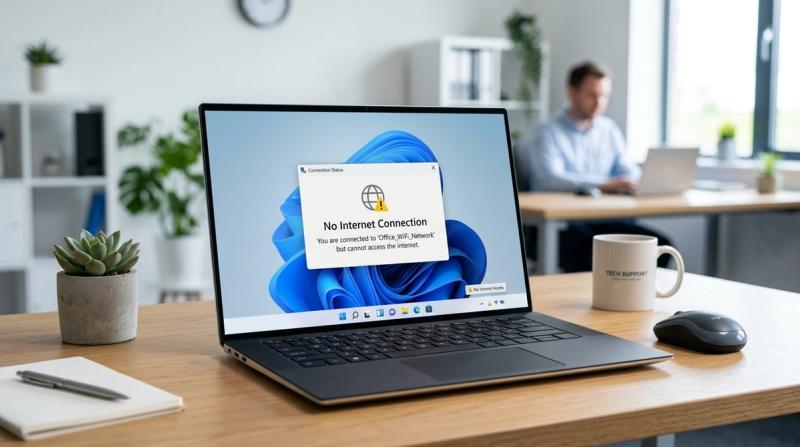
If your Windows PC shows "Connected" to Wi-Fi but nothing loads, keeps dropping the connection every few minutes, or can't find your network at all, the cause is almost always one of a handful of well-known issues: a router that needs a restart, a driver that's out of date, or a corrupted network setting that built up over time.
This guide walks through every practical fix for Wi-Fi problems on Windows 10 and Windows 11, in the order you should try them. For each fix, you'll learn why the problem happens, exactly how to fix it using tools already built into Windows, what result to expect, and what to do if it doesn't help. Most of these issues can be fixed in under 15 minutes without installing anything extra or calling your ISP.
Quick Answer: How to Fix Wi-Fi Connection Problems
Start with the basics: restart your router and modem (unplug both for 30 seconds), then restart your PC. This alone resolves a large share of "no internet" and frequent disconnection issues, since it clears temporary glitches in both the router and your PC's network stack.
If that doesn't help, open Settings > System > Troubleshoot > Other troubleshooters and run the Network and Internet troubleshooter — it automatically checks your adapter, IP address, and DNS settings and can fix many problems without any manual steps.
If you're still stuck, the most common next step is forgetting the Wi-Fi network in Settings and reconnecting with the password, which clears a corrupted connection profile.
What Are Windows Wi-Fi Connection Problems?
"Wi-Fi connection problems" actually cover several different issues, and figuring out which one you have points you toward the right fix faster:
- Connected but no internet (limited connectivity): Windows shows you're connected to the Wi-Fi network, but pages won't load. This usually means the connection to the router works, but something between the router and the internet, or between Windows and the DNS/IP settings, is broken.
- Can't find any networks: Wi-Fi networks, including your own, don't appear in the list at all. This points to the adapter, airplane mode, or a driver problem rather than the router.
- Frequent disconnections: The connection works, then drops every few minutes or hours. This is most often a driver or power-management issue, or interference from distance and walls.
- "Can't connect to this network": Windows tries to connect and fails with this specific error, usually pointing to a corrupted saved network profile or an outdated driver.
Knowing which of these four matches your situation helps you skip straight to the most relevant fixes below, although working through them in order still resolves the issue fastest in most cases.
Why Does Wi-Fi Stop Working on Windows?
Wi-Fi problems generally come from one of these sources:
Router or modem issues. Routers can develop minor glitches after days or weeks of continuous uptime, similar to how a PC slows down before a restart. This is the single most common cause of "no internet" complaints.
Outdated or corrupted network drivers. The Wi-Fi adapter driver translates between Windows and your wireless hardware. A driver that's out of date, or got corrupted during a Windows update, can cause dropped connections, missing networks, or adapter errors.
Incorrect or corrupted network settings. Windows stores a separate profile for every network you've connected to. If that profile becomes corrupted, often after a router setting or password change, you'll see errors like "Can't connect to this network" even though the password is correct.
Recent Windows updates. Some updates reset network adapter settings, change default power-management behavior, or briefly conflict with a Wi-Fi driver until a follow-up driver update is installed.
Disabled Wi-Fi adapter or airplane mode. A surprising number of "missing Wi-Fi icon" cases are simply airplane mode left on, or the adapter accidentally disabled in Device Manager.
Corrupted TCP/IP or DNS settings. These two systems control how your PC gets an IP address and translates website names into addresses. When either becomes corrupted, you'll typically see "connected, no internet" rather than an outright connection failure.
Power management settings. Windows can power down the Wi-Fi adapter to save battery, which on some laptops causes random disconnections, especially on battery power.
ISP outages. Sometimes the problem isn't on your PC or even your router — your internet provider may be having a local outage.
Hardware faults. Less commonly, a failing Wi-Fi card, damaged antenna, or router hardware fault causes problems no software fix can resolve.
Symptoms That Point to a Network Problem
You're dealing with a Wi-Fi connection problem, rather than a website-specific or app-specific issue, if you notice:
- Windows shows "Connected" but no websites or apps can load.
- The Wi-Fi icon in the taskbar shows a "limited" or warning symbol.
- Your network doesn't appear in the Wi-Fi list at all, even though other devices can see it.
- The connection drops and reconnects repeatedly, sometimes every few minutes.
- Windows shows "Can't connect to this network" when you try to join.
- Device Manager shows a yellow warning icon next to your network adapter.
- Internet speed is far slower than your plan, specifically over Wi-Fi but normal over a wired Ethernet connection, if you have one to test with.
If other devices on the same network (phone, tablet, another PC) also can't connect, the problem is almost certainly your router or ISP, not your Windows PC specifically — start with Fix 1 and Fix 13 below.
How Windows Connects to Wi-Fi: A Quick Look Behind the Scenes
Understanding the connection process makes it clear why each fix below targets a different stage.
- Adapter detection. Windows first needs the Wi-Fi adapter itself working, controlled by its driver. If the adapter is disabled, in airplane mode, or has a driver problem, you won't see any networks at all — this is the "can't find networks" symptom.
- Authentication. Once you select a network and enter the password, Windows uses a saved network profile to connect. A corrupted profile causes the "Can't connect to this network" error even with the right password.
- IP address assignment (DHCP). After authenticating, your router assigns your PC an IP address. If this fails or hands out a stale address, you'll connect to the Wi-Fi signal but show "limited connectivity."
- DNS resolution. Finally, Windows uses DNS to translate website names, like example.com, into IP addresses. If DNS is misconfigured or the cache is corrupted, you'll be "connected" with a working IP address, but most websites still won't load.
Most "connected but no internet" problems happen at stage 3 or 4, which is why renewing your IP address and flushing DNS (Fixes 6 and 7) resolve so many cases. Adapter and driver-related problems (stage 1) need a different approach: disabling/re-enabling the adapter or updating its driver.
How to Fix Wi-Fi Connection Problems on Windows 10 and 11 (Step-by-Step)
Work through these in order. Most people solve their connection problem within the first four or five fixes.
Fix 1: Restart Your Router, Modem, and PC
Why this helps: Routers and modems are small computers that can develop temporary glitches after running continuously for days or weeks. Restarting clears their memory and forces a fresh connection to your ISP, and restarting your PC clears any stuck network processes on the Windows side too.
How to do it:
- Unplug your modem and router, or unplug the single combo device if you have one.
- Wait 30 seconds — some hardware needs that long to fully discharge.
- Plug the modem back in first and wait for its lights to stabilize, usually 1-2 minutes.
- Plug the router back in and wait for it to fully boot.
- Restart your Windows PC.
Expected result: Many "no internet" and intermittent disconnection problems disappear completely after this step alone.
If it doesn't work: If the same restart routine needs repeating every day, your router itself may be failing or overheating — keep this in mind for the "When the Problem Is Your Hardware" section below, especially if the router is more than 4-5 years old.
Fix 2: Run the Windows Network Troubleshooter
Why this helps: Windows includes a built-in tool that automatically checks your adapter, cable connection, IP configuration, and DNS settings, then applies common fixes without you needing to know which one applies.
How to do it:
- Open Settings (Windows key + I).
- Go to System > Troubleshoot > Other troubleshooters.
- Find Network and Internet (or Network Adapter) and click Run.
- Follow the on-screen prompts — it will ask which adapter to check (choose Wi-Fi) and may apply a fix automatically or suggest one.
Expected result: The tool either fixes the issue directly or tells you what it found, which helps you target your next step.
If it doesn't work: If the troubleshooter reports "no problems found" but your Wi-Fi clearly isn't working, that just means the issue is one it isn't designed to detect — continue with the more specific fixes below rather than running it repeatedly.
Fix 3: Check Airplane Mode and Confirm Wi-Fi Is Turned On
Why this helps: This sounds basic, but a surprising share of "Wi-Fi icon missing" and "can't find any networks" cases come down to airplane mode being on, or the adapter being switched off, often after a Windows update or an accidental keyboard shortcut.
How to do it:
- Click the network icon in the taskbar (bottom-right corner).
- Confirm Airplane mode is turned off.
- Confirm Wi-Fi is turned on.
- If you don't see a Wi-Fi option at all, go to Settings > Network & Internet > Wi-Fi and check it's toggled on there directly.
- Also check for a physical Wi-Fi switch or function-key shortcut, often Fn + F2/F8/F12, on laptops, which can disable Wi-Fi at the hardware level.
Expected result: The Wi-Fi icon and your network list reappear immediately if this was the cause.
If it doesn't work: If Wi-Fi is on but you still don't see any networks, including your own, move to Fix 9 (driver update) and Fix 12 (reinstall adapter) — this points to a driver-level problem rather than a setting.
Fix 4: Forget the Network and Reconnect
Why this helps: Windows saves a profile for every Wi-Fi network you join, including the password and security settings. If that profile becomes corrupted, often after a router password change or firmware update, you'll see "Can't connect to this network" even though everything looks correct.
How to do it:
- Go to Settings > Network & Internet > Wi-Fi > Manage known networks.
- Click your network name, then click Forget.
- Click the network icon in the taskbar, select your network again, and enter the password fresh.
Expected result: A clean new profile is created, which resolves most "Can't connect to this network" errors and stuck-password issues.
If it doesn't work: Double-check you're entering the exact current Wi-Fi password — check the router's label or admin panel if you're unsure. If reconnecting still fails immediately, the problem is more likely the adapter or driver than the saved profile — continue to Fix 5.
Fix 5: Disable and Re-Enable Your Wi-Fi Adapter
Why this helps: This forces the adapter driver to fully reload, clearing temporary glitches without a full restart or reinstall.
How to do it:
- Press Windows key + X and select Device Manager.
- Expand Network adapters.
- Right-click your Wi-Fi adapter (look for "Wireless" or "Wi-Fi" in the name) and select Disable device.
- Wait 10 seconds, then right-click it again and select Enable device.
Expected result: The adapter reinitializes, which often clears errors and restores a missing network list.
If it doesn't work: If the adapter shows a yellow warning icon even after re-enabling it, the driver itself needs attention — go to Fix 9.
Fix 6: Renew Your IP Address
Why this helps: If your PC is holding onto an old or invalid IP address from your router, you'll connect to the Wi-Fi signal but show "limited connectivity" or "no internet," since the address doesn't actually work on the network anymore.
How to do it:
- Press Windows key, type cmd, right-click Command Prompt, and select Run as administrator.
- Type
ipconfig /releaseand press Enter. - Type
ipconfig /renewand press Enter. - Wait for it to confirm a new IP address.
Expected result: Windows requests and receives a fresh, valid IP address from your router, which commonly fixes "connected but no internet."
If it doesn't work: If ipconfig /renew fails or times out, the problem is likely on the router's side (it isn't responding to the request) — try restarting the router (Fix 1) before repeating this step.
Fix 7: Flush Your DNS Cache
Why this helps: Windows stores recently looked-up website addresses in a local cache to speed up browsing. If that cache becomes corrupted or outdated, websites can fail to load even though your internet connection itself is fine.
How to do it:
- Open Command Prompt as administrator, same as Fix 6.
- Type
ipconfig /flushdnsand press Enter. - You should see "Successfully flushed the DNS Resolver Cache."
Expected result: Sites that previously failed to load, especially ones that worked recently and suddenly stopped, often load normally right away.
If it doesn't work: If flushing DNS doesn't help, try switching your DNS servers to a public option like 1.1.1.1 (Cloudflare) or 8.8.8.8 (Google) under your network adapter's properties, since your ISP's DNS servers may themselves be having issues.
Fix 8: Reset the TCP/IP Stack and Winsock
Why this helps: TCP/IP and Winsock are core Windows components that manage all network communication. Over time, especially after malware, VPN software, or certain app installs, these can become corrupted in ways that flushing DNS or renewing your IP address alone won't fix.
How to do it:
- Open Command Prompt as administrator.
- Type
netsh int ip resetand press Enter. - Type
netsh winsock resetand press Enter. - Restart your PC — this step is required for the reset to take effect.
Expected result: Persistent "no internet" issues that survive a DNS flush and IP renewal are often resolved after this restart.
If it doesn't work: If problems continue, the issue is more likely your driver (Fix 9) or a deeper corruption that a full Network Reset (Fix 11) addresses more thoroughly.
Fix 9: Update Your Wi-Fi Driver (and Roll Back If Needed)
Why this helps: The driver is what allows Windows to actually communicate with your Wi-Fi hardware. An outdated driver can cause dropped connections and missing networks; in some cases, a recent driver update is itself the cause of new problems, which is why rolling back can also help.
How to update it:
- Press Windows key + X and select Device Manager.
- Expand Network adapters, right-click your Wi-Fi adapter, and select Update driver.
- Choose Search automatically for drivers.
- If Windows finds nothing newer, check your laptop or Wi-Fi card manufacturer's support page directly for the latest driver.
How to roll it back (if problems started right after a driver or Windows update):
- In Device Manager, right-click the adapter and select Properties.
- Go to the Driver tab.
- If Roll Back Driver is available, click it. If it's grayed out, no previous driver is stored, and you'll need to reinstall an older version manually from the manufacturer's site instead.
Expected result: Connections become stable, and previously missing networks reappear once the correct driver is loaded.
If it doesn't work: If neither updating nor rolling back helps, move to Fix 12 to fully uninstall and reinstall the adapter from scratch.
Fix 10: Turn Off Power-Saving for Your Wi-Fi Adapter
Why this helps: Windows can reduce power to the Wi-Fi adapter to extend laptop battery life. On some hardware, this causes the adapter to briefly drop the connection, especially when the laptop is idle or running on battery.
How to do it:
- Open Device Manager, expand Network adapters, right-click your Wi-Fi adapter, and select Properties.
- Go to the Power Management tab.
- Uncheck "Allow the computer to turn off this device to save power."
- Click OK.
Expected result: Random disconnections that happen during idle periods or while on battery power should stop.
If it doesn't work: This setting only addresses adapter-level power saving. If disconnections still happen at regular intervals, check your router's settings for a similar power-saving or band-steering feature that might be causing the same behavior on its end.
Fix 11: Run a Full Network Reset
Why this helps: If individual fixes haven't worked, a Network Reset reinstalls every network adapter and restores all networking components to their original Windows defaults in one step, clearing corruption that's spread across multiple settings at once.
How to do it:
- Open Settings > Network & Internet > Advanced network settings.
- Click Network reset.
- Click Reset now, then confirm.
- Your PC will restart automatically to complete the process.
Expected result: A clean networking setup that resolves most remaining software-level Wi-Fi issues.
If it doesn't work: If Wi-Fi problems continue even after a full Network Reset, the issue is very likely hardware-related rather than a Windows setting — see "When the Problem Is Your Hardware, Not Windows" below.
Warning: This removes all saved Wi-Fi networks and passwords, along with VPN configurations. Write down or export anything you'll need before running it.
Fix 12: Uninstall and Reinstall the Network Adapter
Why this helps: This forces Windows to completely remove the adapter's current driver and configuration, then detect and reinstall it from scratch on restart — more thorough than disabling/re-enabling (Fix 5) or a standard driver update (Fix 9).
How to do it:
- Open Device Manager, expand Network adapters.
- Right-click your Wi-Fi adapter and select Uninstall device.
- If asked, check "Attempt to remove the driver for this device" before confirming.
- Restart your PC — Windows will automatically detect and reinstall the adapter and a default driver.
Expected result: A fresh adapter installation, which resolves driver corruption that survives a normal update.
If it doesn't work: If the adapter doesn't reinstall automatically after restart, download the correct driver directly from your manufacturer's website and install it manually, since Windows occasionally fails to find the right one on its own for less common Wi-Fi chipsets.
Fix 13: Check for an ISP Outage or Router-Level Problem
Why this helps: Not every Wi-Fi problem is on your PC. If your modem can't reach your internet provider, no Windows fix will restore the connection.
How to do it:
- Check whether other devices, such as a phone, tablet, or another PC, on the same Wi-Fi also have no internet.
- Look at your modem's status lights — a blinking or red "internet/WAN" light usually indicates a problem upstream of your router.
- Check your ISP's status page or official social media account for reported outages in your area.
- Try connecting your phone directly to the modem, bypassing the router, or switch to mobile data briefly to confirm the internet itself is reachable.
Expected result: You'll know clearly whether the problem is your PC, your router, or your ISP, before spending more time on Windows-side fixes.
If it doesn't work: If your ISP confirms there's no outage and other devices also can't connect, the problem is most likely your router or modem hardware, and it may need a factory reset or replacement.
Is It Safe to Make These Changes?
Yes, nearly every fix here is safe and reversible. The one exception is a full Network Reset (Fix 11), which deletes saved Wi-Fi networks, passwords, and VPN configurations — write these down or export them first if you'll need them again. Driver updates and rollbacks (Fix 9) and adapter reinstalls (Fix 12) are safe, though it's worth confirming you have a wired connection or a phone hotspot available in case you need to redownload a driver mid-process. Command-line fixes like flushing DNS, renewing your IP address, and resetting TCP/IP (Fixes 6-8) only affect network configuration, not your files or installed programs, and can be repeated safely if needed.
How Long Does It Take to Fix Wi-Fi Problems?
Most fixes here take 2-10 minutes each, including a restart where required. Restarting your router and PC (Fix 1) and running the Network Troubleshooter (Fix 2) together usually take under 10 minutes and resolve a large share of cases. The command-line fixes (Fixes 6-8) take under 5 minutes combined. A full Network Reset (Fix 11) takes about 5 minutes plus a restart. Reinstalling a driver (Fix 9 or 12) can take 10-20 minutes if you need to download it manually from a manufacturer's site. If you're working through this systematically, expect to find your fix within 30-45 minutes in most cases.
How to Verify Your Wi-Fi Connection Is Actually Fixed
A connection that looks fixed right after a restart can still have an underlying problem, so it's worth confirming properly rather than assuming.
To check:
- Open Command Prompt and type
ping google.com— steady replies with no "timed out" or "request could not find host" messages confirm both connectivity and DNS are working. - Leave the PC connected and idle for 15-20 minutes, then check again — this catches power-management or intermittent driver issues that a quick test would miss.
- Open Task Manager > Performance > Wi-Fi to watch for the connection dropping to 0 Mbps unexpectedly during normal use.
- If you have an Ethernet cable available, compare speed and stability over a wired connection versus Wi-Fi to confirm whether any remaining slowness is Wi-Fi-specific or affects your whole internet connection.
When the Problem Is Your Hardware, Not Windows
If you've worked through every fix above, including a full Network Reset, and the problem persists exactly the same way, the cause is very likely a hardware fault rather than a Windows setting. Signs that point to hardware include the connection problem following the laptop even when connected to a completely different Wi-Fi network (suggesting a failing internal Wi-Fi card), the same router causing problems for multiple different devices (suggesting a failing router), or Device Manager repeatedly showing adapter errors immediately after a fresh reinstall. In these cases, a USB Wi-Fi adapter is a low-cost way to confirm whether your PC's built-in card is the problem, and a router replacement is worth considering if it's more than 4-5 years old or needs daily restarts.
Common Mistakes to Avoid
Don't run a Network Reset as your first step — it deletes every saved network and VPN configuration, and the basic fixes above solve most problems without that cost. Don't update your Wi-Fi driver using random third-party "driver updater" tools; use Device Manager or your manufacturer's official site instead, since fake driver tools are a common source of malware. Don't assume "Connected" in the taskbar means everything is working — check for the limited-connectivity warning icon, since Windows can show "Connected" even when DNS or IP assignment has failed. Don't skip restarting your router before assuming the problem is your PC, since a large share of "Windows network problems" are actually router-side. And don't forget to write down your Wi-Fi password before forgetting a network (Fix 4) or running a Network Reset (Fix 11), since you'll need to re-enter it afterward.
Advertisement
Frequently Asked Questions
Why is my Wi-Fi connected but not working?
This usually means Windows has a Wi-Fi signal and an IP address, but DNS or the connection to your ISP has failed somewhere beyond your PC. Start by renewing your IP address (Fix 6) and flushing DNS (Fix 7), and restart your router if other devices are also affected.
How do I reset Wi-Fi settings in Windows?
Go to Settings > Network & Internet > Advanced network settings and click Network reset, then Reset now. This reinstalls all network adapters and restores default settings, but it also deletes saved Wi-Fi passwords and VPN configurations.
How do I reinstall a Wi-Fi driver?
Open Device Manager, expand Network adapters, right-click your Wi-Fi adapter, and select Uninstall device. Restart your PC and Windows will automatically detect and reinstall the adapter with a default driver; if it doesn't, download the correct driver from your manufacturer's website.
Why does Windows say "Can't connect to this network"?
This error usually means the saved network profile is corrupted, often after a router password change. Go to Settings > Network & Internet > Wi-Fi > Manage known networks, forget the network, and reconnect with the current password.
What command fixes internet connection problems?
There's no single command that fixes everything, but ipconfig /flushdns, ipconfig /release followed by ipconfig /renew, and netsh int ip reset combined with netsh winsock reset, run from an administrator Command Prompt and followed by a restart, resolve most software-level connection issues.
Why do other devices connect fine but my Windows PC doesn't?
This points to a problem specific to your PC rather than your router or ISP, most often an outdated or corrupted Wi-Fi driver, or a corrupted network profile. Start with forgetting and reconnecting to the network, and updating or rolling back the driver.