Fix Laptop Overheating: Causes, Safe Temperatures, and Cooling Fixes
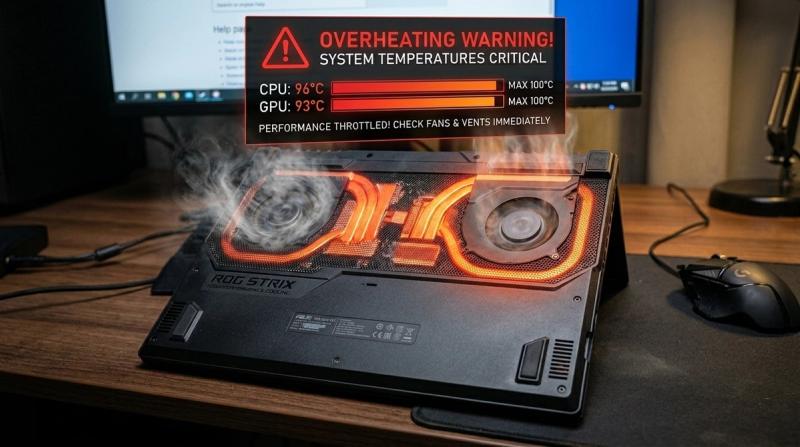
A hot laptop isn't just uncomfortable on your lap. It's a real warning sign. When a laptop runs too hot, it automatically slows itself down to protect the hardware, a process called thermal throttling, which is why an overheating laptop often feels sluggish exactly when you need it most, like during a game, a video export, or a heavy multitasking session.
Left unaddressed, overheating doesn't just hurt performance today. It shortens the life of your CPU, GPU, and battery over time, and in more serious cases can cause the system to shut down unexpectedly to protect itself. The good news is that most overheating problems come from a small number of fixable causes, and you can diagnose and fix nearly all of them yourself, without opening the laptop or needing any special technical background.
This guide explains what counts as a normal laptop temperature, why laptops overheat in the first place, and walks through every practical fix in the order you should try them. Each fix explains why it works, exactly how to do it, what result to expect, and what to do if it doesn't help.
Quick Answer: How to Fix an Overheating Laptop
Start by checking your laptop's real temperature, not just how hot it feels to the touch. Download HWMonitor or Core Temp, both free, and check your CPU temperature at idle and under load.
If temperatures are high, first make sure the laptop is on a hard, flat surface with nothing blocking the vents underneath. Then open Task Manager (Ctrl+Shift+Esc), sort by CPU usage, and close anything unnecessary that's running in the background.
If the laptop is more than 1-2 years old and still runs hot after that, dust buildup inside the cooling system is the most likely cause, and cleaning the vents with compressed air is the next step.
What Is a Normal Laptop Temperature?
Before troubleshooting, it helps to know what's actually normal, since laptop CPUs run hotter than desktop CPUs by design, due to their smaller, more compact cooling systems.
At idle (light use like browsing or typing): 30-50°C is normal for most laptops. Consistently running hotter than 50°C while doing very little suggests something is wrong even before you start a demanding task.
Under moderate load (multiple apps, video calls, light editing): 50-70°C is typical and not a cause for concern on its own.
Under heavy load (gaming, video rendering, heavy multitasking): 70-85°C is normal for most laptops, and brief spikes up to 90°C during intense moments are generally still considered safe for modern CPUs.
The real danger zone: Most modern CPUs are rated to handle up to 95-105°C before automatic thermal throttling or emergency shutdown kicks in to protect the hardware. If your laptop is consistently hitting 90-95°C or higher, even briefly, that's a clear sign your cooling system needs attention.
Keep in mind that "normal" varies by exact CPU model, room temperature, and how demanding your specific task is. The numbers above are reliable general guidelines for 2026-era laptops, not a universal rule that applies identically to every single model.
Why Do Laptops Overheat?
Dust buildup in the cooling system. Over months and years, dust and lint get pulled in through the intake vents and settle on the fan blades and heatsink fins. This is the single most common cause of gradually worsening heat in an otherwise healthy laptop.
Blocked air vents. Using a laptop on a soft surface, like a bed, pillow, or blanket, blocks the intake vents underneath, restricting airflow the cooling system depends on entirely.
Dried-out thermal paste. Thermal paste is the material between the CPU/GPU and the heatsink that transfers heat efficiently. Over 2-4 years, it dries out and becomes far less effective, even if the rest of the cooling system is clean.
Heavy background processes. Apps and processes running in the background, even ones you're not actively using, consume CPU resources and generate heat continuously, not just during obvious heavy tasks.
High CPU/GPU usage from demanding tasks. Gaming, video editing, and 3D rendering push the CPU and GPU to their limits by design, generating far more heat than everyday browsing or document work.
Poor airflow around the laptop. Even with clean internal components, a laptop placed in a tight, enclosed space with no room for warm air to escape will run hotter than one with open space around it.
A hot environment. A laptop in a warm room, in direct sunlight, or in a hot climate has less of a temperature gap to dissipate heat into, which makes every other cause on this list worse.
A failing cooling fan. Fans wear out over years of use. A fan that spins slower than it should, or has failing bearings, can't move enough air to keep up with the heat the components generate.
Symptoms That Point to a Specific Cause
- Hot to the touch, especially underneath, combined with a laptop more than 2 years old: Points most strongly to dust buildup or aging thermal paste.
- Loud, constant fan noise even during light tasks: Points to the fan working overtime to compensate for a cooling problem, or a failing fan bearing.
- Overheating only during gaming or heavy tasks, fine otherwise: This can be completely normal (see temperature guidelines above), but if temperatures exceed 90-95°C consistently, cleaning and airflow improvements are still worth doing.
- Slow performance or FPS drops specifically when the laptop has been running for a while: This is a classic sign of thermal throttling, where the CPU/GPU intentionally slows down once temperature limits are reached.
- Sudden shutdowns during heavy use: Points to temperatures reaching the emergency shutdown threshold, which is the CPU protecting itself from damage. This needs attention urgently.
- Overheating warning message from Windows or a manufacturer utility: Take this at face value. Manufacturer thermal sensors are generally accurate, and this message means the system itself has detected a real problem.
What Is Thermal Throttling?
Thermal throttling is a built-in safety feature, not a malfunction. When your CPU or GPU reaches a temperature close to its safe limit, it automatically reduces its own clock speed to generate less heat, protecting itself from permanent damage.
This is why an overheating laptop often feels like it's "lagging" specifically during demanding tasks, rather than crashing outright. The hardware is deliberately slowing itself down. It's a good thing in the sense that it prevents damage, but it's a clear signal that your cooling system isn't keeping up with what you're asking the laptop to do.
If you notice performance dropping specifically after 10-20 minutes of sustained heavy use, and then recovering once the task stops and the laptop cools down, that pattern is close to a textbook description of thermal throttling in action.
How to Check Your Laptop's Real Temperature
Why this matters: You can't fix an overheating problem accurately based on how hot the laptop feels to the touch alone. Getting real numbers tells you exactly how serious the problem is and whether your fixes are actually working.
How to do it:
- Download HWMonitor (from cpuid.com) or Core Temp (from alcpu.com), both free and safe, directly from their official websites.
- Install and open the tool.
- Check your CPU temperature while the laptop is idle, doing nothing demanding.
- Then open a demanding task, like a game or a video export, and watch how the temperature climbs over 10-15 minutes.
- Compare both readings to the normal ranges listed earlier in this guide.
Expected result: You'll have real numbers for idle and load temperatures, which tells you clearly whether you have a genuine overheating problem or a laptop that simply runs warm normally under heavy tasks.
If it doesn't work: If HWMonitor or Core Temp won't install or run, check your BIOS/UEFI setup screen instead (restart and press the key shown on your manufacturer's boot screen, often F2, F10, or Del) which usually shows a basic CPU temperature reading, though only as a single snapshot, not tracked over time.
How to Fix an Overheating Laptop (Step-by-Step)
Work through these in order. Most people find real improvement within the first five or six fixes.
Fix 1: Use a Hard, Flat Surface
Why this helps: Laptop intake vents are almost always on the bottom. A soft surface, like a bed, couch cushion, or blanket, physically blocks these vents, cutting off airflow the cooling system depends on entirely, regardless of how clean the internals are.
How to do it:
- Always use your laptop on a hard, flat surface: a desk, table, or a laptop stand.
- If you regularly use it on your lap or in bed, get a rigid lap desk or laptop stand with proper airflow gaps built in.
- Avoid placing the laptop directly on thick carpet as well, for the same reason.
Expected result: Immediate improvement in airflow and a noticeable temperature drop, particularly if you previously used the laptop on soft surfaces regularly.
If it doesn't work: If temperatures are still high even on a hard surface, the problem is likely internal (dust, thermal paste, or background load) rather than external placement, and the fixes below will help identify which.
Fix 2: Close Unnecessary Background Apps
Why this helps: Every running process uses some CPU, and CPU usage directly generates heat. Apps you're not actively using but that are still running in the background add to your overall heat load without you realizing it.
How to do it:
- Press Ctrl + Shift + Esc to open Task Manager.
- Click the Processes tab and sort by clicking the CPU column header.
- Right-click anything unnecessary using significant CPU and select End task.
- For apps that shouldn't launch automatically, go to Settings > Apps > Startup and disable anything you don't need running constantly.
Expected result: Lower baseline CPU usage and lower idle temperatures, especially if you had several unnecessary apps running.
If it doesn't work: Avoid closing anything you don't recognize, particularly antivirus software or core Windows processes. If you're unsure what a process does, search its exact name before ending it.
Fix 3: Clean Dust from Vents and Fans (External Cleaning)
Why this helps: Dust is the single most common cause of gradually worsening laptop temperatures. It physically blocks airflow through the vents and coats the fan blades and heatsink fins, reducing their ability to move and dissipate heat.
How to do it:
- Shut down the laptop completely and unplug the charger.
- Locate the intake and exhaust vents, usually on the bottom and sides of the laptop.
- Hold a can of compressed air upright (tilting it can spray liquid propellant instead of air) and use short bursts to blow air into the vents from the outside.
- Hold the fan exhaust vent and briefly pulse air into it as well; you may see dust visibly blow out.
- Do this outdoors or in a well-ventilated area, since a surprising amount of dust can come out.
Expected result: Noticeably lower temperatures at both idle and under load, particularly if the laptop hasn't been cleaned in over a year.
If it doesn't work: External cleaning only reaches what compressed air can access through the vents. If temperatures are still high afterward, especially on a laptop more than 2-3 years old, the fan and heatsink likely need a full internal cleaning (Fix 9), which usually means opening the laptop.
Fix 4: Improve Airflow Around the Laptop
Why this helps: Even a perfectly clean laptop needs somewhere for the hot air it expels to go. A laptop crammed into a tight space, with exhaust vents right up against a wall or object, simply recirculates warm air instead of properly dissipating it.
How to do it:
- Leave a few inches of open space around your laptop, particularly near the side or rear exhaust vents.
- Avoid stacking books, papers, or other objects near the vents.
- If you use the laptop in an enclosed space (like a small desk alcove), improve overall room ventilation or reposition it toward more open air.
Expected result: Lower sustained temperatures during longer sessions, since the warm air the laptop expels has somewhere to actually go.
If it doesn't work: If airflow improvements alone don't meaningfully help, a cooling pad (Fix 6) provides active airflow that passive repositioning can't fully match.
Fix 5: Reduce Startup Apps and Background Load
Why this helps: Too many apps launching automatically at startup keeps your CPU working harder than it needs to, generating unnecessary heat throughout your entire session, not just when you're actively using something demanding.
How to do it:
- Open Task Manager (Ctrl+Shift+Esc) and click the Startup apps tab.
- Sort by Startup impact and disable anything rated High or Medium that you don't need launching automatically.
- Leave essential items enabled, like your antivirus software and core drivers.
Expected result: Lower baseline resource usage right from boot, which keeps overall temperatures lower throughout your entire session, not just during heavy tasks.
If it doesn't work: If disabling startup apps doesn't meaningfully change your temperatures, the heat is more likely coming from a specific ongoing task or process, which Fix 2's Task Manager check will help you identify directly.
Fix 6: Use a Laptop Cooling Pad
Why this helps: A cooling pad adds extra fans underneath your laptop, actively pulling air through the intake vents rather than relying on your laptop's internal fans alone, which is especially useful for gaming or sustained heavy workloads.
How to do it:
- Choose a cooling pad sized correctly for your laptop, with fans positioned to align with your laptop's actual intake vents (check your laptop's vent locations first).
- Place your laptop on the pad and connect it via USB for power.
- Use it especially during demanding tasks like gaming or video rendering, where extra airflow makes the biggest difference.
Expected result: A measurable temperature drop during heavy tasks, often several degrees, particularly helpful on laptops with limited internal cooling capacity.
If it doesn't work: A cooling pad helps with airflow but can't compensate for dust buildup or dried thermal paste inside the laptop. If temperatures are still high with a cooling pad in use, the internal fixes below (Fix 3, Fix 9) are still necessary.
Fix 7: Update Graphics and Chipset Drivers
Why this helps: Drivers include power-management instructions for your hardware. An outdated graphics driver can cause your GPU to run less efficiently for the same task, generating more heat than a properly optimized driver would.
How to do it:
- Open Settings > Windows Update > Advanced options > Optional updates and install any available driver updates.
- For dedicated graphics cards specifically, check the NVIDIA App, AMD Software, or Intel Driver & Support Assistant for the newest graphics driver.
- Restart after installing any updates.
Expected result: More efficient hardware operation, which can reduce heat generation during graphics-heavy tasks like gaming or video playback.
If it doesn't work: If updated drivers don't noticeably change your temperatures, the cause is more likely physical (dust, airflow, thermal paste) rather than software-related.
Fix 8: Adjust Your Power Plan for Less Heat
Why this helps: A power plan set to maximum performance keeps your CPU running at higher clock speeds even when you don't strictly need them, generating more heat than necessary for lighter tasks.
How to do it:
- Open Settings > System > Power & battery > Power mode.
- Select Balanced for everyday use, reserving Best performance specifically for when you need maximum speed and are prepared for the extra heat that comes with it.
- On laptops with a manufacturer utility (like Lenovo Vantage or Dell Power Manager), check for a similar performance/balanced/quiet mode setting there as well.
Expected result: Lower temperatures during everyday tasks, with a small trade-off in peak performance that most non-demanding work doesn't actually need.
If it doesn't work: This mainly helps with everyday heat, not heavy tasks like gaming, which will still push your CPU and GPU hard regardless of power plan. For those specific tasks, the physical fixes (cleaning, cooling pad) matter more.
Fix 9: Replace Thermal Paste (Advanced)
Why this helps: Thermal paste transfers heat from the CPU/GPU directly to the heatsink that dissipates it. After 2-4 years, thermal paste dries out and loses much of its effectiveness, even in a laptop that's otherwise clean and well-maintained.
How to do it:
- This requires opening the laptop, which varies significantly by model. Search your exact laptop model plus "disassembly guide" from the manufacturer or a reputable repair resource to see the specific steps for your model.
- Once the heatsink is exposed, clean off the old, dried paste using isopropyl alcohol (90%+) and a lint-free cloth.
- Apply a small, pea-sized amount of new high-quality thermal paste to the CPU (and GPU, if separate) directly.
- Reassemble the laptop carefully, following your model's specific guide in reverse.
Expected result: A significant temperature drop, often 10-20°C under load, particularly on laptops more than 3-4 years old that have never had this done.
Warning: This is the one fix in this guide that requires real technical care. Opening a laptop can void your warranty, and incorrect reassembly, static discharge, or applying too much or too little paste can cause new problems. If you're not confident doing this yourself, have it done by a professional technician instead; it's a routine service for most repair shops.
If it doesn't work: If temperatures don't improve after a professional thermal paste replacement, the fan itself may be failing (Fix 10) rather than the paste being the issue.
Fix 10: Have a Failing Fan Serviced or Replaced
Why this helps: Fans have moving parts that wear out over years of continuous use. A fan with worn bearings spins slower than it should, or makes grinding or rattling noises, and simply can't move enough air to keep up with the heat your components generate, no matter how clean everything else is.
How to do it:
- Listen for unusual fan noise: grinding, rattling, or a fan that seems to spin at only one constant speed regardless of how hard the laptop is working.
- If your laptop is still under warranty, contact the manufacturer's support team, since fan replacement is often covered.
- If it's out of warranty, an authorized service center or a reputable independent repair shop can replace the fan, typically as a routine, moderately priced repair.
Expected result: Fan noise returns to normal, and temperatures drop back into expected ranges once proper airflow is restored.
If it doesn't work: If a new fan doesn't fully resolve high temperatures, combine it with a thermal paste replacement (Fix 9) done at the same time, since both are often serviced together during a full internal cleaning.
Fix 11: Check the Room Temperature and Environment
Why this helps: A laptop dissipates heat into the surrounding air. If that air is already warm, there's a smaller temperature difference for heat to flow into, which makes cooling meaningfully less effective even with a perfectly clean, well-maintained laptop.
How to do it:
- Avoid using your laptop in direct sunlight or near heating vents.
- In a hot room, use a fan or air conditioning if available, particularly during demanding tasks like gaming.
- If you notice your laptop consistently runs hotter at certain times of day or in certain rooms, this confirms ambient temperature is a meaningful contributing factor for you specifically.
Expected result: Somewhat lower temperatures, particularly during long sessions, though this fix alone won't resolve an underlying dust or thermal paste problem.
If it doesn't work: If temperatures stay high even in a cool room, an internal cause (dust, thermal paste, failing fan) is the more significant factor, and the earlier fixes in this list matter more than the room environment.
Is It Safe to Fix Overheating Yourself?
Most of the fixes in this guide are completely safe and require no special skill: using a hard surface, closing background apps, cleaning external vents with compressed air, using a cooling pad, updating drivers, and adjusting power settings. These carry no real risk to your hardware.
The two fixes that need real caution are thermal paste replacement (Fix 9) and fan servicing (Fix 10), both of which require opening the laptop. Doing this yourself can void your warranty on many laptops, and incorrect reassembly or static discharge during the process can cause new hardware problems. If you're not confident working inside a laptop, or if it's still under warranty, have a professional handle these two specifically.
How Long Does It Take to Fix Overheating?
Checking your temperature with HWMonitor or Core Temp takes about 5 minutes. Using a hard surface and closing background apps (Fixes 1-2) are immediate, no-cost changes. External vent cleaning with compressed air (Fix 3) takes 10-15 minutes. Updating drivers (Fix 7) and adjusting your power plan (Fix 8) together take about 10 minutes. A professional thermal paste replacement or fan service (Fixes 9-10) typically takes a repair shop same-day to a few days, depending on parts availability. If you work through the easy fixes first, most people see a real improvement within 20-30 minutes of hands-on time.
How to Verify Your Cooling Fixes Actually Worked
A laptop that "feels less hot" isn't the same as confirming a real temperature improvement. To check properly:
- Re-open HWMonitor or Core Temp and note your idle temperature, then compare it to your reading from before you started fixing anything.
- Run the same demanding task you tested with earlier (a specific game, video export, or benchmark), and compare peak temperature under load to your earlier reading.
- Listen for fan noise: a properly cooled laptop's fan should ramp up during heavy tasks and quiet down again once the task finishes, rather than running loudly all the time.
- Check whether performance during heavy tasks (like consistent gaming FPS) has improved, which indicates thermal throttling is happening less often, or not at all.
When Overheating Points to a Deeper Hardware Problem
If you've cleaned the vents, improved airflow, used a cooling pad, and updated drivers, and your laptop still runs at 90°C+ during even moderate tasks, the cause is very likely internal: dried thermal paste, a genuinely failing fan, or in rarer cases a manufacturing defect in the cooling system itself. At this point, a professional inspection is the right next step rather than continuing to try software-only fixes. This is especially true if you notice a burning smell, visible warping of the laptop's case, or repeated unexpected shutdowns even after basic cleaning, any of which should be addressed by a technician promptly rather than delayed.
Common Mistakes to Avoid
Don't use your laptop on a bed, couch, or your lap without a rigid surface underneath; this single habit is responsible for a huge share of "sudden" overheating complaints. Don't judge temperature by touch alone; a laptop can feel only mildly warm on the surface while its internal CPU temperature is already in the danger zone. Don't spray compressed air at an angle or shake the can before use, since this can release liquid propellant into the vents instead of air. Don't attempt thermal paste replacement or fan repair yourself unless you're genuinely comfortable with the process and your specific laptop's disassembly steps; incorrect reassembly can cause new problems beyond the original overheating issue. And don't ignore a fan that's making grinding or rattling noises, hoping it resolves itself; a failing fan gets worse over time, not better.
Related Solution Hub Guides:
Windows Shortcut Keys: Complete Keyboard Guide for Windows 10 and 11
How to Check Laptop Battery Health in Windows 10 and 11
Laptop Battery Draining Fast? Complete Fix Guide for Windows
Frequently Asked Questions
Why is my laptop overheating?
The most common causes are dust buildup blocking airflow, using the laptop on a soft surface that blocks the intake vents, too many background apps running, or dried thermal paste on a laptop more than 2-3 years old. Checking your real temperature with a free tool like HWMonitor is the best first step to confirm how serious it is.
What temperature is too hot for a laptop?
Under heavy load, 70-85°C is normal for most modern laptops, with brief spikes to 90°C generally still acceptable. Consistently running at 90-95°C or higher, especially during light tasks, is a clear sign your cooling system needs attention.
Can overheating damage a laptop?
Yes. Sustained high heat accelerates wear on the CPU, GPU, and battery, shortening their lifespan over time. In severe cases, a laptop can shut down unexpectedly to protect itself from permanent damage, which is the hardware's built-in safety response to dangerous temperatures.
Does a cooling pad help?
Yes, particularly during gaming or other heavy tasks. A cooling pad adds extra fans that actively pull air through your laptop's intake vents, often reducing temperatures by several degrees. It won't fix dust buildup or dried thermal paste on its own, but it helps meaningfully alongside those fixes.
When should I replace thermal paste?
Generally every 2-4 years, or sooner if your laptop's temperatures have gradually crept up despite regular external cleaning. If you're not comfortable opening the laptop yourself, this is a routine, moderately priced service most repair shops offer.