How to Check Laptop Battery Health in Windows 10 and 11
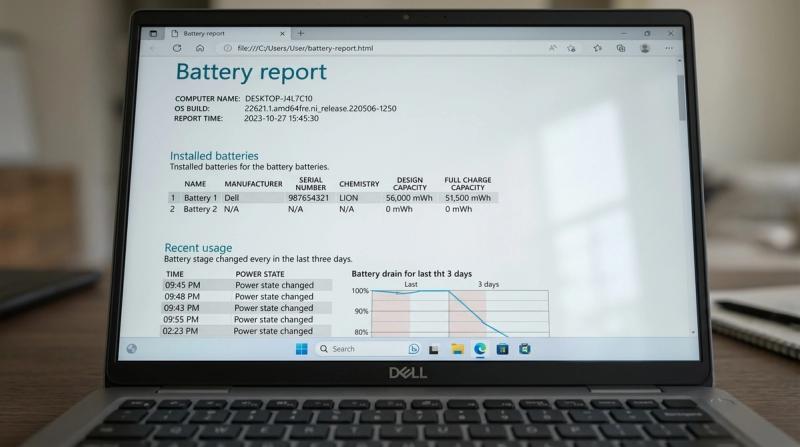
If your laptop doesn't last as long as it used to, the battery percentage jumps around unexpectedly, or it shuts down suddenly even when it still shows charge left, you need real data before you can fix anything. Guessing whether your battery is "fine" or "dying" wastes time. Checking it takes two minutes and gives you an actual answer.
Windows includes a built-in battery health report that most people never know exists. It's completely free, requires no download, and shows you exactly how much capacity your battery has lost since it was new. This guide walks through generating that report, reading every part of it correctly, checking your battery through your laptop manufacturer's own tools, and knowing exactly when a declining number means it's time to replace the battery.
Quick Answer: How to Check Battery Health in Windows
Press the Windows key, type cmd, right-click Command Prompt, and select Run as administrator. Type powercfg /batteryreport and press Enter. Windows saves an HTML file and shows you the exact file path. Open that file in your browser and look for Design Capacity and Full Charge Capacity under Installed Batteries.
Divide Full Charge Capacity by Design Capacity and multiply by 100. That's your battery's health percentage. Above 80% is healthy. Below 60% means it's time to start planning a replacement.
What Does "Battery Health" Actually Mean?
Battery health is a measure of how much energy your battery can currently store, compared to how much it could store when it was brand new. It has nothing to do with the percentage you see in the taskbar (that number, like 45% or 90%, only tells you how full the battery is right now, not how much it can hold overall).
Think of it like a bucket. A brand-new battery is like a full-size bucket. As a battery ages, the bucket physically shrinks. It can still be "full" (100% on the taskbar), but a smaller bucket holds less water than it used to, so it empties faster even though it says "full" the same as before.
This is why a laptop can show 100% battery and still only last half as long as it did when it was new. The percentage is accurate. The bucket just got smaller.
Battery Capacity vs. Design Capacity: The Two Numbers That Matter
To measure battery health, Windows compares two specific numbers, both given in mWh (milliwatt-hours), a unit of energy:
Design Capacity is how much energy your battery was built to hold when it was brand new, straight from the manufacturer. This number never changes. It's a fixed spec, like the original size of the bucket.
Full Charge Capacity is how much energy your battery can actually hold right now, based on its current condition. This number goes down over time as the battery ages. It's the current size of the bucket, after however much shrinking has happened.
The relationship between these two numbers is your battery health:
Battery Health % = (Full Charge Capacity ÷ Design Capacity) × 100
For example, if your battery's Design Capacity is 50,000 mWh and its Full Charge Capacity now reads 40,000 mWh, your battery is at 80% health. It can still hold 80% of the energy it could when new.
What Are Charge Cycles?
A charge cycle is one complete use of 100% of your battery's capacity, but it doesn't have to happen all at once. If you use 50% of your battery today and charge it back up, then use another 50% tomorrow and charge it back up, that adds up to one full charge cycle total, not two.
Every lithium-ion battery, the type used in essentially all modern laptops, is rated for a certain number of charge cycles before it noticeably loses capacity, typically somewhere in the range of 300-500 cycles for most consumer laptops, though this varies by manufacturer and battery quality. After that many cycles, most batteries have dropped to somewhere around 80% of their original capacity, and capacity loss tends to accelerate beyond that point.
Charge cycles matter because they help explain why a battery has degraded, even when the health percentage alone doesn't. A laptop with a high cycle count and low remaining capacity is aging normally, exactly as expected. A laptop with very few cycles and already-low capacity may have a different problem, like heat damage or a manufacturing defect, worth investigating further.
What Causes Battery Health to Decline?
Battery aging. Lithium-ion batteries lose capacity through normal chemical wear over time, even if you barely use the laptop. This happens regardless of how carefully you treat the battery.
Repeated charge cycles. Every full charge cycle causes a small amount of permanent capacity loss. This is unavoidable and expected; it's simply part of how the battery is used.
Overheating. Heat is the single fastest way to accelerate battery wear. A battery that regularly runs hot, from heavy tasks, poor ventilation, or being used on a soft surface that blocks airflow, will degrade noticeably faster than one that stays cool.
Poor charging habits. Routinely draining the battery to 0% before charging, or leaving it plugged in at 100% for very long periods while it's also warm, both accelerate long-term capacity loss compared to more moderate charging patterns.
Background power usage. This doesn't directly damage the battery's chemistry, but it does mean more charge cycles happen over the same period of time, which indirectly speeds up the wear that charge cycles cause.
Hardware degradation. In some cases, the battery's internal charging circuit or cell balance degrades independently of simple age or cycle count, which is one reason the health report is more reliable than just checking how old the laptop is.
Symptoms That Mean You Should Check Your Battery Health
- Your laptop's runtime is noticeably shorter than it used to be, even doing the same tasks as before.
- The battery percentage drops suddenly, for example jumping from 40% to 10% within a few minutes.
- Your laptop shuts down unexpectedly, even while the battery shows a reasonable percentage remaining, like 20-30%.
- The reported battery percentage seems inaccurate, jumping around or not matching how long the laptop has actually been running.
- Charging feels slower than it used to.
- The laptop runs noticeably hotter than before, even during light tasks.
Any of these on their own is worth checking. If you're noticing several at once, checking your battery health report is the right first step before trying anything else.
How to Generate a Windows Battery Health Report (Step-by-Step)
This is the main method covered in this guide, and it works the same way on both Windows 10 and Windows 11.
Step 1: Open Command Prompt as Administrator
Why this matters: The battery report command needs administrator access to read detailed hardware data. Without it, the command will either fail or produce an incomplete report.
How to do it:
- Press the Windows key on your keyboard.
- Type cmd.
- In the search results, right-click Command Prompt.
- Select Run as administrator.
- If a pop-up asks for permission, click Yes.
Expected result: A black command window opens with the title bar showing "Administrator: Command Prompt."
If it doesn't work: If you don't see the "Run as administrator" option, you may be signed into a Standard user account rather than an Administrator account. Ask whoever manages the PC's account settings, or sign in with an administrator account, and try again.
Step 2: Run the Battery Report Command
Why this matters: This single command tells Windows to collect your battery's stored usage history and generate a readable report from it.
How to do it:
- In the Command Prompt window, type exactly:
Press Enter.Wait a few seconds. Windows will print a confirmation message showing exactly where the report was saved, for example:
If it doesn't work: If you get an error message, check for typos first; the command must be typed exactly as shown, with the space between powercfg and /batteryreport. If it still fails, try specifying an exact save location instead:
This saves the report directly to your C: drive, which avoids any permission issues with saving to your user folder.
Step 3: Open and Read the Report
Why this matters: The report is just a file until you actually open and read it. This is where you find your real numbers.
How to do it:
- Open File Explorer.
- Navigate to the folder path shown in Command Prompt (commonly
C:\Users\YourName\, or wherever you specified with/output). - Find the file named battery-report.html.
- Double-click it. It will open automatically in your default web browser.
Expected result: A formatted webpage opens showing several sections: general system information, installed batteries, recent usage, battery usage history, and battery life estimates.
If it doesn't work: If you can't find the file, open File Explorer and type battery-report.html directly into the search bar in the top-right corner, which will search your whole PC for it.
How to Read Your Battery Report
The report contains several sections. Here's what each one actually tells you, in plain language.
Installed Batteries
This section shows your battery's basic information: manufacturer, chemistry (almost always Lithium-ion or Lithium Polymer on modern laptops), and the two critical numbers:
- Design Capacity: What your battery could hold when it was new.
- Full Charge Capacity: What your battery can hold right now.
This is the section you use to calculate your health percentage, as covered earlier: divide Full Charge Capacity by Design Capacity and multiply by 100.
Example: Design Capacity: 52,000 mWh. Full Charge Capacity: 38,000 mWh. Health: (38,000 ÷ 52,000) × 100 = 73%. This battery has lost roughly a quarter of its original capacity.
Cycle Count
If your laptop's hardware reports this data (not all manufacturers include it), you'll see a total charge cycle count here. Compare this to the typical 300-500 cycle lifespan mentioned earlier. A high cycle count alongside low capacity confirms normal aging. A blank or missing cycle count simply means your specific hardware doesn't report this figure to Windows; it doesn't indicate a problem.
Recent Usage
This table shows a timeline of recent power states: when your laptop was active, in standby, or charging, along with the battery capacity at each point. It's useful for spotting unusual drain during standby specifically, which can point to a Fast Startup or wake-timer issue rather than the battery itself.
Battery Usage
This shows your overall battery drain rate over a longer recent period, active vs. standby. If drain during standby looks unusually high compared to active use, that's a sign of a software or power-setting issue, not necessarily battery wear.
Battery Capacity History
If your laptop has been generating reports over time (or if you compare reports you've saved from different months), this section shows Full Charge Capacity declining over time, giving you a visual trend rather than just a single snapshot.
Battery Life Estimates
This section estimates how long your battery would last at both Design Capacity (its original potential) and Full Charge Capacity (its current real potential), based on your recent usage patterns. This is the most practical section for understanding real-world impact: it translates the raw capacity numbers into an actual "hours of use" estimate you can relate to.
What Is a Good Battery Health Percentage?
Use these general guidelines to interpret your result:
- 90-100%: Excellent condition. Essentially performing like new.
- 80-89%: Normal, healthy aging. No action needed.
- 70-79%: Noticeable wear. You'll likely notice somewhat shorter runtime than when the laptop was new, but this is still considered acceptable for a laptop more than a year or two old.
- 60-69%: Significant wear. Runtime is meaningfully reduced. Software fixes (lowering brightness, enabling Battery Saver, closing background apps) will help some, but won't restore the lost capacity.
- Below 60%: Poor health. At this point, most users notice a real difference in day-to-day usability, and a battery replacement is usually the only fix that meaningfully helps.
These are general guidelines, not exact rules. A laptop you rarely take off a desk might be fine at 65% health, while a laptop you rely on for travel might feel the impact of even 75% health much more.
Checking Battery Health Through Manufacturer Tools
The Windows battery report is universal and works on any laptop, but many manufacturers also offer their own diagnostic tools with a friendlier interface and sometimes extra detail, like real-time wear-level percentages or built-in hardware tests.
HP Support Assistant (HP laptops)
- Open HP Support Assistant (usually pre-installed; search for it in the Start menu).
- Go to the My devices tab.
- Click on your laptop, then look for Battery Check or Run tests.
- It runs a built-in diagnostic and reports battery condition directly.
Lenovo Vantage (Lenovo laptops)
- Open Lenovo Vantage (pre-installed on most Lenovo laptops; available free from the Microsoft Store if missing).
- Go to the Device or Hardware Scan section.
- Look for Battery under hardware diagnostics and run the check.
- Vantage also shows a real-time battery health percentage on its dashboard.
Dell Power Manager (Dell laptops)
- Open Dell Power Manager (pre-installed on most Dell laptops).
- Go to the Battery Information tab.
- It displays battery health status, along with options like a charge threshold setting to extend long-term battery lifespan.
Why bother with manufacturer tools if Windows already has one? They're not strictly necessary, but they're often built directly from the battery's own internal sensor data and can flag hardware-specific issues, like a battery your laptop's own diagnostics recognize as end-of-life, that the generic Windows report won't specifically call out. If you don't have one of these three brands, check whether your laptop manufacturer offers its own support app; most major brands do.
Warning Signs That Need Immediate Attention
Most battery wear is a gradual, normal process. A small number of signs are not normal and need immediate action, regardless of what your health percentage shows:
Physical swelling. If the battery looks puffy, or the trackpad, keyboard deck, or bottom panel appears slightly raised, bulged, or warped, stop using the laptop immediately. A swollen lithium-ion battery is a genuine fire and safety risk, not just a performance issue. Have it professionally removed and replaced; don't puncture or attempt to remove it yourself.
Excessive heat during light use. A laptop that gets uncomfortably hot even during simple tasks like browsing, not just heavy tasks like gaming, may have a battery or charging circuit problem beyond normal wear.
Sudden shutdowns at a moderate percentage. If your laptop shuts down unexpectedly at 20-30% battery, repeatedly, this suggests the battery can't reliably deliver power under load anymore, even if the displayed percentage looks reasonable.
A burning smell or visible damage. Stop using the laptop immediately and have it inspected by a professional. Do not attempt to charge or use a battery showing any of these signs.
If you notice any of these, don't wait for your next scheduled battery check. Address it right away.
How Often Should You Check Battery Health?
For most users, checking every 1-3 months is a reasonable balance between staying informed and not overdoing it. A few specific situations are worth a check outside that normal schedule:
- Before a long trip, to confirm your realistic battery life at current health, using the Battery Life Estimates section of the report.
- After noticing new symptoms, like sudden drain or shutdowns, to see whether capacity has changed recently.
- After a Windows or BIOS/firmware update, since these can occasionally affect how accurately the battery reports its own data.
- Roughly once a year on any laptop over 2 years old, simply to track the general trend and know ahead of time when a replacement might be coming.
Running the report itself has no downside. It only reads existing data and doesn't affect your battery or system in any way, so there's no harm in checking more often if you're curious.
Is the Battery Report Always Accurate?
Mostly, but a few things are worth knowing. The report relies on data your battery's internal controller reports to Windows, and this reporting can occasionally be imprecise, particularly cycle count on some laptop models, which may show as blank even on a battery that's clearly aged. Full Charge Capacity readings can also shift slightly between individual charge cycles due to normal variation, so a single reading is a good snapshot, but comparing reports over several weeks or months gives you a more reliable trend than any one report alone. If a report ever looks obviously wrong, for example showing a Full Charge Capacity higher than the Design Capacity, running the report again after a full charge-and-discharge cycle usually corrects it.
When Should You Replace Your Laptop Battery?
Based on everything covered above, here's a practical decision guide:
Replace now if: Health is below 60%, the battery is physically swollen, or you're experiencing sudden shutdowns at a moderate remaining percentage despite trying basic power-saving fixes.
Plan to replace soon if: Health is between 60-70% and the reduced runtime is genuinely affecting how you use the laptop day to day, especially if you travel or work away from an outlet often.
Not necessary yet if: Health is above 70% and the laptop is still meeting your actual runtime needs, even if it's not quite what it was when new.
A note on replacement batteries: Avoid unusually cheap, unbranded replacement batteries from marketplace listings with no clear manufacturer backing. Poor-quality battery cells are more prone to swelling, inaccurate capacity, and in rare cases, safety issues. Use your laptop manufacturer's official replacement part, or a well-reviewed third-party battery specifically rated for your exact laptop model, ideally installed by an authorized service center or a technician experienced with laptop battery replacement.
Common Mistakes to Avoid
Don't judge battery health only by the taskbar percentage; that number only reflects current charge level, not actual capacity or condition. Don't panic over a missing cycle count in the report; it's a common reporting gap on certain hardware, not necessarily a sign of a problem. Don't compare your battery's health to a friend's laptop with a different model or age; use the guidelines in this article relative to your own laptop's usage pattern instead. Don't ignore physical swelling because "it still works fine"; stop using it and get it serviced regardless of how it performs. And don't buy the cheapest available replacement battery online without checking it's specifically rated for your laptop model; a wrong or poor-quality battery can cause new problems rather than solving the original one.
Related Solution Hub Guides:
Laptop Battery Draining Fast? Complete Fix Guide for Windows
Frequently Asked Questions
How do I check battery health in Windows 10/11?
Open Command Prompt as administrator, type powercfg /batteryreport, and press Enter. Windows saves an HTML report showing your file path. Open that file and compare Design Capacity to Full Charge Capacity under Installed Batteries to calculate your health percentage.
What is a good battery health percentage?
Above 80% is considered healthy, normal aging. 70-79% shows noticeable but acceptable wear. Below 60% typically means real day-to-day impact, and a replacement is usually the only fix that meaningfully restores runtime.
What does design capacity mean?
Design capacity is how much energy your battery was built to hold when it was brand new. It's a fixed number that never changes, used as the baseline to measure how much capacity your battery has lost over time.
How often should I check battery health?
Every 1-3 months is a reasonable routine for most users. Also check before a long trip, after noticing new symptoms like sudden drain, or after a major Windows or firmware update.
When should I replace my laptop battery?
Replace it when health drops below roughly 60%, if you experience sudden shutdowns at a moderate battery percentage, or immediately if the battery appears physically swollen, regardless of what percentage it shows.