Best Windows Alternatives in 2026: Performance, Security & Corporate Guide
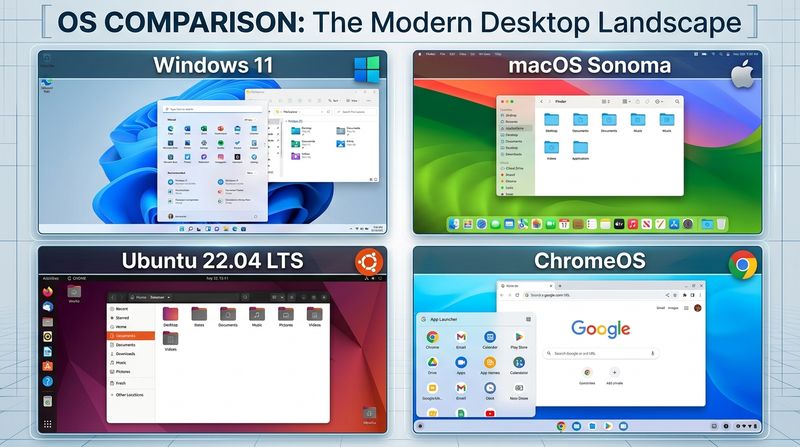
Windows isn't the only option anymore, and for a lot of users it isn't even the best one for their specific situation. Maybe your PC has slowed down with age and a lighter operating system would breathe new life into it. Maybe you're concerned about telemetry and privacy. Maybe you're tired of forced updates interrupting work, or you're managing company hardware and need something more secure and easier to lock down. Whatever the reason, there are real, mature alternatives in 2026 that can match or beat Windows for performance, security, or corporate manageability, depending on which one you choose.
This guide compares the best Windows alternatives available right now, with a specific focus on three things: raw performance, security, and corporate/enterprise fit. Rather than telling you "Linux is better," it breaks down exactly which option is best for which kind of user, what you gain, what you give up, and how to actually try one without committing right away.
Quick Answer: Which Windows Alternative Should You Choose?
If you want the closest experience to Windows with minimal learning curve, Zorin OS or Linux Mint are the best starting points. If your priority is raw performance and you have modern or gaming hardware, CachyOS or Pop!_OS are built specifically for speed. If you're a business or IT admin who needs long-term support, predictable updates, and strong vendor backing, Ubuntu LTS (now on the 26.04 LTS release) is the standard enterprise choice, with Fedora as the more cutting-edge alternative. If your machine is old or low-powered, Linux Mint XFCE edition or ChromeOS Flex will run far better than Windows ever could on the same hardware. If you're fully inside the Apple ecosystem already, macOS remains the strongest all-around alternative, though it requires Apple hardware.
Why Do People Look for a Windows Alternative?
Heavy system requirements. Each new version of Windows tends to need more RAM, more storage, and newer hardware features (like TPM 2.0) just to run smoothly, which leaves older but still capable PCs feeling sluggish or unsupported.
Aging hardware. A PC that's 5-8 years old can still be perfectly usable, but Windows' growing background overhead makes it feel slow, even though the hardware itself isn't actually the bottleneck.
Windows bloat. Pre-installed apps, advertising tiles in the Start menu, background telemetry services, and frequent feature updates all consume resources and add friction that many users would rather not deal with.
Privacy settings. Windows collects diagnostic and usage data by default, and while much of it can be limited, it can't always be fully disabled, which bothers privacy-conscious users and some corporate compliance teams.
Licensing restrictions and cost. Windows Pro and certain enterprise features carry real licensing costs, especially at scale across many company devices, while most Linux distributions are completely free with no per-seat licensing at all.
Specific workflow needs. Developers, system administrators, and security professionals frequently work in environments, like Docker, cloud infrastructure, or command-line tooling, where Linux is the native and more efficient environment rather than an alternative.
Symptoms That Suggest It's Time to Consider Switching
- Your PC is noticeably slower than it used to be, even after the usual performance fixes (startup cleanup, driver updates, disk cleanup).
- High RAM or disk usage shows up in Task Manager even when you have few apps open.
- You're stuck on hardware that Windows 11 doesn't officially support, and you don't want to use unsupported workarounds indefinitely.
- You manage multiple company devices and want lower licensing costs and easier centralized control.
- You're concerned about data collection and want an operating system with less built-in telemetry.
- Update behavior, forced restarts, or feature changes you didn't ask for interrupt your work regularly.
- Your daily tasks are mostly browser-based, and a full desktop OS feels like overkill for what you actually do.
If several of these match your situation, the comparison below will help you find the specific alternative that fits best, rather than a generic "switch to Linux" recommendation.
The Main Windows Alternatives in 2026, Compared
Linux (Multiple Distributions)
Linux isn't a single operating system; it's a family of distributions ("distros"), each built around the same core but packaged very differently for different audiences. This is actually Linux's biggest strength for this comparison: there's a distro genuinely optimized for almost every use case below, from absolute beginners to corporate fleets to gaming rigs.
Performance: Linux distributions generally use less RAM and CPU at idle than Windows, since there's no mandatory background telemetry, fewer pre-installed services, and far more control over what runs at startup. Lightweight distros can comfortably run on hardware Windows 11 would refuse to install on.
Security: Linux's permission model requires explicit authorization for system-level changes, and its smaller desktop market share makes it a much less common target for malware authors compared to Windows. Security updates for the core system are typically faster and more transparent, since most distros are open source and patches are publicly reviewable.
Corporate fit: Distributions like Ubuntu LTS and Rocky Linux are specifically built for predictable, long-supported enterprise deployment, with five years or more of security updates per release, free licensing at any scale, and strong compatibility with Docker, cloud platforms, and DevOps tooling.
Trade-off: Software compatibility is the main catch. Some Windows-only software, particularly specialized business, creative, and certain games, doesn't run natively and needs an alternative or compatibility layer (covered later in this guide).
macOS
macOS is Apple's operating system, available only on Apple's own Mac hardware, and remains one of the most polished alternatives to Windows for general productivity, creative work, and everyday use.
Performance: Apple Silicon Macs (M-series chips) offer excellent performance per watt, very strong battery life, and fast wake/sleep behavior, though you're limited to whatever hardware Apple currently sells, with no option to build or upgrade your own machine.
Security: macOS has a strong built-in security model, with most malware targeting Windows specifically due to its larger market share, and Apple maintains tight control over the software ecosystem through its app notarization process.
Corporate fit: macOS is common in creative industries (design, video, music) and increasingly common in tech companies, with solid enterprise device management tools (Apple Business Manager, MDM support), though hardware costs are higher than most Windows or Linux equivalents.
Trade-off: You're locked into Apple hardware, which costs more upfront and can't be custom-built or freely upgraded, and certain Windows-specific business and engineering software still has no real macOS equivalent.
ChromeOS / ChromeOS Flex
ChromeOS is Google's lightweight, browser-centric operating system, available pre-installed on Chromebooks or as ChromeOS Flex, which can be installed on existing older PCs and Macs for free.
Performance: ChromeOS is extremely lightweight by design, since most of what it does happens in the browser or through Android/Linux apps, which makes it genuinely excellent on old, low-spec, or budget hardware that struggles badly with Windows.
Security: ChromeOS uses a sandboxed, frequently auto-updated architecture with verified boot, making it one of the most resistant mainstream operating systems to traditional malware, since most attack surfaces available on Windows simply don't exist in the same way here.
Corporate fit: Very strong for companies with browser-based or cloud-based workflows (Google Workspace, web apps, call centers, schools), with centralized management through the Google Admin console, but weak for anything requiring native desktop software like complex spreadsheets, CAD, or specialized business applications.
Trade-off: ChromeOS is genuinely limited outside of browser and web-app-based work. If your job depends on desktop software rather than web apps, this isn't the right alternative.
Which Linux Distribution Should You Choose?
Since "Linux" covers dozens of viable options, here's how to pick the right one for your specific need, based on the current 2026 landscape.
Best for Windows Migrants Who Want a Familiar Layout: Zorin OS
Zorin OS is built specifically to ease the transition from Windows, with a desktop layout, taskbar, and Start menu that closely resemble what Windows users already know. It includes a built-in tool to help run some Windows apps and is genuinely one of the gentlest entry points into Linux for someone who has never used anything but Windows.
Best for General Beginners: Linux Mint
Linux Mint remains the most consistently recommended distro for first-time Linux users in 2026, thanks to its stability, sensible defaults, and large community of guides and support forums. It's based on Ubuntu's solid foundation but skips some of the more controversial packaging choices, and it runs comfortably on both modern and modestly older hardware.
Best for Performance and Gaming on Modern Hardware: CachyOS
CachyOS has become one of the standout performance-focused distributions in 2026, built around an optimized kernel and application-specific tuning designed to extract maximum speed from modern CPUs and GPUs. It's an Arch-based distro with a simplified setup, designed for gamers and performance enthusiasts who want top-tier responsiveness without manually configuring Arch Linux from scratch.
Best for Performance on Older or NVIDIA Laptop Hardware: Pop!_OS
Pop!_OS, from hardware maker System76, is tuned specifically for strong out-of-the-box performance and has historically led the pack for smooth NVIDIA driver support on laptops, an area where Linux has traditionally struggled. It's a strong choice if gaming or GPU-accelerated work matters to you and you want something that works well without extensive manual tuning.
Best for Corporate and Enterprise Deployment: Ubuntu LTS
Ubuntu 26.04 LTS, released in April 2026, is the standard recommendation for corporate environments in 2026. It provides long-term support releases offering roughly five years of security updates, combined with strong hardware compatibility and corporate backing from Canonical, including paid support contracts for businesses that want one. If your organization runs proprietary engineering software, Docker containers, or AI/ML workloads, the Ubuntu LTS ecosystem has the broadest official third-party support of any Linux distribution.
Best for IT Admins Who Want Cutting-Edge Stability: Fedora
Fedora strikes a balance between staying current with the newest Linux technology and maintaining genuine day-to-day reliability, making it popular with developers and system administrators who want recent software without the unpredictability of a fully rolling-release distro.
Best for RHEL-Compatible Enterprise Infrastructure: Rocky Linux
Rocky Linux is a fully open-source, 1-to-1 rebuild of Red Hat Enterprise Linux (RHEL), making it a strong choice for businesses that want enterprise-grade reliability and RHEL compatibility without RHEL's licensing costs. It remains a secure, RHEL-compatible option for users seeking enterprise-grade reliability, with security issues caught and fixed quickly thanks to its community-driven development model.
Best for Very Old or Low-Spec PCs: Linux Mint XFCE Edition
The XFCE edition of Linux Mint uses a much lighter desktop environment than the default, making it the best realistic option for PCs with limited RAM or older processors that Windows 11 would refuse to officially support, while still keeping the same beginner-friendly Mint experience underneath.
Performance Comparison: What Actually Makes the Difference
Raw performance differences between Windows and its alternatives come down to a few specific, measurable factors rather than vague impressions of "feeling faster":
Idle resource usage. A fresh Linux Mint or Zorin OS install typically uses noticeably less RAM at idle than a fresh Windows 11 install, since there are far fewer background services, no mandatory telemetry processes, and no pre-installed bundled apps running by default.
Boot and wake times. Lightweight distros, and especially ChromeOS, generally boot and resume from sleep faster than Windows, partly because there's less background software competing for disk and CPU access during startup.
Old hardware support. Windows 11 enforces hardware requirements like TPM 2.0 and specific CPU generations, which excludes plenty of PCs that are still completely capable. Most Linux distributions, and ChromeOS Flex, have no such restrictions and will install and run on much older hardware.
Gaming performance. Thanks to Valve's Proton compatibility layer (covered below), gaming performance on Linux has closed much of the gap with Windows for many titles, and performance-tuned distros like CachyOS specifically optimize for this.
Update interruptions. Windows feature updates can take significant time and sometimes force a restart at an inconvenient moment. Most Linux distributions apply updates in the background with far less disruption, and you control restart timing yourself.
Security Comparison: What Actually Makes the Difference
Market share as a target. Windows' dominant desktop market share makes it the primary target for most malware authors. Linux and macOS aren't immune to threats, but they're targeted far less often in practice, simply due to smaller desktop usage.
Permission model. Linux requires explicit elevated permission (sudo) for system-level changes, similar in spirit to Windows' User Account Control, but the underlying file permission structure is generally considered more restrictive by default, making it harder for malware to make system-wide changes without your direct involvement.
Update transparency. Most Linux distributions are open source, meaning security patches are publicly reviewable by anyone, and critical vulnerabilities are typically patched and distributed quickly across the ecosystem.
Built-in sandboxing. ChromeOS, in particular, uses verified boot and strong sandboxing by design, making it one of the most resistant mainstream operating systems to traditional malware infection.
Reduced attack surface. A minimal Linux installation has fewer pre-installed background services and bundled apps than Windows by default, which means fewer potential entry points for an attacker, though this advantage shrinks if you install a large number of additional packages yourself.
Corporate and Business Comparison: What Actually Makes the Difference
Licensing cost at scale. Most Linux distributions are entirely free, with no per-seat or per-device licensing cost, which matters significantly once you're deploying across dozens or hundreds of company machines. Paid support contracts (like Ubuntu Pro) are optional, not required.
Long-term support cycles. Ubuntu's LTS releases provide five years of security updates, giving IT departments a predictable, multi-year deployment window without needing to plan around frequent major OS overhauls.
Centralized management. Enterprise Linux distributions support standard remote management and configuration tools, and ChromeOS offers centralized management through the Google Admin console, both comparable in capability to what Windows offers through tools like Intune.
Cloud and DevOps alignment. Distributions like Amazon Linux are specifically built to run smoothly within cloud environments and closely integrated with cloud provider services, which matters if your company's infrastructure is already cloud-native, since matching your desktop and server environments reduces friction for development and operations teams.
Software compliance and compatibility. This is where Windows still wins for many traditional businesses. Industry-specific software (accounting, certain CAD tools, specialized vertical-market applications) is frequently Windows-only, and migrating an entire company away from Windows requires confirming every critical application has a working alternative first.
Can You Run Windows Apps on Linux?
Partially, and it depends heavily on the specific app. There are three realistic options:
Proton (for games). Valve's Proton compatibility layer, built into Steam, allows a large portion of the Windows game library to run on Linux with little to no extra configuration, and gaming-focused distros like CachyOS and Pop!_OS are tuned to take advantage of this.
Wine (for general apps). Wine is a compatibility layer that lets many Windows applications run on Linux without a Windows license, though success varies significantly by app, with some working flawlessly and others not working at all.
Virtualization (for guaranteed compatibility). Running Windows itself inside a virtual machine on your Linux or macOS system guarantees full compatibility for any Windows-only software you absolutely can't replace, at the cost of needing more RAM and a valid Windows license for that virtual machine.
Before switching, check whether your specific must-have applications have a native Linux/macOS version, a known-working Wine compatibility rating, or a genuinely good web-based or cross-platform alternative. This single check prevents the most common reason people switch back to Windows after a few frustrating weeks.
How to Try a Windows Alternative Without Fully Committing
You don't need to wipe your PC to find out if an alternative works for you. Here's the safe path:
Step 1: Back Up Your Data First
Why this matters: Even when using a safe testing method, backing up first means you're never at risk of losing files, regardless of what happens during testing or installation.
How to do it: Copy your important files to an external drive or a cloud storage service before doing anything else.
Step 2: Create a Bootable USB Drive
Why this helps: A bootable USB lets you run most Linux distributions directly from the drive, without installing anything, so you can fully test the experience and confirm your hardware works correctly before committing to anything permanent.
How to do it:
- Download the official ISO file for the distribution you want to try, only from its official website.
- Use a free tool like Rufus (Windows) or Ventoy (cross-platform, lets you keep multiple distro ISOs on one USB drive) to write the ISO to a USB drive of at least 8GB.
- Restart your PC, enter the boot menu (often F12, F10, or Esc at startup, varying by manufacturer), and select the USB drive.
Expected result: Most distributions boot into a full "Live" desktop environment running entirely from the USB, letting you browse, test Wi-Fi, and check overall performance without touching your existing Windows installation at all.
Step 3: Test Dual Boot Before Going All-In
Why this helps: Dual booting installs the new OS alongside your existing Windows installation, letting you choose which one to use each time you start your PC, so you can live with the alternative day-to-day while keeping Windows available as a fallback.
How to do it: Most major distribution installers, including Ubuntu and Linux Mint, offer a guided "Install alongside Windows" option that automatically partitions your drive safely. Follow the installer's prompts, and it will create a boot menu allowing you to choose your OS at startup.
Expected result: A fully working second OS installed alongside Windows, with nothing removed and your existing Windows installation completely intact.
Step 4: Confirm Your Critical Software and Hardware Work
Why this helps: This is the step that determines whether a permanent switch will actually work for your situation, rather than discovering a deal-breaker after fully committing.
How to do it: While testing, specifically check that your printer, Wi-Fi adapter, and any specialized peripherals are detected and working, and confirm your must-have software either runs natively, works well enough through Wine or Proton, or has an acceptable alternative.
Expected result: Confidence that switching fully won't leave you without something you genuinely depend on.
Common Mistakes to Avoid
Don't switch your only PC fully to a new OS without testing it first; use a bootable USB or dual boot so you always have a fallback while you confirm everything works. Don't assume every Linux distribution is the same; performance, support length, and corporate suitability vary significantly between something like CachyOS and something like Ubuntu LTS, even though both are "Linux." Don't pick a distro based purely on popularity rankings; match it to your actual use case using the comparisons above instead. Don't skip checking software compatibility for your specific must-have apps before migrating a business or team, since this is the single most common reason corporate Linux migrations stall. And don't assume "free" means lower total cost automatically for a business; factor in staff retraining time and any paid support contracts you may still want for critical systems.
Frequently Asked Questions
What is the best alternative to Windows?
There's no single best option; it depends on your priority. Zorin OS or Linux Mint are best for a familiar, beginner-friendly switch. CachyOS or Pop!_OS are best for performance and gaming. Ubuntu LTS is the standard choice for corporate and enterprise use. ChromeOS Flex is best for old or low-spec hardware doing mostly browser-based work.
Is Linux better than Windows?
It depends on your use case. Linux generally uses fewer system resources, offers stronger default security against common malware, and is free with no licensing cost, but it has more limited compatibility with certain Windows-only software, particularly specialized business and creative applications.
Which OS is best for old PCs?
Linux Mint XFCE edition or ChromeOS Flex are the best choices for old or low-spec hardware, since both are designed to run comfortably on systems that struggle with or aren't officially supported by Windows 11.
Can I run Windows apps on Linux?
Many can run through Wine (general apps) or Proton (games), though compatibility varies by application. For apps that absolutely must run exactly as they do on Windows, running Windows itself in a virtual machine guarantees full compatibility.
Is Linux free?
Yes, the vast majority of Linux distributions, including Ubuntu, Linux Mint, Fedora, and Rocky Linux, are completely free to download, install, and use, with no licensing fees even for business or enterprise deployment. Optional paid support contracts are available but not required.
Is Linux good for corporate or business use?
Yes, particularly Ubuntu LTS and Rocky Linux, which are specifically built for long-term, predictable enterprise deployment with multi-year security update support and free licensing at any scale. The main requirement is confirming your business-critical software is compatible before migrating.