Turn On Windows Security on Windows 10 and 11: Free Protection Guide
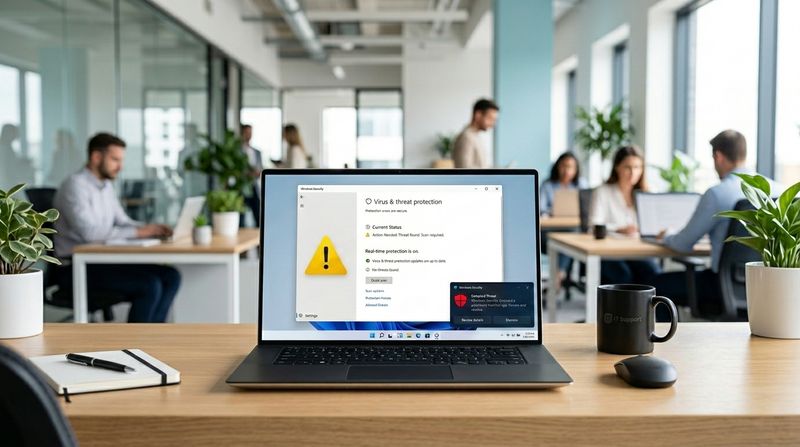
If you've seen the message "Virus & threat protection is turned off," or a red or yellow warning in the Windows Security app, your PC's built-in protection isn't doing its job, and that's worth fixing right away rather than ignoring. The good news is that Windows Security, built on Microsoft Defender Antivirus, is free, already installed, and in independent testing performs as well as many paid antivirus products.
This guide explains what Windows Security actually protects, why it sometimes gets turned off or stops running on its own, and walks through every way to turn each protection feature back on, step by step. You don't need to buy anything or install a third-party tool. Everything in this guide uses what's already built into Windows 10 and Windows 11.
Quick Answer: How to Turn On Windows Security for Free
Open Windows Security by searching for it in the Start menu, then click Virus & threat protection. If it shows a warning, click Manage settings and turn on Real-time protection, Cloud-delivered protection, and Tamper Protection using the toggles.
If a toggle won't switch on, the most common cause is leftover third-party antivirus software still installed, even an old trial version, which automatically disables Defender. Fully uninstall it through Settings > Apps > Installed apps, restart your PC, and Windows Security should turn back on by itself.
If Windows Security still shows as off afterward, or won't even open, the fixes below walk through restarting its services, repairing the app, and checking for a Group Policy or registry block.
What Is Windows Security (Microsoft Defender)?
Windows Security is the free, built-in protection center included with every copy of Windows 10 and Windows 11. It's powered mainly by Microsoft Defender Antivirus, but it actually manages several separate protection features in one place:
- Virus & threat protection — the core antivirus engine, including real-time scanning and manual scans.
- Account protection — sign-in security, including Windows Hello.
- Firewall & network protection — Windows Defender Firewall, which controls what's allowed in and out of your PC over the network.
- App & browser control — SmartScreen, which warns about malicious apps and websites.
- Device security — hardware-based protections such as Core isolation.
- Device performance & health — basic storage and update status.
For most home users, Windows Security alone is enough protection without paying for anything else, as long as every section above shows a green checkmark rather than a warning.
Why Does Windows Security Get Disabled or Stop Running?
It was disabled intentionally or accidentally. A setting can be switched off during troubleshooting, by a Group Policy change, or simply by mis-clicking a toggle, and never gotten turned back on.
A third-party antivirus is installed. Windows automatically disables its own real-time protection when it detects another antivirus program running, to avoid both programs scanning the same files at once and slowing down your PC.
Outdated Windows updates. Windows Security relies on regular security intelligence updates and feature updates from Windows Update. If updates have been paused or failed for a while, parts of Defender can become out of date or stop functioning correctly.
Corrupted security services. The background services that power Windows Security, including WinDefend, the Security Center service, and the Security Health service, can occasionally fail to start correctly after an update or a crash.
Malware interference. Some malware specifically targets antivirus software, attempting to disable real-time protection so it can operate undetected. This is one of the reasons Tamper Protection exists.
Accidental configuration changes. Group Policy settings, registry edits made by a tutorial or a now-uninstalled "optimizer" tool, or changes made while testing software can leave Defender disabled long after the original reason is gone.
Symptoms That Tell You Windows Security Needs Attention
- A red or yellow banner reading "Virus & threat protection is turned off" or similar in the Windows Security app.
- Notifications warning that your device is vulnerable or that action is needed.
- Real-time protection showing as off when you check Virus & threat protection settings.
- A "Security update" or "Definition update" warning, meaning Defender hasn't received new threat data recently.
- The Windows Security icon in the taskbar showing a warning symbol.
- Windows Security failing to open at all, or opening to a blank or frozen window.
How Windows Security Actually Protects Your PC
Understanding what each protection layer does makes it clear why turning all of them back on matters, not just the main antivirus toggle.
Real-time protection continuously scans files as they're opened, downloaded, or run, catching threats before they can execute, rather than only finding them during a scheduled scan.
Cloud-delivered protection sends suspicious file information to Microsoft's threat-detection cloud for a near-instant verdict, which lets Defender recognize brand-new threats within minutes of being identified anywhere in the world, instead of waiting for a definition update to download.
Tamper protection locks your core Defender settings so that malware, or an unauthorized app, can't quietly switch off real-time protection or cloud protection to operate undetected, even if it gains some level of access to your PC.
Windows Defender Firewall controls which network connections are allowed in and out of your PC, blocking unsolicited incoming connections that could be used to access your device remotely.
Ransomware protection (Controlled Folder Access) blocks unauthorized apps from modifying files in protected folders like Documents and Pictures, which stops most ransomware from encrypting your files even if it manages to run.
Together, these layers cover the most common ways a Windows PC actually gets compromised: a malicious file running, a network-based attack, and ransomware encrypting your data, which is why all of them, not just the antivirus engine, matter.
How to Turn On Windows Security on Windows 10 and 11 (Step-by-Step)
Work through these in order. Most people fully restore their protection within the first six fixes.
Fix 1: Open Windows Security and Check Your Protection Status
Why this helps: Before turning anything on individually, get a full picture of which specific protections are off, since the app shows you exactly that in one screen.
How to do it:
- Press the Windows key, type "Windows Security," and open it, or click the shield icon in the taskbar.
- On the home screen, look at each section: Virus & threat protection, Firewall & network protection, App & browser control, Device security.
- Any section showing a red or yellow icon and "Action recommended" needs attention.
- Click that section to see exactly which setting is off.
Expected result: A clear checklist of which specific protections to turn on, rather than guessing.
If it doesn't work: If Windows Security won't open at all, skip ahead to Fix 9 (Repair or Reset the Windows Security App).
Fix 2: Turn On Real-Time Protection
Why this helps: Real-time protection is the core of Windows Security. Without it, files aren't scanned as they're opened or downloaded, leaving you protected only during occasional manual scans.
How to do it:
- In Windows Security, click Virus & threat protection.
- Click Manage settings under Virus & threat protection settings.
- Switch the Real-time protection toggle to On.
Expected result: The warning under Virus & threat protection clears, and files are scanned automatically as you use your PC.
If it doesn't work: If the toggle switches off again by itself after a few seconds, a third-party antivirus is almost certainly still installed and taking over — go to Fix 7. If it's grayed out completely, Tamper Protection or a Group Policy setting may be blocking changes — see Fix 11.
Fix 3: Turn On Cloud-Delivered Protection
Why this helps: This setting lets Defender check suspicious files against Microsoft's live threat database, catching brand-new malware that hasn't been added to your local definitions yet.
How to do it:
- In Windows Security, go to Virus & threat protection > Manage settings.
- Switch Cloud-delivered protection to On.
- Optionally, also turn on Automatic sample submission just below it, which lets Microsoft analyze suspicious files you encounter to improve detection for everyone, including you.
Expected result: Defender can now identify very recent threats almost immediately, rather than waiting for a definition update.
If it doesn't work: This setting requires an active internet connection to function. If it won't stay on, check that your PC has internet access and that no firewall or network policy is blocking Microsoft's security endpoints.
Fix 4: Turn On Tamper Protection
Why this helps: Tamper protection locks your core Defender settings so malware or an unauthorized app can't quietly disable real-time protection or cloud protection without your direct involvement.
How to do it:
- In Windows Security, go to Virus & threat protection > Manage settings.
- Scroll to Tamper Protection and switch it to On.
Expected result: A small lock effect on these settings — going forward, only you, through the Windows Security app itself, can turn them off.
If it doesn't work: If a third-party antivirus disabled Defender, you may need to turn on Periodic scanning first, in the same Manage settings screen, before the Tamper Protection toggle becomes available.
Fix 5: Turn On Windows Defender Firewall
Why this helps: The firewall controls what's allowed to connect to your PC over the network, blocking unsolicited incoming connections even if your antivirus is working perfectly otherwise.
How to do it:
- In Windows Security, click Firewall & network protection.
- Check each network profile listed: Domain, Private, and Public.
- Click any profile showing the firewall as off, and switch it to On.
Expected result: All three network profiles show the firewall as active, closing off a major attack path that has nothing to do with viruses or malware files directly.
If it doesn't work: If the firewall switches off again on its own, a different security product has likely taken over firewall management — check Settings > Apps > Installed apps for anything firewall- or security-related that you don't recognize.
Advertisement
Fix 6: Turn On Ransomware Protection (Controlled Folder Access)
Why this helps: Even with real-time protection working, this adds a second layer that blocks unauthorized apps from modifying files in key folders, stopping most ransomware from encrypting your documents and photos even if it manages to run.
How to do it:
- In Windows Security, click Virus & threat protection.
- Scroll to Ransomware protection and click Manage ransomware protection.
- Switch Controlled folder access to On.
- Review the protected folders list, which includes Documents, Pictures, and Desktop by default, and add any other folders containing important files.
Expected result: Only apps Windows recognizes as trusted can modify files in these folders; anything else is blocked automatically.
If it doesn't work: If a legitimate app you use regularly gets blocked from saving files, click Allow an app through Controlled folder access and add it by name rather than turning the whole feature off.
Fix 7: Remove or Fully Uninstall Conflicting Third-Party Antivirus Software
Why this helps: Windows automatically disables its own real-time protection whenever it detects another antivirus program, even an old trial version you forgot about, to avoid both programs conflicting. Leftover files from an incomplete uninstall can keep this block in place.
How to do it:
- Go to Settings > Apps > Installed apps.
- Look for any antivirus or "internet security" software you no longer use, including free trials that came pre-installed on a new PC.
- Select it and click Uninstall, then follow the prompts.
- If the program offers its own dedicated removal tool on the manufacturer's website, common with major antivirus brands, run that too, since standard uninstalls sometimes leave background components behind.
- Restart your PC.
Expected result: Windows Security automatically re-enables Real-time protection within a few minutes of restarting, without you needing to flip any switches yourself.
If it doesn't work: If Defender still shows as off after a restart, continue to Fix 9 or Fix 11, since some leftover registry entries from certain antivirus brands need to be addressed directly.
Fix 8: Install the Latest Windows Updates
Why this helps: Windows Security depends on Windows Update for both feature updates and frequent security intelligence updates. If updates have stalled, Defender can fall behind on threat detection or show errors unrelated to anything you've changed.
How to do it:
- Open Settings > Windows Update.
- Click Check for updates and install anything available, restarting if prompted.
- In Windows Security, go to Virus & threat protection > Check for updates and click Check for updates to refresh security intelligence specifically.
Expected result: Windows Security shows current update status, and any update-related warnings clear.
If it doesn't work: If Windows Update itself is stuck or failing, that's a separate issue worth resolving first, since Defender can't fully function on a Windows installation that isn't receiving updates at all.
Fix 9: Restart Windows Security and Defender Services
Why this helps: Windows Security runs as a set of background services. If one of them fails to start correctly, often after an update or an unexpected shutdown, the app can show incorrect status or stop responding even though nothing is actually configured wrong.
How to do it:
- Press Windows key + R, type
services.msc, and press Enter. - Find Security Center in the list, right-click it, and select Restart (or Start, if it isn't running).
- Also check Windows Defender Antivirus Service and Windows Security Service, and restart either if they're stopped.
- Restart your PC afterward.
Expected result: Windows Security's status display refreshes to reflect your actual settings correctly.
If it doesn't work: If Restart is grayed out for any of these services, that usually means a related app or policy is interfering — continue to Fix 10 or Fix 11.
Fix 10: Repair or Reset the Windows Security App
Why this helps: If Windows Security won't open, opens to a blank window, or freezes, the app itself, not your actual protection settings, is the problem. Repairing or resetting it fixes the interface without touching your other Windows settings.
How to do it:
- Open Settings > Apps > Installed apps.
- Search for Windows Security, click the three-dot menu next to it, and select Advanced options.
- Scroll down and click Repair first; wait for it to complete and try opening the app again.
- If that doesn't work, go back to Advanced options and click Reset instead.
Expected result: Windows Security opens normally and displays your actual protection status correctly.
If it doesn't work: If Windows Security still won't open after both Repair and Reset, open Command Prompt as administrator and run sfc /scannow, followed by DISM /Online /Cleanup-Image /RestoreHealth, then restart. This repairs damaged system files that the app itself depends on.
Fix 11: Fix Defender That Won't Turn Back On (Group Policy or Registry Block)
Why this helps: If every toggle is grayed out and there's no third-party antivirus installed, a leftover Group Policy or registry setting, often from an old tutorial, IT script, or removed "optimizer" tool, may be explicitly telling Windows to keep Defender disabled.
How to do it (Windows 10/11 Pro, Enterprise, or Education):
- Press Windows key + R, type
gpedit.msc, and press Enter. - Go to Computer Configuration > Administrative Templates > Windows Components > Microsoft Defender Antivirus.
- Open Turn off Microsoft Defender Antivirus and set it to Not Configured (or Disabled), then click OK.
- Open Command Prompt as administrator and run
gpupdate /force, then restart.
How to do it (Windows 10/11 Home, or if gpedit isn't available):
- Press Windows key + R, type
regedit, and press Enter. - Navigate to
HKEY_LOCAL_MACHINE\SOFTWARE\Policies\Microsoft\Windows Defender. - If a DisableAntiSpyware value exists, double-click it and set it to 0, or right-click and delete it entirely.
- Restart your PC.
Expected result: Defender toggles become available again in Windows Security, and Real-time protection can be turned on normally.
If it doesn't work: Back up the registry, or create a System Restore Point, before making registry changes, since editing the wrong key can cause unrelated problems. If you're on a work or school PC, this policy may be intentionally managed by your organization's IT department, and changing it locally won't help.
Is Microsoft Defender Enough, and Is It Safe to Rely On?
Yes, for most home users, Windows users, and students, Microsoft Defender with every protection feature turned on, covered in Fixes 2-6, provides protection that performs comparably to most paid antivirus products in independent testing labs. It's safe to rely on as your only antivirus, and Microsoft designed it to be your default protection from the moment you set up Windows.
The fixes in this guide are all safe and fully reversible; none of them remove files, change personal settings, or require a purchase. The only real caution applies to Fix 11: back up the registry or create a restore point before editing it, since incorrect registry changes in general, not specific to this fix, can cause unrelated problems.
How Long Does It Take to Turn On Windows Security?
Turning on each protection toggle, Fixes 2 through 6, takes under a minute each, so working through all of them takes about 5 minutes total. Uninstalling a conflicting third-party antivirus (Fix 7) takes 5-10 minutes plus a restart. Installing pending Windows updates (Fix 8) varies widely, from a few minutes to 20-30 minutes depending on how far behind your PC is. Repairing or resetting the Windows Security app (Fix 10) takes 5-10 minutes. Most people resolve a "turned off" warning within 10-15 minutes total.
How to Verify Windows Security Is Actually Protecting You
A toggle showing "On" right after you switch it confirms the setting changed, but it's worth checking that protection is genuinely active, not just displayed that way.
To verify:
- Open Windows Security and confirm every section on the home screen shows a green checkmark, with no "Action recommended" warnings anywhere.
- Go to Virus & threat protection > Check for updates to confirm your security intelligence version updated recently, ideally within the last day or two.
- Run a Quick scan from Virus & threat protection and confirm it completes without an error.
- Restart your PC, then reopen Windows Security to confirm Real-time protection and the other toggles stayed on, since some conflicts only reappear after a restart.
When You Might Still Want Third-Party Antivirus
Windows Security alone is enough protection for the vast majority of home users, students, and office workers, especially with every feature in this guide turned on. There are a few situations where a paid suite still adds genuine value: if you specifically want a built-in VPN, dark web monitoring, or identity theft protection bundled together, since Defender doesn't include these; if you manage many family devices and want a single dashboard with parental controls across all of them; or if your workplace or school specifically requires a particular security product for compliance reasons. Outside of these specific needs, paying for antivirus protection itself, rather than for these extra bundled features, isn't necessary on a properly configured Windows 10 or 11 PC.
Common Mistakes to Avoid
Don't install a third-party antivirus "just to be safe" alongside Windows Security; running two real-time antivirus engines at once causes conflicts and is exactly what triggers Defender to disable itself in the first place. Don't download a "free antivirus" from an unfamiliar pop-up or ad promising to fix a "turned off" warning instantly, since this is one of the most common ways fake antivirus and malware get installed. Don't leave Tamper Protection off after troubleshooting; turn it back on once you've finished making changes. Don't edit the registry in Fix 11 without backing it up first or creating a restore point, since unrelated keys nearby can be easy to change by mistake. And don't assume a single green checkmark on the Windows Security home screen means every individual setting is optimal; check Virus & threat protection settings specifically to confirm each toggle is actually on.
Related Solution Hub Guides
Frequently Asked Questions
Is Windows Security free?
Yes. Windows Security, including Microsoft Defender Antivirus, the firewall, and ransomware protection, is built into every copy of Windows 10 and Windows 11 at no extra cost, with no subscription or trial period involved.
Is Microsoft Defender enough for protection?
For most home users, yes. With real-time protection, cloud-delivered protection, tamper protection, and the firewall all turned on, Defender performs comparably to many paid antivirus products in independent testing.
How do I turn on Windows Security?
Open Windows Security from the Start menu, click Virus & threat protection, then Manage settings, and switch Real-time protection, Cloud-delivered protection, and Tamper Protection to On. If a toggle won't stay on, a conflicting third-party antivirus is the most likely cause.
Why is Microsoft Defender disabled?
Usually because another antivirus program is installed, even an old trial version, which automatically disables Defender's real-time protection. It can also be disabled by a leftover Group Policy or registry setting, or occasionally by malware attempting to avoid detection.
How do I enable Windows Defender Firewall?
Open Windows Security, click Firewall & network protection, and switch the firewall to On for each network profile shown: Domain, Private, and Public.
Does Windows Security protect against ransomware?
Yes, through Controlled folder access under Virus & threat protection > Ransomware protection. Turning it on blocks unauthorized apps from modifying files in key folders like Documents and Pictures, which stops most ransomware even if it manages to run.