Windows Blue Screen Error (BSOD): Causes and Step-by-Step Fixes
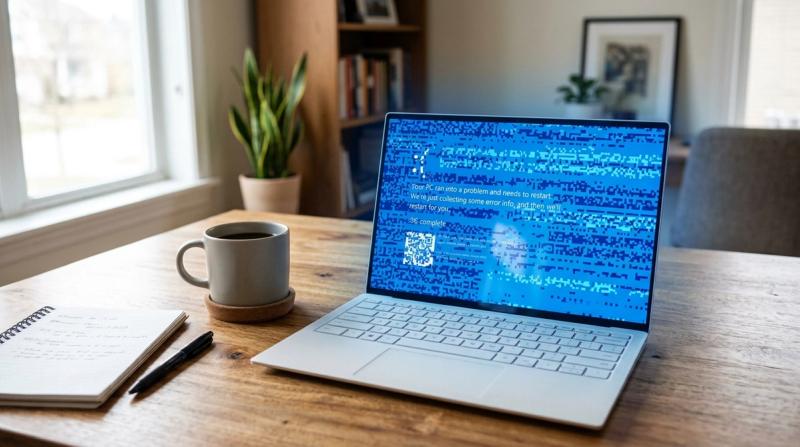
If your computer suddenly turns blue, shows an error message, and restarts on its own, don’t panic.
This is called a Blue Screen of Death (BSOD). It looks scary the first time you see it, but it is actually Windows trying to protect your computer, not destroy it.
Think of BSOD like a fire alarm. It goes off the moment something feels wrong, even before real damage happens.
Your job is simply to find out what triggered the alarm, and this guide will walk you through that process step by step, just like a technician sitting next to you would.
By the end of this article, you will understand why the crash is happening and how to fix it yourself.
Problem Overview
A Blue Screen error happens when Windows runs into a problem it cannot recover from safely while running.
Instead of continuing and risking damage to your files or hardware, Windows stops everything immediately and restarts.
This sudden stop is what you see as the blue screen.
This can happen once in a while due to a small glitch, or it can start repeating every few minutes, making the computer unusable.
The blue screen usually shows a stop code such as:
- MEMORY MANAGEMENT
- CRITICAL PROCESS DIED
- IRQL NOT LESS OR EQUAL
These codes help identify the real issue.
Symptoms
You may be facing a BSOD issue if you notice:
- Screen suddenly turns blue
- Computer restarts automatically
- System freezes before crashing
- Windows enters boot loop
- Specific stop codes appear
- Crash happens during gaming or heavy work
- Sudden shutdowns
Causes
Common causes of Windows Blue Screen errors:
- Faulty or outdated drivers
- Corrupted system files
- Faulty RAM
- Failing SSD or HDD
- Overheating
- Problematic Windows updates
- Software conflicts
- Malware infection
- BIOS issues
- Hardware failure
Step-by-Step Fix Methods
Before starting:
- Note the stop code
- Back up important files
Fix 1: Boot into Safe Mode
What it means
Safe Mode starts Windows with only essential drivers and services.
Why it works
If Windows works in Safe Mode, the issue is likely driver or software related.
How to do it
- Force restart the PC 3 times
- Open Automatic Repair
- Go to Advanced Options
- Open Startup Settings
- Press 4 or F4
Expected Result
Windows loads in Safe Mode.
If Fix Fails
Move to RAM and storage checks.
Fix 2: Uninstall Recent Updates or Apps
What it means
Remove recently installed updates or software.
Why it works
Recent changes often trigger BSOD.
How to do it
- Open Settings
- Go to Windows Update
- Open Update History
- Uninstall recent updates
For apps:
Settings → Apps → Installed Apps
Expected Result
Crashes stop.
If Fix Fails
Check drivers.
Fix 3: Update or Roll Back Drivers
What it means
Fix broken or outdated drivers.
Why it works
Drivers are one of the most common BSOD causes.
How to do it
- Open Device Manager
- Check warning icons
- Update or Roll Back Driver
Focus on:
- GPU
- Network Adapter
- Storage Controller
Expected Result
System becomes stable.
If Fix Fails
Install latest driver manually from official website.
Fix 4: Run SFC and DISM Scans
What it means
Repair corrupted system files.
Why it works
Broken Windows files often cause BSOD.
How to do it
Open Command Prompt as Administrator.
Run:
sfc /scannow
Then:
DISM /Online /Cleanup-Image /RestoreHealth
Expected Result
Windows repairs damaged files.
If Fix Fails
Move to deeper repair options.
Fix 5: Check RAM Health
What it means
Test memory for faults.
Why it works
Bad RAM causes random crashes.
How to do it
- Search Windows Memory Diagnostic
- Restart and scan
Expected Result
No memory errors.
If Fix Fails
Replace faulty RAM.
Fix 6: Test Storage Health
What it means
Check SSD or HDD health.
Why it works
Failing drives can trigger BSOD.
How to do it
Run:
chkdsk C: /f /r
Also use:
- CrystalDiskInfo
Expected Result
Drive health shows Good.
If Fix Fails
Replace storage drive.
Fix 7: Scan for Malware
What it means
Check for malware.
Why it works
Malware can damage Windows files.
How to do it
Open Windows Security → Full Scan
Expected Result
Threats removed.
If Fix Fails
Use Malwarebytes.
Fix 8: Use Startup Repair
What it means
Automatic boot repair.
Why it works
Fixes boot-related issues.
How to do it
Automatic Repair → Startup Repair
Expected Result
Windows boots normally.
Fix 9: Reset or Restore Windows
What it means
Restore old working state or reset Windows.
Why it works
Removes problematic changes.
How to do it
Settings → System → Recovery
Choose:
- System Restore
or - Reset PC
Expected Result
BSOD stops.
Advanced Fixes
- Use Reliability Monitor
- Check Event Viewer
- Update BIOS
- Test minimal hardware setup
- Use bootable Windows repair USB
Prevention Tips
- Keep Windows updated
- Update drivers regularly
- Clean laptop dust
- Avoid unsafe software
- Scan for malware monthly
- Monitor SSD health
- Create restore points
FAQ
What causes Blue Screen errors in Windows?
Usually drivers, RAM, storage, overheating, or corrupted system files.
How do I fix BSOD on startup?
Boot Safe Mode, remove recent updates, repair system files.
Can bad RAM cause BSOD?
Yes. Bad RAM is a common reason.
Can SSD failure trigger BSOD?
Yes. Bad storage can cause crashes.
How do I read crash codes?
Check the stop code shown on the blue screen.
Conclusion
A Blue Screen error looks scary, but most BSOD problems are fixable.
Start with Safe Mode, check drivers, repair Windows files, and test hardware health.
If none of the fixes work, the issue is likely hardware-related and may require professional diagnosis.
Frequently Asked Questions
What causes Blue Screen errors in Windows?
The most common causes are faulty or outdated drivers, corrupted system files, bad RAM, a failing storage drive, overheating, and problematic Windows updates
How do I fix BSOD on startup?
Boot into Safe Mode using forced restarts, uninstall the last update or app you installed, roll back any recently updated drivers, and run the SFC and DISM commands to repair system files.
Can bad RAM cause blue screen errors?
Yes. Faulty RAM is one of the most common BSOD triggers, often showing codes like MEMORY MANAGEMENT. You can test it using the built-in Windows Memory Diagnostic tool.
Can SSD failure trigger BSOD?
Yes. A failing SSD or hard drive can cause sudden crashes, especially while reading or writing files. Check drive health using CHKDSK and CrystalDiskInfo
How do I read Windows crash error codes?
Look at the stop code text shown on the blue screen, such as CRITICAL PROCESS DIED. This code tells you the type of failure and points toward the likely cause, whether it is a driver, memory, or system file problem.