Wi-Fi Keeps Disconnecting on Windows 10/11: Causes and Step-by-Step Fixes
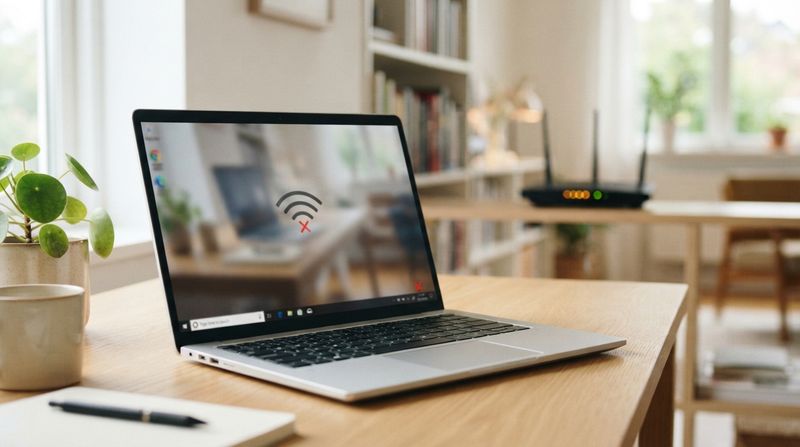
You are in the middle of a video call, a game, or a download, and suddenly the internet just drops. A few seconds later it reconnects on its own, only to disconnect again a little while later. This kind of on-and-off Wi-Fi is one of the most frustrating problems a laptop can have, because it never fully breaks, it just keeps interrupting you.
This is not usually a sign that your laptop or router is failing. In most cases, it comes down to a small setting quietly working against you, like a power-saving feature turning off your Wi-Fi adapter to save battery, or a driver that has not been updated in a while.
In this guide, I will walk you through this the same way I would if I were sitting next to you with your laptop open. We will start with the simplest checks, then work through deeper fixes, until your Wi-Fi connection stays stable.
Problem Overview
A stable internet connection depends on several things working together at the same time: your laptop's Wi-Fi adapter, its drivers, Windows network settings, your router, and the signal strength between them. When any one of these pieces has an issue, the connection can drop and reconnect repeatedly, instead of failing completely.
This is why Wi-Fi disconnection problems can feel random. The laptop reconnects automatically most of the time, so it looks like the internet is working, but the constant drops interrupt calls, games, and downloads just enough to be a serious annoyance.
Fixing this problem means checking each of these pieces one at a time, starting with the easiest and most common causes first.
Symptoms
You are likely dealing with a Wi-Fi disconnection issue if you notice any of the following:
Wi-Fi disconnects frequently, then reconnects on its own after a few seconds
You briefly see a "No Internet" message before the connection returns
Your internet feels slow right after reconnecting, even if it was fast before
The connection drops at random times, with no clear pattern
The Wi-Fi icon disappears from the taskbar for a moment before coming back
Video calls freeze, lag, or disconnect randomly
You notice high ping or packet loss while gaming or streaming
Causes
A dropping Wi-Fi connection is a symptom. It is not the actual disease. Below are the real causes behind it, starting from the most common.
Outdated Wi-Fi drivers, which handle the communication between Windows and your wireless adapter.
Power management settings that allow Windows to turn off your Wi-Fi adapter to save battery, cutting the connection briefly.
Router issues, such as the router overheating, running outdated firmware, or having too many devices connected at once.
Weak Wi-Fi signal, caused by distance from the router, walls, or other physical obstacles.
Incorrect network settings, either set manually by mistake or changed by other software.
Windows updates that occasionally introduce bugs affecting network drivers or adapter behavior.
A faulty network adapter, either due to age, physical damage, or a manufacturing issue.
Interference from nearby devices, such as microwaves, cordless phones, or other Wi-Fi networks on the same channel.
VPN or antivirus conflicts, where security or privacy software interferes with normal network behavior.
ISP problems, where your internet provider's own network is unstable, regardless of your equipment.
Important Topics to Understand
Before jumping into fixes, it helps to understand a few basic ideas.
Wi-Fi signal strength: A weak signal, even at just a few bars, can cause a connection to drop repeatedly instead of failing outright. Moving closer to the router often improves stability immediately.
Power saving for network adapters: Windows can be set to reduce power to your Wi-Fi adapter when it seems idle, which can cause brief but repeated disconnections, especially on laptops running on battery.
Wi-Fi band selection: Most modern routers broadcast on two bands, 2.4GHz and 5GHz. The 2.4GHz band reaches farther but is slower and more crowded, while 5GHz is faster but has a shorter range. Choosing the wrong band for your situation can cause instability.
Step-by-Step Fix Methods
Before starting, try the simplest fix first: restart both your router and your laptop. Unplug the router, wait about 30 seconds, plug it back in, and restart your laptop. This alone solves a large number of Wi-Fi disconnection issues.
Fix 1: Move Closer to the Router
What it means: Reducing the physical distance and obstacles between your laptop and your router.
Why it works: A weak signal is one of the most common reasons Wi-Fi disconnects repeatedly, especially through walls or floors.
How to do it: Move your laptop to the same room as the router, or as close as reasonably possible, and see if the connection stabilizes.
Expected Result: The Wi-Fi signal bars increase, and disconnections stop or become far less frequent.
If Fix Fails: Continue to forgetting and reconnecting to the network below.
Fix 2: Forget and Reconnect to the Wi-Fi Network
What it means: Removing the saved Wi-Fi network from your laptop and connecting to it again from scratch.
Why it works: This clears out any corrupted or outdated saved connection settings that might be causing instability.
How to do it: Open Settings, then Network and Internet, then Wi-Fi, then Manage known networks. Click your network name, choose Forget, then reconnect by selecting the network again and entering the password.
Expected Result: The connection reconnects cleanly and remains stable afterward.
If Fix Fails: Continue to disabling power saving for the network adapter below.
Fix 3: Disable Power Saving for the Wi-Fi Adapter
What it means: Stopping Windows from reducing power to your Wi-Fi adapter to save battery.
Why it works: This power-saving feature can turn the adapter off briefly when Windows thinks it is not in use, causing repeated short disconnections, especially on laptops.
How to do it: Right-click the Start button, choose Device Manager, expand Network adapters, right-click your Wi-Fi adapter, choose Properties, go to the Power Management tab, and uncheck Allow the computer to turn off this device to save power.
Expected Result: The Wi-Fi connection no longer drops due to power-saving interruptions.
If Fix Fails: Continue to updating your Wi-Fi drivers below.
Fix 4: Update or Reinstall Wi-Fi Drivers
What it means: Installing the latest version of the software that lets Windows communicate with your Wi-Fi adapter.
Why it works: Outdated or corrupted drivers are one of the leading causes of random Wi-Fi disconnections.
How to do it: In Device Manager, right-click your Wi-Fi adapter and choose Update driver, then Search automatically for drivers. If that does not help, visit your laptop manufacturer's official website, download the latest Wi-Fi driver manually, and install it.
Expected Result: The Wi-Fi connection becomes noticeably more stable after the driver update.
If Fix Fails: Continue to flushing the DNS cache below.
Fix 5: Flush DNS Cache and Renew IP Address
What it means: Clearing out old, saved network information and requesting a fresh network address.
Why it works: A corrupted DNS cache or a stuck IP address can cause intermittent connection problems that look like disconnections.
How to do it: Open Command Prompt as Administrator, type ipconfig /flushdns and press Enter. Then type ipconfig /release, press Enter, wait a few seconds, then type ipconfig /renew and press Enter.
Expected Result: The connection refreshes and becomes more stable.
If Fix Fails: Continue to resetting Winsock and TCP/IP below.
Fix 6: Reset Winsock and TCP/IP
What it means: Resetting the core Windows components responsible for managing all network connections.
Why it works: These components can become corrupted over time, especially after software conflicts or VPN use, leading to unstable connections.
How to do it: In Command Prompt as Administrator, type netsh winsock reset and press Enter. Then type netsh int ip reset and press Enter. Restart your laptop after both commands finish.
Expected Result: Network settings rebuild from scratch, and the connection stabilizes after restarting.
If Fix Fails: Continue to changing your DNS server below.
Fix 7: Change Your DNS Server
What it means: Switching from your internet provider's DNS servers to a reliable public option like Google DNS or Cloudflare DNS.
Why it works: A slow or unstable DNS server can cause connection issues that feel like disconnections, even when the Wi-Fi signal itself is fine.
How to do it: Open Settings, then Network and Internet, then click your Wi-Fi connection, then Edit next to DNS server assignment. Choose Manual, turn on IPv4, and enter 8.8.8.8 as preferred and 8.8.4.4 as alternate. For Cloudflare, use 1.1.1.1 and 1.0.0.1 instead.
Expected Result: Browsing feels smoother, and connection drops become less frequent.
If Fix Fails: Continue to resetting network settings below.
Fix 8: Reset Network Settings
What it means: Removing all network adapters and resetting every network-related setting back to its default state.
Why it works: This is a deeper reset that clears out any hidden configuration issue that smaller fixes could not solve.
How to do it: Open Settings, then Network and Internet, then Advanced network settings, then Network reset. Click Reset now and confirm. Your laptop will restart automatically.
Expected Result: All network settings return to default, and the Wi-Fi connection becomes stable after reconnecting.
If Fix Fails: Continue to checking your router settings below.
Fix 9: Update Router Firmware and Switch Wi-Fi Band
What it means: Updating your router's internal software, and choosing between the 2.4GHz and 5GHz Wi-Fi bands.
Why it works: Outdated router firmware can cause instability across every connected device, and choosing the wrong band for your distance from the router can cause weak, unstable signals.
How to do it: Log into your router admin panel through a browser, usually at an address like 192.168.1.1, and check for a firmware update option. While there, try switching your laptop to the other available Wi-Fi band and see if stability improves.
Expected Result: The connection becomes noticeably more stable after the firmware update or band switch.
If Fix Fails: If the problem still continues after every fix in this guide, the issue is very likely a faulty Wi-Fi adapter or router hardware, and a replacement may be needed.
Advanced Fixes
Check Event Viewer for network errors. Search for Event Viewer in the Start menu, go to Windows Logs, then System, and look for repeated warnings or errors related to your network adapter around the times disconnections happen.
Test with another network. Try connecting your laptop to a different Wi-Fi network, such as a mobile hotspot, to see if the disconnections continue. If they do not, the issue is with your router or ISP, not your laptop.
Disable VPN and antivirus temporarily. Turn off any VPN app and temporarily disable third-party antivirus software to see if the disconnections stop, which would point to a software conflict.
Reduce interference from nearby devices. Move your router away from microwaves, cordless phones, and other electronics, and try changing your router's Wi-Fi channel through its admin panel if many networks are competing nearby.
Replace a faulty Wi-Fi adapter. If every software fix has been tried and the laptop still disconnects while other devices on the same network stay stable, the internal Wi-Fi adapter may be failing and could need professional replacement.
Prevention Tips
Keep your Wi-Fi drivers updated regularly, especially after major Windows updates.
Restart your router every few weeks to clear minor glitches before they cause bigger problems.
Keep your router's firmware updated by checking the manufacturer's app or website periodically.
Avoid placing your router near thick walls, metal objects, or heavy electronics that can weaken the signal.
Turn off power saving for your Wi-Fi adapter permanently if you rarely run your laptop on battery while at home.
Use the 5GHz band when you are close to the router for a faster, more stable connection, and switch to 2.4GHz when you are farther away.
Warnings
Network Reset removes all saved Wi-Fi passwords on your laptop, so make sure you know your Wi-Fi password before using this fix.
Changing router settings incorrectly can disconnect every device on your network, not just your laptop, so make changes carefully.
Always download Wi-Fi drivers from your laptop manufacturer's official website, not from third-party download sites, to avoid installing harmful software.
If the problem turns out to be hardware failure, a Wi-Fi adapter replacement may require professional repair, especially on laptops where the adapter is not easily accessible.
Conclusion
A Wi-Fi connection that keeps dropping is frustrating, but it almost always comes down to a fixable cause, like an outdated driver, a power-saving setting, or a weak signal, rather than a broken laptop. Most cases can be resolved within a few minutes using the steps in this guide.
Start with the simple checks, like restarting your router and moving closer to it, then work through the driver, power, and network setting fixes if the problem continues. If every fix here still does not solve it, the issue is very likely coming from your router hardware, your Wi-Fi adapter, or your internet provider, and it may be time to have it checked professionally.
Frequently Asked Questions
Why does my laptop keep disconnecting from Wi-Fi?
The most common causes are outdated Wi-Fi drivers, power-saving settings turning off the adapter, weak signal strength, router issues, or interference from nearby devices.
How do I stop Wi-Fi from disconnecting automatically?
Disable power saving for your Wi-Fi adapter, update your Wi-Fi drivers, move closer to your router, and reset your network settings if the problem continues.
Can outdated Wi-Fi drivers cause disconnections?
Yes. Outdated or corrupted Wi-Fi drivers are one of the most common causes of random, repeated disconnections on Windows laptops.
Should I use 2.4GHz or 5GHz Wi-Fi?
Use 5GHz when you are close to the router for faster speeds, and 2.4GHz when you are farther away, since it reaches through walls better, even though it is slower.
Will Network Reset fix Wi-Fi disconnecting issues?
In most cases, yes. A full network reset clears out corrupted settings that smaller fixes cannot reach, though you will need to reconnect to your Wi-Fi and re-enter your password afterward.