How to Find Your Saved WiFi Passwords Using Windows Command Prompt
You want to share your WiFi password with a friend, or connect a new phone, but you cannot remember it. The good news is that if your Windows computer has connected to that WiFi network before, the password is already saved on your PC.
You do not need to reset your router or call your internet provider. Windows stores every WiFi password you have ever used, and you can view it in less than two minutes using Command Prompt.
This guide will show you how to find saved WiFi passwords using Windows Command Prompt, step by step. No downloads, no extra software, and no technical experience required.
Problem Overview
Every time you connect your Windows PC to a WiFi network, Windows saves that network's details in a network profile. This profile includes the network name (SSID) and an encrypted copy of the password, so your PC can reconnect automatically in the future.
Command Prompt can talk directly to this saved profile system using a built-in Windows tool called netsh. This tool lets you list every saved network and reveal the actual password behind it, as long as you have administrator access to that PC.
This method only works for networks your computer has connected to before. It cannot recover a WiFi password for a network you have never joined.
Symptoms
You might need this fix if:
- You forgot your home or office WiFi password
- You want to share your WiFi password with a guest or new device
- You are setting up a smart device that needs the WiFi password
- You changed phones and need to reconnect to a saved network
- You are troubleshooting a network and need to confirm the saved password is correct
Causes
The reason you cannot remember your WiFi password is usually simple:
- Windows connects automatically, so you never had to type the password again
- The password was set up a long time ago and never written down
- Someone else configured the router or WiFi originally
- The router's sticker with the default password was lost or removed
- The password was changed at some point and never updated on paper
Quick Answer
Open Command Prompt as Administrator, type
to reveal that network's saved password under "Key Content."
What Does This Problem Mean?
Command Prompt is a built-in Windows tool that lets you type text commands instead of clicking through menus. It can perform many tasks faster than the graphical interface, including reading saved network settings.
netsh (Network Shell) is a command-line tool built into Windows for managing network settings. It can list WiFi profiles, show connection details, and reveal saved passwords in plain text when you use the right command.
Is This Dangerous?
This process itself is completely safe. You are only reading information that is already stored on your own computer. No settings are changed, and no data is deleted.
Warning: Revealing a saved WiFi password shows real, unmasked text on screen. Make sure no one is watching your screen if you are in a public or shared space.
Note: Administrator permission is required to run this command, since Windows protects saved network credentials from normal user access.
Can I Lose Data?
No. This method only reads existing saved passwords. It does not delete, change, or overwrite any files, settings, or network connections on your PC.
Before You Start
Before running any commands, prepare the following:
- Make sure you are using the correct PC. The password can only be recovered from the computer that has connected to that WiFi network before.
- Have administrator access. You need an admin account, or the admin password if you are using a standard account.
- Know the exact network name. Command Prompt is case-sensitive and needs the exact SSID name to show the correct password.
Step-by-Step Solutions
Fix 1: Open Command Prompt as Administrator
What it means
Command Prompt needs administrator rights to access saved network security keys. Running it normally will not show the password.
Why it works
Windows protects saved credentials, including WiFi passwords, behind an administrator permission check. This prevents other user accounts on the same PC from viewing your saved passwords without approval.
How to do it
- Click the Start button.
- Type cmd into the search box.
- Right-click Command Prompt in the results.
- Select Run as administrator.
- Click Yes if Windows asks for permission.
Purpose: Opens Command Prompt with full administrator access. Expected Output: A black terminal window titled "Administrator: Command Prompt" will open. Risk Level: Low. This only opens a system tool; it changes nothing on its own.
[Insert Screenshot: Windows Start menu search showing Command Prompt with Run as administrator option]
Expected Result
The Command Prompt window title bar should clearly say "Administrator" at the top.
If Fix Fails
If you do not see the "Run as administrator" option, you may be using a standard user account. Log in with an administrator account, or ask whoever manages the PC to run the command for you.
Fix 2: List All Saved WiFi Networks
What it means
Before you can view a password, you need to see the exact name of the saved WiFi network as Windows recorded it.
Why it works
Windows stores a separate profile for every WiFi network you have connected to. Listing these profiles shows you the exact spelling and capitalization needed for the next command.
How to do it
Type the following command and press Enter:
Purpose: Displays a list of every WiFi network saved on this PC. Expected Output: A list under "User profiles" showing each saved network name. Risk Level: Low. This command only displays information; it makes no changes.
[Insert Screenshot: Command Prompt showing list of saved WiFi profiles]
Expected Result
You should see a list of network names, such as "Home_WiFi" or "Office_Network," under the "User profiles" heading.
If Fix Fails
If no profiles appear, your PC has not saved any WiFi networks, which usually means you have always connected using Ethernet, or your network history was recently cleared.
Fix 3: Reveal the Saved WiFi Password
What it means
This command shows the full saved details for one specific network, including the password in readable text.
Why it works
The key=clear part of the command tells Windows to display the password in plain text instead of hiding it, provided you have administrator rights.
How to do it
Type the following command, replacing NetworkName with the exact name from Fix 2:
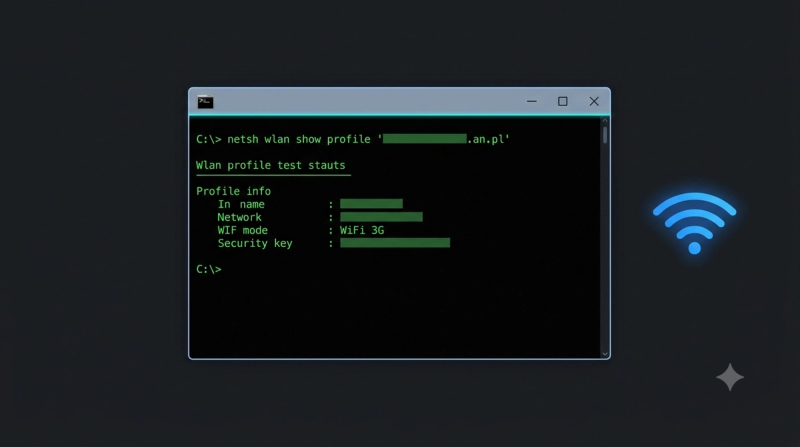
netsh wlan show profile name="Home_WiFi" key=clear
Purpose: Displays full network settings, including the saved password. Expected Output: A detailed list of network settings, with the password shown next to "Key Content" under the "Security settings" section. Risk Level: Low. This only reveals existing data; it does not modify the network.
[Insert Screenshot: Command Prompt output showing Key Content field with WiFi password]
Expected Result
Scroll to the "Security settings" section and look for Key Content. The text next to it is your saved WiFi password.
If Fix Fails
If "Key Content" does not appear, the network may have no saved password (open network), or the profile may be corrupted. Try reconnecting to the network once with the correct password, then repeat this step.
Fix 4: Fix "Element Not Found" Errors
What it means
Sometimes Command Prompt shows an error instead of the network details you expected.
Why it works
This error usually means the network name you typed does not exactly match the saved profile name, often due to a typo or extra space.
How to do it
- Run
netsh wlan show profilesagain and carefully copy the exact network name. - Retype the command using quotation marks around the name:
- Check for extra spaces before or after the name.
Purpose: Corrects mismatched network name errors. Expected Output: The correct network details should now display without an error. Risk Level: Low.
Expected Result
The command runs successfully and shows the "Key Content" field with your password.
If Fix Fails
If the error continues, the profile may be damaged. Forget the network in Settings > Network & Internet > WiFi > Manage known networks, reconnect using the correct password, and try the command again.
Advanced Fixes
- View all passwords at once: Combine both commands into a script using
for /fin a batch file to loop through every saved profile and display all passwords in one go. This is useful when migrating to a new PC. - Export network profiles: Use
netsh wlan export profile key=clear folder=C:\WiFiBackupto save all WiFi profiles, including passwords, as XML files for backup purposes. - Check connection details: Run
netsh wlan show interfacesto see which network you are currently connected to, along with signal strength and connection speed.
Prevention Tips
- Write down new WiFi passwords in a secure password manager when you first set them
- Print or photograph your router's default password sticker before changing it
- Keep an updated note of your WiFi password somewhere safe, like a locked notes app
- Change default router passwords to something memorable but secure
- Share WiFi access using a QR code generated by your router's app instead of relying on memory
Conclusion
Finding a saved WiFi password on Windows does not require any special software. Command Prompt already has everything you need, built directly into your operating system.
Just open Command Prompt as administrator, list your saved networks, and reveal the password using the key=clear command. In under two minutes, you will have the exact password saved on your PC, ready to share or use on a new device.
If this method does not work for your situation, remember it only recovers passwords already saved on your computer. For a completely new or unknown network, you will need to reset the router or contact whoever manages it.
Wi-Fi Keeps Disconnecting on Windows 10/11: Causes and Step-by-Step Fixes
Fix Wi-Fi Connection Issues on Windows 10 and 11: Troubleshooting Guide
How to Fix "Unidentified Network / No Internet Access" Errors in Windows
Frequently Asked Questions
Can I find a WiFi password for a network I have never connected to?
No. This method only works for networks your PC has already connected to and saved a profile for.
Does this method work on Windows 10 and Windows 11?
Yes, the netsh command works the same way on both Windows 10 and Windows 11.
Is it legal to view my own saved WiFi passwords this way?
Yes, this method only reveals passwords already saved on your own device for networks you have legitimately connected to.
What if I do not have administrator access?
You need administrator rights to reveal the password. Ask the PC's administrator to run the command, or log in with an admin account if one is available to you.
Can someone else see my WiFi password using this method?
Only if they have administrator access to your PC. This is why it is important to keep your Windows account password secure.