How to Fix "DNS Server Not Responding" Error on Windows 11/10 Permanently
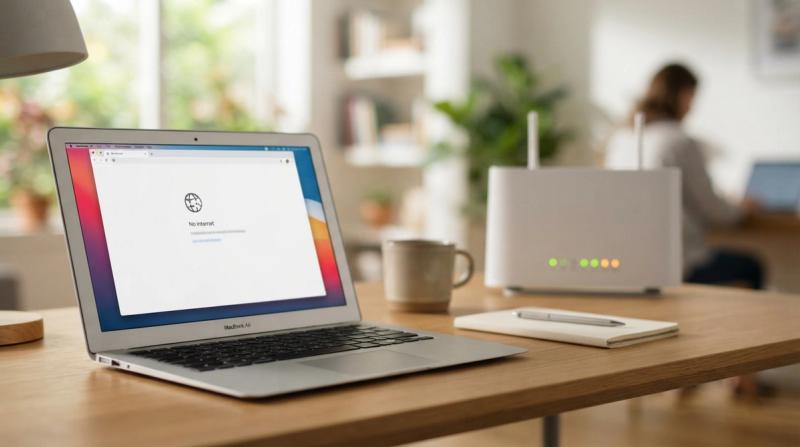
Your Wi-Fi shows as connected, the signal bars look fine, but no website will open. Instead, your browser shows a message like DNS Server Not Responding. It feels confusing because everything looks normal on the surface, yet nothing loads.
This is one of the most common internet problems, and it almost never means your internet connection itself is broken. It means your computer cannot translate website names into the addresses it needs to actually reach them. The connection is there, but the translator is not answering.
In this guide, I will explain what DNS actually does, why it stops responding, and walk you through fixes one at a time, starting with the simplest. By the end, your browsing should be back to normal, without needing to call your internet provider.
Problem Overview
Every time you type a website name like example.com into your browser, your computer needs to convert that name into a numeric address called an IP address, since that is how computers actually find each other online. This translation job is done by a DNS server.
When you see a DNS Server Not Responding error, it means your computer sent out that translation request and got no answer back. Your Wi-Fi or cable connection can be working perfectly fine, but if the DNS server does not respond, no website will load, because your computer does not know where to send the request.
This problem can affect one device or your entire home network, and it can appear suddenly or come and go at random, depending on the root cause.
Symptoms
You are likely dealing with a DNS issue if you notice any of the following:
You see a DNS Server Not Responding error message in your browser
Websites simply refuse to open, even though your Wi-Fi shows as connected
Your browser shows DNS-related errors like ERR_NAME_NOT_RESOLVED or ERR_CONNECTION_TIMED_OUT
Wi-Fi is connected, but no internet access works
Browsing feels slow, or pages take a long time before failing to load
The connection works, then stops, then works again without any clear pattern
Some apps that do not rely on a browser, like games or streaming apps, may still work while websites fail, since some apps use different connection methods
Causes
A DNS Server Not Responding error is a symptom. It is not the actual disease. Below are the real causes behind it, starting from the most common.
Incorrect DNS settings on your computer or router, either set manually by mistake or misconfigured by other software.
An outage on your internet provider's DNS servers, which is outside your control but temporary.
A corrupted DNS cache, which is a local memory of past website addresses that has become outdated or damaged.
Outdated or faulty network drivers, which handle the communication between Windows and your network hardware.
Router issues, such as the router needing a restart, running outdated firmware, or having a temporary internal glitch.
VPN or proxy conflicts, where a VPN app changes your DNS settings and does not release them properly.
Firewall or antivirus interference, where security software blocks DNS traffic by mistake.
Malware infection, which can hijack or redirect DNS settings without your knowledge.
A faulty TCP/IP configuration, which is the underlying system Windows uses to manage all network connections.
Important Topics to Understand
Before jumping into fixes, it helps to understand a few basic ideas.
What DNS is: DNS stands for Domain Name System. It works like a phone book for the internet, converting website names into the numeric addresses computers use to connect.
How DNS works: When you type a website address, your computer asks a DNS server for the matching numeric address, then uses that address to load the site. If the DNS server does not answer, the website cannot load, even if your internet connection is otherwise fine.
IPv4 and IPv6 DNS settings: Windows uses two systems for addressing, called IPv4 and IPv6. Both have their own DNS settings, and sometimes only one of them is misconfigured, which is why some fixes involve checking both.
Step-by-Step Fix Methods
Before starting, try restarting your router and your PC first. Unplug the router, wait about 30 seconds, plug it back in, and restart your computer. This alone solves a large number of DNS issues and takes less than five minutes.
Fix 1: Run the Windows Network Troubleshooter
What it means: A built-in Windows tool that automatically scans for common network problems and fixes many of them on its own.
Why it works: It checks DNS settings, adapter status, and basic connectivity issues in one pass, often catching simple problems instantly.
How to do it: Open Settings, then Network and Internet, then Status, then click Network Troubleshooter. Follow the on-screen steps and apply any fixes it suggests.
Expected Result: The troubleshooter reports the problem found and fixed, and websites start loading normally.
If Fix Fails: Continue to the DNS cache flush below.
Fix 2: Flush the DNS Cache
What it means: Clearing out the old, saved list of website addresses stored on your computer.
Why it works: If this saved list becomes corrupted or outdated, your computer keeps trying to use bad information instead of asking for fresh data.
How to do it: Open Command Prompt as Administrator by searching cmd, right-clicking it, and choosing Run as administrator. Type ipconfig /flushdns and press Enter.
Expected Result: You will see a message saying the DNS Resolver Cache was successfully flushed.
If Fix Fails: Move on to renewing your IP address below.
Fix 3: Renew Your IP Address
What it means: Releasing your computer's current network address and requesting a fresh one from your router.
Why it works: A stuck or expired IP address can interfere with DNS communication, and requesting a new one often resolves the conflict.
How to do it: In the same Command Prompt window, type ipconfig /release, press Enter, wait a few seconds, then type ipconfig /renew and press Enter.
Expected Result: Windows shows a new IP address being assigned, and internet access returns.
If Fix Fails: Continue to resetting Winsock and TCP/IP below.
Fix 4: Reset Winsock and TCP/IP
What it means: Resetting the core Windows components responsible for managing all network connections.
Why it works: These components can become corrupted over time, especially after software conflicts, VPN use, or malware, causing exactly this kind of DNS failure.
How to do it: In Command Prompt as Administrator, type netsh winsock reset and press Enter. Then type netsh int ip reset and press Enter. Restart your computer after both commands finish.
Expected Result: After restarting, your network settings are rebuilt from scratch, and DNS requests work normally again.
If Fix Fails: Move on to changing your DNS server below.
Fix 5: Change Your DNS Server
What it means: Switching from your internet provider's DNS servers to a public, reliable option like Google DNS or Cloudflare DNS.
Why it works: If your internet provider's DNS servers are having an outage or performing poorly, switching to a different, well-maintained DNS service bypasses the problem entirely.
How to do it: Open Settings, then Network and Internet, then click your active connection, then Edit next to DNS server assignment. Choose Manual, turn on IPv4, and enter 8.8.8.8 as the preferred DNS and 8.8.4.4 as the alternate DNS. For Cloudflare instead, use 1.1.1.1 and 1.0.0.1. Save the changes.
Expected Result: Websites begin loading normally once the new DNS servers respond correctly.
If Fix Fails: Continue to restarting the DNS Client service below.
Fix 6: Restart the DNS Client Service
What it means: Restarting the internal Windows service responsible for handling DNS requests.
Why it works: If this background service freezes or crashes silently, DNS requests stop working even though everything else looks normal.
How to do it: Press Windows key + R, type services.msc, and press Enter. Scroll down to find DNS Client, right-click it, and choose Restart. If Restart is greyed out, choose Stop, wait a few seconds, then Start.
Expected Result: The service restarts successfully, and DNS requests begin working again.
If Fix Fails: Continue to disabling VPN or proxy settings below.
Fix 7: Disable VPN or Proxy Temporarily
What it means: Turning off any VPN app or manual proxy settings that might be overriding your DNS configuration.
Why it works: VPN and proxy tools often reroute DNS traffic through their own servers, and if that server is slow or misconfigured, none of your websites will load.
How to do it: Close your VPN app completely, or open Settings, then Network and Internet, then Proxy, and turn off Automatically detect settings and any manual proxy setup.
Expected Result: Websites load normally again once traffic goes through your normal network path.
If Fix Fails: Continue to updating your network drivers below.
Fix 8: Update Network Drivers
What it means: Installing the latest version of the software that lets Windows communicate with your network adapter.
Why it works: An outdated or corrupted network driver can cause exactly this kind of intermittent DNS failure.
How to do it: Right-click the Start button, choose Device Manager, expand Network adapters, right-click your Wi-Fi or Ethernet adapter, and choose Update driver, then Search automatically for drivers.
Expected Result: Windows installs an updated driver, and the connection stabilizes.
If Fix Fails: Visit your adapter manufacturer's official website, download the latest driver manually, and repeat the steps.
Fix 9: Reset Network Settings
What it means: Removing all network adapters and resetting every network-related setting back to its default state.
Why it works: This is a deeper reset than the other fixes and clears out any deep configuration issue that smaller fixes could not solve.
How to do it: Open Settings, then Network and Internet, then Advanced network settings, then Network reset. Click Reset now and confirm. Your PC will restart automatically.
Expected Result: All network settings return to default, Wi-Fi networks need to be reconnected, and DNS issues are typically resolved.
If Fix Fails: If the problem still continues after a full network reset, the issue is very likely coming from your router or your internet provider, not your computer.
Advanced Fixes
Reboot your modem and router together. Unplug both, wait a full 60 seconds, plug the modem in first, wait for it to fully reconnect, then plug in the router. This clears deeper connection issues that a quick restart sometimes misses.
Check your router's DNS settings directly. Log into your router admin panel, usually through a browser address like 192.168.1.1 or 192.168.0.1, and check whether the DNS settings there are also outdated or misconfigured, especially if every device on your network is affected.
Update your router's firmware. Outdated router firmware can cause exactly this kind of DNS failure across every connected device. Check your router manufacturer's website or app for a firmware update option.
Test with a different device. Try loading a website on your phone using the same Wi-Fi network. If it fails there too, the problem is with your router or internet provider, not your specific computer.
Prevention Tips
Restart your router every few weeks, since routers can develop small glitches over time, just like computers.
Keep your network drivers updated regularly, especially after major Windows updates.
Avoid installing unnecessary VPN or proxy tools that you do not actively use, since leftover settings can silently interfere with DNS.
Run a malware scan periodically, since some malware specifically targets DNS settings to redirect your browsing.
Consider setting a reliable public DNS provider, like Google DNS or Cloudflare DNS, as your default, instead of relying only on your internet provider's DNS servers.
Keep your router's firmware updated by checking the manufacturer's app or website every few months.
Warnings
Changing your DNS settings may affect parental controls or content filtering set up through your internet provider or router, so check with whoever manages those settings first.
On enterprise or workplace networks, DNS settings are often managed by an IT department, and changing them yourself can cause more problems than it solves.
Incorrect network settings, if entered wrong, can disconnect your internet entirely, so always double-check the numbers you type in, such as 8.8.8.8 and 8.8.4.4.
Only use trusted, well-known public DNS providers like Google DNS or Cloudflare DNS. Avoid unfamiliar DNS services from unknown sources.
Always restart your computer after making major network changes, since some settings do not fully apply until after a restart.
A DNS Server Not Responding error looks alarming because nothing loads, but it almost always comes down to a simple communication breakdown between your computer and the DNS server, not a broken internet connection. Most cases are fixed within minutes using the steps in this guide.
Start with a simple router and PC restart, then work through flushing the DNS cache, resetting your network settings, or switching to a public DNS provider if your internet provider's servers are the problem. If every fix in this guide still does not help, the issue is very likely with your router hardware or your internet provider, and it may be time to contact them directly.
Windows Blue Screen Error (BSOD): Causes and Step-by-Step Fixes
Fix Windows 11 Installation Error 0x80070005 (Access Denied)
Turn On Windows Security on Windows 10 and 11: Free Protection Guide
Frequently Asked Questions
What does "DNS Server Not Responding" mean?
It means your computer sent a request to translate a website name into a numeric address, but the DNS server did not answer in time. Your internet connection itself may still be working fine.
How do I fix DNS Server Not Responding in Windows 11/10?
Start by restarting your router and PC, then flush the DNS cache, renew your IP address, reset Winsock and TCP/IP, or switch to a public DNS provider like Google DNS or Cloudflare DNS.
Should I use Google DNS or Cloudflare DNS?
Both are reliable, well-maintained public options. Google DNS uses 8.8.8.8 and 8.8.4.4, while Cloudflare DNS uses 1.1.1.1 and 1.0.0.1. Either one is a safe choice if your provider's DNS is failing.
Can a router cause DNS errors?
Yes. A router with a temporary glitch, outdated firmware, or its own DNS misconfiguration can cause DNS errors across every device connected to it.
Will resetting network settings fix DNS problems?
In most cases, yes. A full network reset clears out corrupted configurations that smaller fixes cannot reach, though it does require reconnecting to your Wi-Fi network afterward.