How to Fix Windows Install Error 0x80070002 (Corrupted Files Solution)
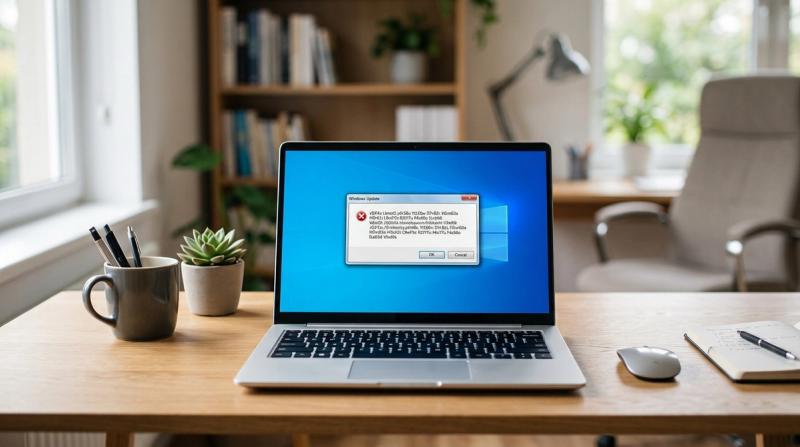
You started installing Windows, or you were waiting for an update to finish, and instead of completing, the process stopped and showed error 0x80070002. The installation rolls back, or the update fails, and you are left right back where you started, sometimes after waiting a long time for it to fail.
This error looks intimidating because of the code, but it almost always comes down to one simple idea: Windows expected to find certain files during installation or update, and it could not find them, or found them damaged. Think of it like trying to follow a recipe where a few ingredients are missing from the pantry. The process cannot continue until those missing pieces are found or replaced.
In this guide, I will explain exactly what this error means, then walk you through fixing it step by step, starting with the simplest checks, the same way I would if I were troubleshooting this next to you.
Problem Overview
Error 0x80070002 appears when Windows, during installation, upgrade, or update, cannot locate or properly read files it needs to continue. This can happen because the source files themselves are damaged, because local system files are corrupted, or because Windows Update's own tracking system has become confused about what has already been installed.
This error can show up in a few different situations: while installing Windows fresh from a USB drive or ISO file, while upgrading from an older version of Windows, or while installing a regular Windows Update. The underlying cause is similar in each case, even though the exact fix can differ slightly depending on which situation you are facing.
The good news is that this error is almost always fixable without needing to replace any hardware, as long as you work through the causes in order.
Symptoms
You are likely dealing with error 0x80070002 if you notice any of the following:
Windows installation stops unexpectedly partway through
You see the specific error code 0x80070002 on screen
An update installation fails and shows this error in Windows Update
Setup rolls back to the previous version after attempting to install
A message mentions missing files during installation or update
The installation appears stuck at a certain percentage for a long time
Repeated installation attempts fail with the same error each time
You see boot errors or instability after a failed installation attempt
Causes
Error 0x80070002 is a symptom. It is not the actual disease. Below are the real causes behind it, starting from the most common.
Corrupted system files on your current Windows installation, which can interfere with the update or installation process.
Damaged Windows Update components, including the local records Windows keeps of what has already been downloaded and installed.
Incomplete installation media, such as a USB drive or ISO file that did not finish downloading or copying correctly.
A faulty USB drive, which can develop errors that corrupt files during the creation of installation media.
A bad or corrupted ISO file, often caused by an interrupted or incomplete download from Microsoft.
Insufficient disk space, since Windows needs enough free space to extract and install files during setup or updates.
SSD or HDD errors, where bad sectors or a failing drive interfere with reading or writing installation files.
An incorrect system date and time, which can cause Windows Update to fail security checks needed to verify update files.
Antivirus interference, where third-party security software mistakenly blocks or quarantines installation files.
A corrupted SoftwareDistribution folder, which is where Windows temporarily stores update files before installing them.
Important Topics to Understand
Before jumping into fixes, it helps to understand a few basic ideas.
What error 0x80070002 means: At its core, this error means Windows could not find or properly read a file it needed. The exact file varies by situation, but the fix generally involves either repairing existing system files or replacing damaged installation source files.
Windows Update versus installation errors: If this error appears during a regular Windows Update, the fix usually involves resetting Windows Update components. If it appears during a fresh installation or upgrade from USB or ISO, the fix usually involves verifying or recreating your installation media instead.
Verifying installation media: A USB drive or ISO file that did not download or copy correctly is one of the most common causes of this error during installation, which is why recreating it with official Microsoft tools is often the most reliable fix.
Step-by-Step Fix Methods
Before starting, back up any important files if your PC is still usable, and note whether this error is happening during a Windows Update or during a fresh installation from USB or ISO, since this affects which fixes to prioritize.
Fix 1: Restart the PC and Check Date and Time
What it means: A simple restart, along with confirming your system clock is accurate.
Why it works: A restart clears temporary glitches, and an incorrect date or time can cause Windows Update to fail its security checks, triggering this exact error.
How to do it: Restart your computer normally. Then open Settings, then Time and Language, then Date and Time, and make sure Set time automatically is turned on, or manually correct the date and time if it is wrong.
Expected Result: The date and time show correctly, and the installation or update can be attempted again.
If Fix Fails: Continue to freeing up disk space below.
Fix 2: Free Up Disk Space
What it means: Making sure your main drive has enough free space for Windows to complete the installation or update.
Why it works: Windows needs a meaningful amount of free space, often 20GB or more for major updates, to extract and install files properly, and insufficient space can cause this exact failure.
How to do it: Open Settings, then System, then Storage, and review what is taking up space. Delete unnecessary files, empty the Recycle Bin, or use Storage Sense to automatically clear temporary files.
Expected Result: Your drive shows a healthy amount of free space, ideally well above the minimum required for the update or installation.
If Fix Fails: Continue to running SFC and DISM below.
Fix 3: Run SFC and DISM Scans
What it means: Using two built-in Windows tools that scan for and repair corrupted or missing system files.
Why it works: Corrupted system files on your current installation are one of the most common causes of this error, especially when it appears during a Windows Update.
Command to type: sfc /scannow
Command to type: DISM /Online /Cleanup-Image /RestoreHealth
How to do it: Open Command Prompt as Administrator, type the first command exactly as shown above, press Enter, and wait for it to finish, which can take 10 to 15 minutes. Then type the second command, press Enter, and wait for it to complete. Restart your computer afterward.
Expected Result: Both scans finish with a message saying no problems were found, or that repairs were made successfully.
If Fix Fails: If SFC reports errors it could not fix, run the DISM command first, then run SFC again. If it still fails, continue to running CHKDSK below.
Fix 4: Run CHKDSK to Check for Disk Errors
What it means: Scanning your drive for damaged sectors or file system errors.
Why it works: A drive with bad sectors can cause files to read incorrectly during installation or update, leading directly to this error.
Command to type: chkdsk C: /f /r
How to do it: Open Command Prompt as Administrator, type the command exactly as shown above, press Enter, then type Y to schedule the check on the next restart, and restart your computer.
Expected Result: CHKDSK repairs any damaged sectors it finds, and the installation or update can be attempted again afterward.
If Fix Fails: If CHKDSK reports significant damage, your drive may be failing. Check its health using CrystalDiskInfo before continuing.
Fix 5: Reset Windows Update Components
What it means: Clearing and resetting the internal system Windows Update uses to track downloads and installations.
Why it works: This directly targets damaged Windows Update components, which are a leading cause of this error when it appears during a regular update rather than a fresh installation.
Commands to type, one at a time: net stop wuauserv, then press Enter. Then type net stop cryptSvc, then press Enter. Then type net stop bits, then press Enter. Then type net stop msiserver, then press Enter.
How to do it: Open Command Prompt as Administrator and type each command above, pressing Enter after each one, to stop the related services before clearing the folders in the next step.
Expected Result: Each command shows a confirmation that the service was stopped successfully.
If Fix Fails: If a service fails to stop, continue to the next step anyway, since the folder rename in Fix 6 may still succeed.
Fix 6: Clear the SoftwareDistribution Folder
What it means: Renaming the folder where Windows Update temporarily stores update files, forcing Windows to rebuild it fresh.
Why it works: A corrupted SoftwareDistribution folder can cause updates to fail repeatedly with the same error, and renaming it forces Windows to start over with a clean folder.
Commands to type, one at a time: ren C:\Windows\SoftwareDistribution SoftwareDistribution.old, then press Enter. Then type ren C:\Windows\System32\catroot2 catroot2.old, then press Enter.
How to do it: In the same Command Prompt window, type each command above exactly as shown, pressing Enter after each one.
Expected Result: Windows creates fresh SoftwareDistribution and catroot2 folders the next time you check for updates.
Command to type: net start wuauserv
How to do it: Restart the services you stopped earlier by typing this command, then repeat the same net start command for cryptSvc, bits, and msiserver individually. Restart your computer afterward.
Expected Result: Windows Update runs normally again, without the previous error appearing.
If Fix Fails: Continue to recreating your installation media below, especially if this error appeared during a fresh installation rather than an update.
Fix 7: Recreate Bootable Installation Media
What it means: Creating a brand new, verified USB installation drive using an official Microsoft tool.
Why it works: An incomplete download or a faulty USB drive is one of the most common causes of this error during a fresh Windows installation, and recreating the media with official tools rules this out.
How to do it: Download the Media Creation Tool directly from Microsoft's official website, and use it to create a new bootable USB drive, or download a fresh Windows ISO file and use a trusted tool like Rufus to create the USB drive from it. Use a different USB drive if possible, in case your original one has developed errors.
Expected Result: The new installation media completes the setup process without triggering error 0x80070002.
If Fix Fails: Continue to disabling antivirus and disconnecting extra USB devices below.
Fix 8: Disable Antivirus and Disconnect Extra USB Devices
What it means: Temporarily turning off third-party antivirus software and removing any unnecessary USB devices before installing or updating.
Why it works: Antivirus software can mistakenly block or quarantine installation files, and extra connected USB devices can sometimes interfere with the boot and installation process.
How to do it: Temporarily disable any third-party antivirus software through its settings, and disconnect all USB devices except the one containing your Windows installation media before starting setup again.
Expected Result: The installation proceeds without interference, and the error no longer appears.
If Fix Fails: If the error still continues after every fix in this guide, the issue may point to failing storage hardware, and a repair or clean reinstall of Windows using freshly verified media may be needed.
Advanced Fixes
Check disk health with CrystalDiskInfo. Download this free tool and check whether your drive shows a Good, Caution, or Bad health status, since a failing drive can cause this error repeatedly no matter what software fixes you try.
Verify your ISO file checksum. Official Windows ISO files from Microsoft include a checksum value you can compare against your downloaded file, confirming it downloaded completely and was not corrupted along the way.
Check BIOS settings related to boot mode. Make sure your BIOS boot mode, such as UEFI or Legacy, matches how your installation media was created, since a mismatch can cause installation failures that sometimes show as this error.
Use Windows Recovery Environment for deeper repair. If Windows is already installed but failing to update, boot into Windows Recovery Environment through Settings, then Recovery, then Advanced Startup, to access additional repair tools, including Startup Repair and System Restore.
Consider a clean reinstall as a last resort. If every fix has been tried and the error continues, a clean installation using freshly created, verified media often resolves deep, hard-to-diagnose corruption that smaller fixes cannot reach.
Prevention Tips
Always download Windows ISO files and the Media Creation Tool directly from Microsoft's official website, never from third-party sources.
Keep at least 20 to 30GB of free disk space available before starting any major Windows update or installation.
Check your system date and time periodically, especially after a battery replacement or long period without internet access.
Run SFC and DISM scans occasionally as routine maintenance, even before problems appear.
Check your drive's health every few months using a free tool like CrystalDiskInfo, especially on older computers.
Avoid interrupting Windows installations or updates once they have started, including avoiding shutting down or unplugging the computer.
Warnings
Always back up important data before repairing or reinstalling Windows, since some deeper repair steps can affect personal files.
Only use official Microsoft ISO files and tools for installation media, since files from unofficial sources may be incomplete, modified, or unsafe.
Avoid interrupting a Windows installation once it has started, since this can leave your system in a broken or unstable state.
Disk errors found during CHKDSK or CrystalDiskInfo scans may indicate failing storage hardware, which software fixes alone cannot permanently solve.
Deleting system partitions during installation can cause permanent data loss, so proceed carefully and only delete partitions you are certain about.
Conclusion
Error 0x80070002 looks intimidating, but it almost always comes down to missing or damaged files, whether in your current Windows installation, your Windows Update records, or your installation media itself. Most cases are fixed within a reasonable amount of time using the steps in this guide.
Start with the simple checks, like your date and time and available disk space, then work through SFC, DISM, and CHKDSK to repair system files. If the error appeared during an update, reset your Windows Update components. If it appeared during a fresh installation, recreate your installation media using official Microsoft tools. If every fix here still does not help, your storage hardware may be failing, and it may be time to check it professionally.
Windows Blue Screen Error (BSOD): Causes and Step-by-Step Fixes
Fix Windows 11 Installation Error 0x80070005 (Access Denied)
How to Fix "The Installation Failed in the Safe_OS Phase" in Windows 11
Windows Cannot Be Installed to This Disk": Fixing GPT and MBR Partition Errors
Frequently Asked Questions
What causes Windows install error 0x80070002?
It is usually caused by corrupted system files, incomplete or damaged installation media, insufficient disk space, an incorrect system date and time, or damaged Windows Update components.
How do I fix error 0x80070002 permanently?
Run SFC and DISM to repair system files, free up disk space, reset Windows Update components, and recreate your installation media using official Microsoft tools if the error happens during a fresh installation.
Can corrupted system files cause this error?
Yes. Corrupted system files are one of the most common causes, especially when this error appears during a regular Windows Update rather than a fresh installation.
Should I recreate my Windows installation USB?
Yes, if this error appears during a fresh installation or upgrade. An incomplete download or a faulty USB drive is a common cause, and recreating the media with an official Microsoft tool often resolves it.
Will SFC and DISM fix error 0x80070002?
In many cases, yes, especially when the error is caused by corrupted system files. If it does not resolve the issue, continue with the remaining fixes in this guide, such as resetting Windows Update components.