Windows Cannot Be Installed to This Disk": Fixing GPT and MBR Partition Errors
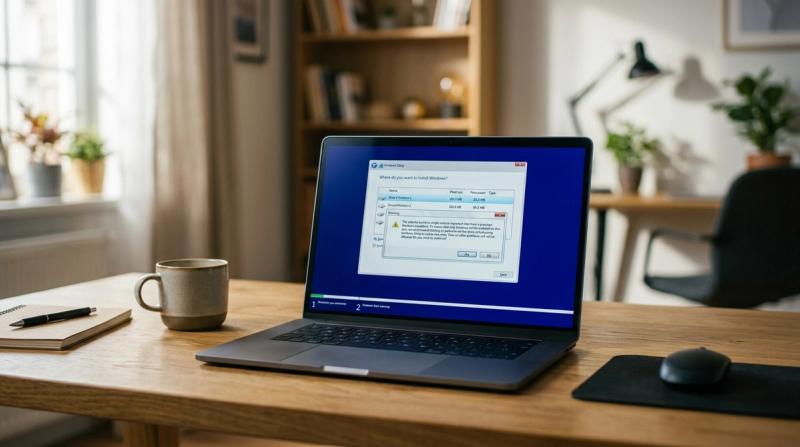
You reached the part of Windows Setup where you choose your drive, selected it, clicked Next, and instead of moving forward, you got blocked. The message says something like "The selected disk has a GPT partition style" or "The selected disk has an MBR partition table," and Windows refuses to install.
This error looks like a hardware problem, but it almost never is. It means two settings on your computer are speaking different languages to each other. Your computer's firmware is set to start up in one mode, either UEFI or Legacy BIOS, while your target drive is formatted in the other style, either GPT or MBR. Windows needs these two things to match before it will install.
In this guide, I will explain exactly what GPT, MBR, UEFI, and Legacy BIOS mean in plain language, then walk you through fixing the mismatch step by step, the same way I would if I were troubleshooting this next to you.
Problem Overview
Every drive Windows installs onto uses one of two partition styles: GPT or MBR. These are two different systems for organizing how a drive's data is structured, and each one works with a specific startup method your computer's firmware uses, called the boot mode.
GPT partition style pairs with UEFI boot mode, which is the modern standard used by virtually all new computers. MBR partition style pairs with Legacy BIOS boot mode, which is the older standard still found on some computers or used in compatibility settings.
When your computer's boot mode does not match your target drive's partition style, Windows Setup detects the mismatch immediately and refuses to install, rather than risk creating an unbootable system. The fix always involves making these two things agree, either by changing the boot mode, converting the disk, or both.
Symptoms
You are likely dealing with a GPT or MBR mismatch if you notice any of the following:
Windows Setup shows the message "Windows cannot be installed to this disk"
You see the specific message "The selected disk has a GPT partition style"
You see the specific message "The selected disk has an MBR partition table"
Setup will not let you proceed past the disk selection screen
The installation is blocked immediately after choosing your target drive, with no other visible error
Causes
A GPT or MBR mismatch is a symptom of a configuration conflict, not a broken drive. Below are the real causes behind it, starting from the most common.
A boot mode mismatch, where your computer's firmware is set to UEFI while your drive is formatted as MBR, or set to Legacy BIOS while your drive is formatted as GPT.
An incorrect partition style left over from a previous operating system installation that does not match what you are now trying to install.
BIOS configuration errors, where boot mode settings were changed at some point, intentionally or accidentally, without updating the drive to match.
An old bootable USB drive created for the wrong mode, since installation media itself can be built for either UEFI or Legacy BIOS booting.
Existing disk partition conflicts, where old partitions from a previous installation prevent Windows from reformatting the drive as needed.
Unsupported firmware settings, particularly on older computers that only support one boot mode and cannot be changed to match a specific partition style.
Important Topics to Understand
Before jumping into fixes, it helps to understand a few basic ideas.
GPT versus MBR: GPT, short for GUID Partition Table, is the modern standard that supports larger drives and more partitions, and is required for Windows 11 in most cases. MBR, short for Master Boot Record, is the older standard, still functional but more limited, generally used only for older systems or specific compatibility needs.
UEFI versus Legacy BIOS: UEFI is the modern firmware standard used by virtually all current computers, offering faster startup and additional security features like Secure Boot. Legacy BIOS is the older firmware standard, still available as a compatibility option on many computers, but it only works with MBR-formatted drives.
How to identify your current boot mode: You can check this in Windows, if it is already installed, by searching for System Information and looking at the BIOS Mode entry, or by checking your BIOS or UEFI settings directly during startup.
How to check your disk's partition style: In Windows, open Disk Management, right-click your drive, and choose Properties, then the Volumes tab, to see whether it is listed as GPT or MBR.
Step-by-Step Fix Methods
Before starting, back up any important files on the target drive if possible, since some of these fixes involve deleting and recreating partitions, which erases existing data on that drive.
Fix 1: Check Your Current BIOS Boot Mode
What it means: Confirming whether your computer's firmware is currently set to UEFI or Legacy BIOS.
Why it works: Knowing your current boot mode tells you which partition style your target drive needs to match, which is the first step before deciding how to proceed.
How to do it: Restart your computer and enter BIOS or UEFI settings, usually by pressing a key like F2, F10, Delete, or Esc during startup, depending on your manufacturer. Look for a section labeled Boot, and check whether it shows UEFI, Legacy, or a Both option that lets you choose.
Expected Result: You now know whether your system is running in UEFI or Legacy BIOS mode.
If Fix Fails: If you cannot find this setting, check your motherboard or laptop manufacturer's documentation for the specific menu name and location on your system.
Fix 2: Recreate Your Bootable USB with the Correct Partition Scheme
What it means: Creating a new installation USB drive specifically formatted to match your boot mode.
Why it works: Installation media itself is built for either UEFI or Legacy BIOS booting, and using the wrong one causes Windows Setup to expect the wrong partition style on your target drive.
How to do it: Download the official Windows ISO file from Microsoft's website, then use Rufus to create your bootable USB. In Rufus, set Partition scheme to GPT if your system uses UEFI, or MBR if your system uses Legacy BIOS. Set Target system to UEFI (non CSM) for GPT, or BIOS (or UEFI-CSM) for MBR.
Expected Result: Your new installation media matches your system's boot mode, and Setup no longer shows the mismatch error immediately.
If Fix Fails: Continue to switching boot mode in BIOS below, if changing the drive itself is not the preferred option.
Fix 3: Switch Between UEFI and Legacy Mode in BIOS, If Appropriate
What it means: Changing your firmware's boot mode setting to match your target drive's current partition style, instead of changing the drive.
Why it works: If your drive already contains data you do not want to lose, or if you specifically need to keep its current partition style, switching your boot mode to match it avoids the need to convert or erase the drive.
How to do it: In BIOS or UEFI settings, under the Boot section, change the mode to match your drive's partition style. If your drive is GPT, switch to UEFI. If your drive is MBR, switch to Legacy or CSM mode. Save your changes and exit.
Expected Result: Your boot mode now matches your drive's partition style, and Windows Setup proceeds without the mismatch error.
If Fix Fails: If your specific hardware does not support the boot mode you need, particularly for Windows 11, which generally requires UEFI, continue to converting the disk itself below.
Fix 4: Use DiskPart to Clean and Prepare the Disk
What it means: Using a built-in Windows tool to completely erase and reset the target drive, so Windows Setup can properly format it in the correct partition style.
Why it works: This removes any conflicting old partitions or leftover data structures that might be preventing Setup from applying the correct partition style automatically.
Commands to type, one at a time, inside Windows Setup: Press Shift + F10 during Windows Setup to open Command Prompt. Then type
then press Enter. Then type
then press Enter, and identify the correct disk number for your target drive. Then type select disk followed by the number, for example select disk 0, then press Enter. Then type clean, then press Enter.
How to do it: Follow the commands above exactly, being extremely careful to select the correct disk number, since this process erases everything on the selected drive. After the clean command finishes, close Command Prompt and return to Windows Setup, then choose the same drive again, now shown as unallocated space.
Expected Result: Setup automatically creates the correct partition style, matching your current boot mode, and allows the installation to proceed.
Fix 5: Use MBR2GPT for Non-Destructive Conversion
What it means: Converting an existing MBR drive to GPT without erasing its data, using a built-in Windows tool designed specifically for this purpose.
Why it works: Unlike DiskPart's clean command, MBR2GPT is designed to convert the partition style while preserving your existing files and installed operating system, when supported by your specific drive layout.
Command to type:
How to do it: This tool is typically run from within an existing Windows installation, or from the Windows Recovery Environment command prompt. Open Command Prompt as Administrator, then type the command exactly as shown above, adjusting the disk number if needed, then press Enter.
Expected Result: The tool converts your drive from MBR to GPT while keeping your existing data intact, after which you can switch your BIOS to UEFI mode.
If Fix Fails: If this tool reports that your disk layout is not eligible for conversion, your only remaining option is a clean installation using Fix 4 above, which does erase existing data.
Fix 6: Enable UEFI and Secure Boot for Windows 11
What it means: Confirming your BIOS settings meet Windows 11's specific requirements, which generally call for UEFI boot mode with Secure Boot enabled.
Why it works: Windows 11 checks for these settings during installation, and having them properly configured avoids not only the GPT and MBR mismatch, but also other compatibility errors during setup.
How to do it: In BIOS or UEFI settings, confirm Boot mode is set to UEFI, then look for a Security or Boot section and confirm Secure Boot is enabled. Save your changes and exit.
Expected Result: Your system meets Windows 11's boot configuration requirements, and installation proceeds without further boot-mode related errors.
If Fix Fails: If your specific hardware does not support UEFI or Secure Boot, it may not officially support Windows 11, and you may need to consider Windows 10 or check for a firmware update from your manufacturer that adds this support.
Fix 7: Retry the Installation After Matching Boot Mode and Partition Style
What it means: Restarting Windows Setup now that your boot mode and disk partition style agree with each other.
Why it works: Once these two settings match, Windows Setup no longer detects a conflict and can proceed normally with formatting and installing to the selected drive.
How to do it: Restart your computer from your installation USB, proceed through Setup as normal, and select your prepared drive when you reach the disk selection screen.
Expected Result: Setup accepts the selected drive without showing the GPT or MBR error, and installation proceeds normally.
If Fix Fails: If the error still appears after matching boot mode and partition style, double-check your installation media was created with the correct Rufus settings in Fix 2, since mismatched media is a common overlooked cause.
Advanced Fixes
Delete all existing partitions during a clean installation. If you are performing a clean install and do not need to preserve any data on the target drive, deleting every existing partition shown in the Windows Setup disk selection screen, then selecting the resulting unallocated space, often lets Setup create the correct partition style automatically without needing DiskPart commands.
Check for a Both or Auto boot mode option. Some newer motherboards offer a boot mode setting that supports both UEFI and Legacy simultaneously, which can sometimes resolve the mismatch without needing to choose one exclusively, though dedicated UEFI or Legacy modes are more reliable for a clean installation.
Verify your installation media on a different USB port or drive. In rare cases, a USB drive itself can cause Setup to misread boot information. Trying a different physical USB port, or creating the media on a completely different USB drive, can rule this out.
Consult your motherboard documentation for older systems. Some older motherboards have specific quirks or limitations around UEFI and GPT support that are documented by the manufacturer, which can save significant troubleshooting time if checked early.
Prevention Tips
Always create Windows installation media with Rufus or the Media Creation Tool set to match your system's actual boot mode before starting an installation.
Check your BIOS boot mode setting before beginning any Windows installation, especially on older or recently modified systems.
Avoid switching BIOS boot modes after Windows is already installed, unless you also properly convert the disk to match, since this can make an existing installation unbootable.
Back up important files regularly, especially before making any partition or boot mode changes.
For Windows 11 specifically, confirm UEFI and Secure Boot are enabled before starting the installation, rather than troubleshooting mismatches after the fact.
Conclusion
"Windows cannot be installed to this disk" looks like a serious hardware problem, but it almost always comes down to a simple mismatch between your boot mode and your drive's partition style, both of which are fully within your control to fix. Understanding the difference between GPT, MBR, UEFI, and Legacy BIOS makes the rest of the troubleshooting process much clearer.
Start by checking your current boot mode and your drive's partition style, then either switch your BIOS setting to match your drive, or prepare your drive to match your BIOS setting using DiskPart or MBR2GPT depending on whether you need to preserve existing data. Once both settings agree, Windows Setup proceeds normally, and your installation completes without this error appearing again.
Windows Blue Screen Error (BSOD): Causes and Step-by-Step Fixes
Fix Windows 11 Installation Error 0x80070005 (Access Denied)
How to Fix Windows Install Error 0x80070002 (Corrupted Files Solution)
How to Fix "The Installation Failed in the Safe_OS Phase" in Windows 11
Frequently Asked Questions
What is the difference between GPT and MBR?
GPT is the modern partition style that supports larger drives, more partitions, and pairs with UEFI boot mode. MBR is the older partition style, more limited in size and partition count, and pairs with Legacy BIOS boot mode.
Why does Windows say it cannot be installed on this disk?
This message appears when your computer's boot mode, either UEFI or Legacy BIOS, does not match your target drive's partition style, either GPT or MBR. Windows blocks installation until these two settings agree.
Should I use GPT or MBR for Windows 11?
Windows 11 generally requires GPT with UEFI boot mode in most installation scenarios, so GPT is the recommended and often required choice for a Windows 11 installation.
Can I convert MBR to GPT without losing data?
In many cases, yes, using the built-in MBR2GPT tool, which is specifically designed to convert the partition style while preserving your existing files, when your disk layout is eligible for this type of conversion.
How do I fix the GPT/MBR partition error during Windows installation?
Match your boot mode and partition style by either switching your BIOS boot mode to match your drive, or using DiskPart to clean and reformat the drive to match your current boot mode, then retry the installation